

Arty Z7 HDMI Output Demo
Under Construction

Description
The Arty Z7 HDMI Out project demonstrates the usage of the HDMI out port on the Arty Z7 board. There are two projects, one for each variant of the board: Arty Z7-10 and Arty Z7-20. The behavior is as follows:
- Frames stream out through the HDMI OUT port.
- A UART interface is available to configure what is output through HDMI.
- There are 3 display frame buffers that the user can choose to display.
Inventory
- Arty Z7 (-10 or -20) with a MicroUSB Programming Cable
- Vivado and Vitis installations compatible with the latest release of this demo (2020.1)
- See Installing Vivado, Vitis, and Digilent Board Files for installation instructions.
- Serial Terminal application to receive messages printed by the demo
- See Installing and Using a Terminal Emulator for more information.
- HDMI-capable Monitor
- 1 HDMI Cable
Download and Usage Instructions
First and foremost, releases - consisting of a set of files for download - are only compatible with a specific version of the Xilinx tools, as specified in the name of the release (referred to as a release tag). In addition, releases are only compatible with the specified variant of the board. For example, a release tagged “20/DMA/2020.1” for the Zybo Z7 is only to be used with the -20 variant of the board and Xilinx tools (Vivado and Vitis) version 2020.1.
The latest release version for this demo is highlighted in green.
Note: Releases for FPGA demos from before 2020.1 used a different git structure, and used a different release tag naming scheme.
| Board Variant | Release Tag | Release Downloads | Setup Instructions |
|---|---|---|---|
| Arty Z7-10 | 10/HDMI-out/2020.1-1 | Release ZIP Downloads | See Using the Latest Release, below |
| Arty Z7-20 | 20/HDMI-out/2020.1-1 | Release ZIP Downloads | See Using the Latest Release, below |
| Arty Z7-10 | 2018.2-1 | Release ZIP Downloads | 2018.2-1 Github README |
| Arty Z7-20 | 2018.2-2 | Release ZIP Downloads | 2018.2-2 Github README |
| Arty Z7-10 | 2016.4-3 | Release ZIP Downloads | Using Digilent Github Demo Projects (Legacy) |
| Arty Z7-20 | 2016.4-4 | Release ZIP Downloads | Using Digilent Github Demo Projects (Legacy) |
Note for Advanced Users: All demos for the Arty Z7 are provided through the Arty-Z7 repository on Github. Further documentation on the structure of this repository can be found on this wiki's Digilent FPGA Demo Git Repositories page.
Instructions on the use of the latest release can be found in this dropdown:
- Using the Latest Release
-
Note: This workflow is common across many Digilent FPGA demos. Screenshots may not match the demo you are working with.
Important: These steps are only to be used with releases for Xilinx tools versions 2020.1 and newer. Older releases may require other flows, as noted in the table of releases.
First, download the '*.xpr.zip' and '*.ide.zip' files from the demo release page, linked above. The XPR archive contains the Vivado project used to build the hardware platform for this demo. The project can be opened, modified, and used to update the hardware platform later if so desired, but this is optional. The IDE archive contains a set of projects to be imported into a Vitis workspace.
Note: Unlike with Vivado XPR archives, do NOT extract the Vitis project archive ('*.ide.xip'). Vitis imports sources from the archive file directly.
- Import Vitis Projects from a Release
-
Select the dropdown corresponding to your operating system, below.
- Windows
-
Open Vitis through the start menu or desktop shortcut created during the installation process.

- Linux
-
Open a terminal and run the following commands. The install path is /opt/Xilinx by default.
source <install_path>/Vitis/2020.1/settings64.sh
vitis
Note: Regardless of OS, if Vivado is open, Vitis can also be launched through the Tools → Launch Vitis toolbar option.
Upon launching Vitis, a dialog will appear where a workspace must be chosen. The workspace is the directory where all of the projects and files for the application being developed will live. If a folder that does not currently exist is chosen, it will be created. Choose a workspace and click Launch to finish launching Vitis.

With Vitis open, click the Import Project button to import projects from a Vitis project exported zip file, then navigate to and select the IDE zip file you downloaded.

Make sure each project in the archive is checked, then click Finish to import them into your workspace.

- Build a Vitis Application
-
Once an application project has been set up and includes all necessary sources, it should be built. To build the project and all of its dependencies, select the system project in the Assistant pane, and either click the Build button (
 ), or press Ctrl-B on your keyboard.
Note: There are three types of build targets in the Assistant pane, Platforms, Systems, and Applications. Building the application will not trigger any other applications in the system to be built, but will build the wrapper as a dependency. Building the platform will only build the platform, as it has no dependencies. Building the system causes each application in the system, as well as the platform, to be built.
This process may take several minutes to complete. When done, the Console tab at the bottom of the window will display a “Build Finished” message.

- Set up the Arty Z7
-
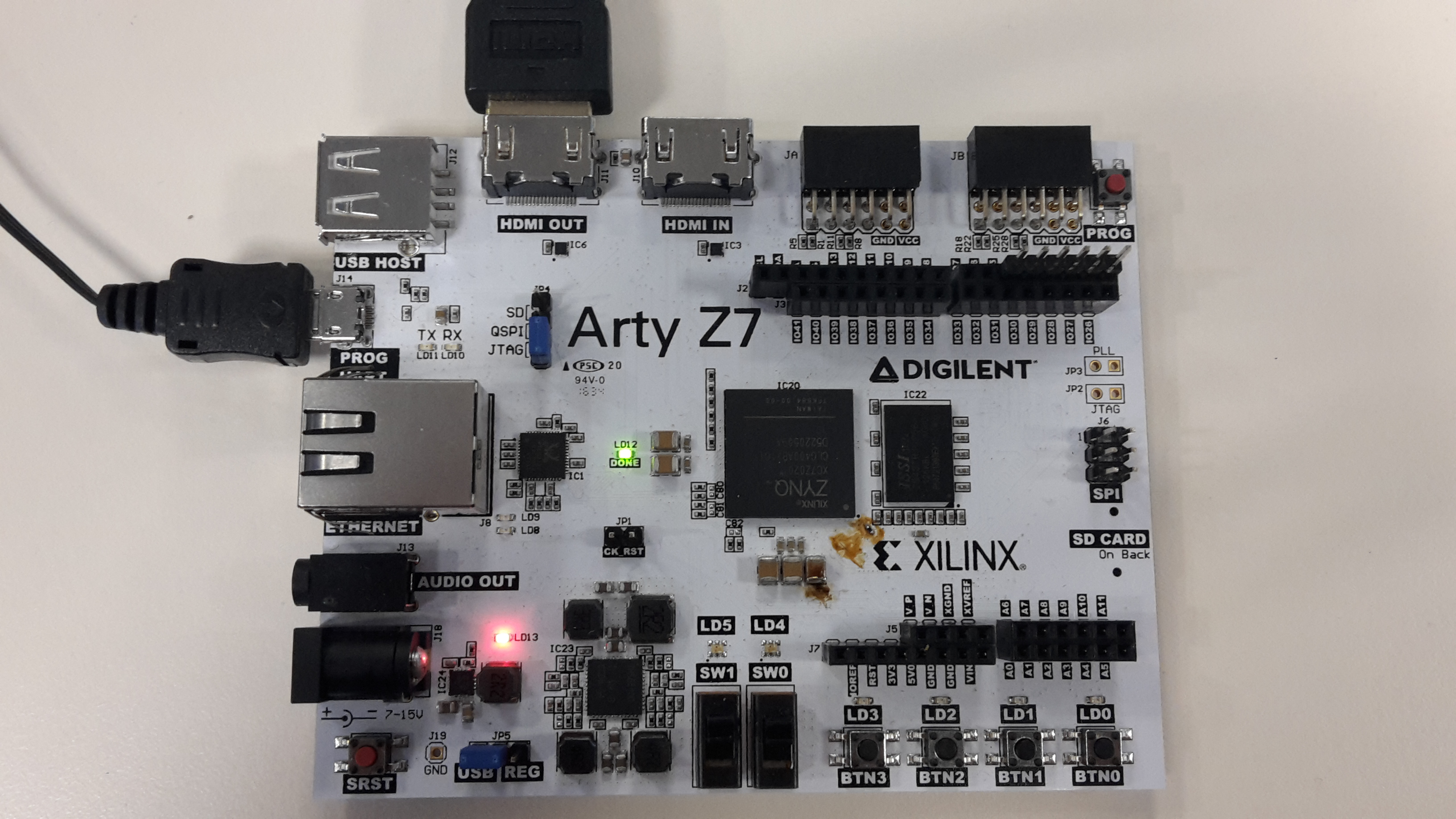
Plug the Arty Z7 into the computer via the microUSB programming cable.
Plug one end of the HDMI cable into a video monitor and the other into the Arty Z7 HDMI out port.
- Launch a Vitis Application
-
First, many applications require that a serial console is connected to the board, so that standard output (from print statements) can be viewed. For this purpose, a serial terminal should be used. Use a serial terminal application to connect to the board's serial port. Unless otherwise stated, Zynq designs use a baud rate of 115200 and Microblaze designs with an AXI UART Lite IP use a baud rate of 9600.
Note: While Vitis has a built in serial terminal included in its Debug view, it sends characters to a board on a line-by-line basis. Some software examples require the use of character-by-character reception of data. Tera Term or PuTTY are recommended if you are not sure what will work.

In the Explorer pane at the left side of the screen, right click on the application or system project that is to be run, and select Run as → 1 Launch on Hardware (Single Application Debug). The FPGA will be programmed with the bitstream, the ELF file created by the software build is loaded into system memory, and the application project will begin to run. You will need to click back over to the Vitis Serial Terminal from the Console tab.
Note: Once the project has been run at least once, you can use the green run button (
 ) in the toolbar at the top of the screen to program the board instead.

At this point, the demo is now running on your board. Refer to the Description section of this document for more information on what it does. The HDMI Display Options section, below, presents each of the commands that can be sent over serial to the application in order to configure it or have it perform some operation.
Additional steps beyond here present how you can use the other archive provided in the release, containing the hardware project, to rebuild the Vivado project, and use a newly exported XSA file to update the platform in Vitis.
In order to modify and switch out the hardware platform for a baremetal demo, you should first open the Vivado project from the release. Extract the previously downloaded '*.xpr.zip' file.
- Open a Block Design Project in Vivado
-
Launch Vivado
Select the dropdown corresponding to your operating system, below.
- Windows
-
Open Vivado through the start menu or desktop shortcut created during the installation process.

- Linux
-
Open a terminal, and change directory (cd) to a folder where log files for your Vivado session can be placed, then run the following commands:
source <install_path>/Vivado/<version>/settings64.sh
vivado

In Vivado's welcome screen, use the Open Project button to navigate to and open the XPR file contained in the folder the release was extracted into.

The project's block diagram, which contains the design, with all of the existing components and their connections, can be opened by either double-clicking on the “*.bd” file in the sources pane (which also includes other source files, such as constraints), or by clicking the Open Block Design button in the Flow Navigator pane.

Making changes to the design is out of the scope of this particular document. More information on how to use IP Integrator to create or modify a project can be found through Getting Started with Vivado and Vitis for Baremetal Software Projects. The remainder of this document will discuss how to generate a bitstream, export a new hardware platform, and load it into Vitis.
Before the Vivado project can be built, the block design must be validated. This step runs an automatic check of the block design to see if there are any potential issues with it. Click the Validate Design button (
 ) in the Diagram pane's toolbar (or press the F6 key).
If the design has issues, a dialog will pop up that lists them. It should be noted that most Warnings can be ignored, as can some Critical Warnings. These issues can also be viewed in the Messages tab of the pane at the bottom of the window.
If there are no issues, a dialog will pop up that will tell you so. Click OK to continue.
Note: Some Zynq boards may produce critical warnings at this stage relating to PCW_UIPARAM_DDR_DQS_TO_CLK_DELAY parameters. These warnings are ignorable and will not affect the functionality of the project. See the Hardware Errata section of your board's reference manual for more information.

- Build a Vivado Project
-
At this point, the Vivado Project is ready to be built, by running it through Synthesis and Implementation, and finally generating a bitstream. Click the Generate Bitstream button in the Program and Debug section of the Flow Navigator pane at the left side of the window.

A dialog will pop up with several options for how Synthesis and Implementation should be run. Most should be left as defaults. Of particular importance is the Number of jobs dropdown, which is used to specify how much of the resources of your computer should be dedicated to the build. A larger number of jobs will dedicate more resources, which will allow the build to be completed faster. It is recommended to choose the highest available number.
Note: Critical warnings about how IPs included within another IP were packaged with a different board value can be safely ignored. The same is true for warnings related to negative CK-to-DQS delays seen on some Zynq boards.
Depending on the complexity of the design, the board used, and the strength of your computer, the process of building the project can take between 5 and 60 minutes.

When complete, a dialog will pop up that presents several options for what to do next:
- Open Implemented Design can be used to view the actual hardware design that has been implemented and will be placed onto the chip.
- View Reports can be used to view additional information about the design, including how much of the resources of the FPGA will be used by the design.
- Open Hardware Manager can be used to go directly to Vivado's Hardware Manager, which can be used to program a hardware design onto a board. This is typically used for designs that do not involve a software component.
- Generate Memory Configuration File can be used to create a file for programming an FPGA-only design into flash memory.
If none of these options are desired, click Cancel to continue.

- Export a Hardware Platform
-
Once the project has been built, the design must be exported from Vivado so that Vitis has access to information about the hardware that a software application is being developed for. This includes the set of IP connected to the processor, their drivers, their addresses, and more. Exporting hardware after the bitstream has been generated allows you to program your board directly from within Vitis.
To export the hardware design, click Export → Export Hardware in the File menu.

The wizard that pops up guides you through the options available for hardware export. The first screen allows you to select a Fixed or Expandable platform. In this case, choose a Fixed platform and click Next to continue.

The Output screen allows you to select whether only the hardware specification (Pre-synthesis) should be exported, or whether the bitstream should be included. Since the bitstream has already been generated, it should be included in the platform so that Vitis can automatically figure out where it is when programming a board. Select Include bitstream and click Next to continue.

The Files screen gives you the option to choose a name for the Xilinx Shell Architecture (XSA) file, and provide a path to a folder that the file will be placed within. Give your XSA file a name, and choose a memorable location to place it in. This file will later be imported into Vitis, so take a note of where it is placed and what it is called.
Important: Do not use spaces in the file name or export path. Underscores or camelCase are recommended instead.
Click Next to continue.

The final screen of the wizard summarizes the options you selected. Click Finish.

- Update a Hardware Platform in Vitis
-
If a hardware design is changed after having created a Vitis application project, several steps must be taken in order to update the Vitis workspace with a newly exported XSA file. The XSA file contains all of the information relevant to Vitis about the hardware platform, and changing a platform project's specification based on this file will automatically load in any changes. This includes adding new drivers for new IP that have been installed and changing the files that define the addresses and other details of any installed IP that may have been renamed or had their addresses changed.
These steps assume that you have already regenerated the bitstream and reexported hardware in the same way that would be done prior to creating a new Vitis workspace.
Within Vitis' Assistant pane, find the platform project that you wish to update with the new hardware. This project will typically have a name that ends with “_wrapper”, and is marked with the text “[Platform]”.
Right click on this project and select Update Hardware Specification.

In the dialog that pops up, click Browse, and navigate to the location of the XSA file that you want the platform to target. Click Open to select this file.

Double check that the Hardware Specification File path matches that of the XSA file you want to use, then click OK to start the automatic process of updating the platform.
When complete, a dialog will pop up to state that the platform project has been updated. Click OK to acknowledge this.

At this point, changes to the hardware specification have been loaded into the hardware platform. The bitstream will have been updated, if it was loaded into the XSA file. The set of drivers and the xparameters file will have changed to match what is in the modified design. Changes to the software application may be required before the application can be built and programmed onto the board, however, detailing what may need to be done is outside of the scope of this guide.


HDMI Display Options
1. Change Display Resolution
Changes the resolution used for HDMI Output.
2. Change Display Framebuffer Index
Changes the VDMA framebuffer used for the video output. Each framebuffer represents a different block of DDR memory which can be modified by the processor and read by the VDMA to repeatedly stream the frame out through the HDMI OUT port.
3/4. Print Test Pattern to Display Framebuffer
Stores one of two test test patterns (blended colors or vertical color bars) into the output buffer, to be displayed immediately. Note that if video input is streaming into the same buffer, the test pattern may be immediately overwritten.
Also to note, if the resolution of the video output is later changed, the video data is cropped or padded to fit the screen. This cropping and padding does not affect the actual stored memory, as it is a result of how the VDMA indexes the framebuffer's region of DDR memory. Storing a new test pattern does not affect the memory in the framebuffer outside of the current display area - including areas that would not be displayed with the current output resolution.


5/6. Invert Current Frame Colors
Iterates through each pixel in the current framebuffer, and inverts the colors. When choosing option 6 instead of 5, the current framebuffer is copied to another framebuffer while doing the inversion, switching to the second buffer after the operation is complete. In this case, the original framebuffer is not modified, and the entire display updates only once the entire operation has been completed.
Additional Resources
All materials related to the use of the Arty Z7 can be found on its Resource Center.
For a walkthrough of the process of creating a simple baremetal software project in Vivado and Vitis, see Getting Started with Vivado and Vitis for Baremetal Software Projects. Information on important parts of the GUIs, and indirect discussion of the steps required to modify, rebuild, and run this demo in hardware can also be found here.
For technical support, please visit the FPGA section of the Digilent Forum.
{{tag>project arty-z7}}