

This is an old revision of the document!
Analog Discovery Pro (ADP5250) Getting Started Guide (UNDER CONSTRUCTION)

Overview
This guide will get you started with your new Analog Discovery Pro (ADP5250), from getting it out of the box to taking your first measurement.
Inventory
- Your new Analog Discovery Pro (ADP5250)
- 40 pin (34 signal) connector for Mixed Signal Oscilloscope Connections
- 14 pin (8 channel) Digital Inputs and Outputs (PN 163-667)
- 6 pin connector for Power Supply Connections (PN 163-668)
- USB A to B cable
- North American Power Supply Cable
- International Power Adapter (PN 300-008)
- International Power Adapter (PN 300-009)
- A computer and the WaveForms application installer (version 3.16.32 or later)
- Installer for Windows can be found here: WaveForms installers.
Guide
1. Unboxing
- Unboxing
-
The Analog Discovery Pro arrives in a large box.

The Analog Discovery Pro can be seen in the foam.

Underneath the Analog Discovery Pro is another box containing the accessories.

Several inserts with some getting started instructions are also included. Here you can see everything!


2. Download and Install WaveForms
Digilent's WaveForms application provides a user interface to the Analog Discovery Pro (ADP5250). Please download the WaveForms Windows installer. If WaveForms is already installed, please make sure that it is up to date (version 3.16.32 or later).
Check the Inventory section, above, for the download link.
Installing WaveForms on Windows
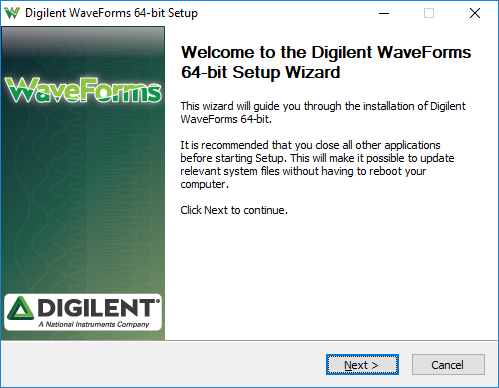
Welcome
First launch the WaveForms installer, by clicking on it in the Downloads folder. Upon launching the WaveForms installer, the welcome page will be seen. Click Next.
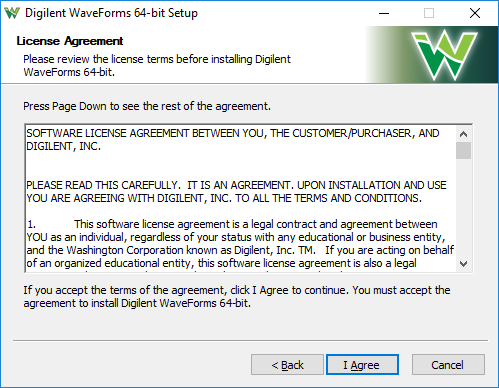
License Agreement
Read the license agreement on this screen, then, if in agreement to it, click I Agree to continue.
Choose Components
In the “Choose Components” screen, a list is presented of each of the things that can be installed. In order to use the Analog Discovery Pro with the WaveForms application, the Adept Runtime, WaveForms Runtime, and WaveForms Application are required.
- The Adept Runtime allows WaveForms to communicate with the Analog Discovery 2, Analog Discovery, Analog Discovery Studio, Analog Discovery Pro (ADP3450/ADP3250), Digital Discovery, and Electronics Explorer Board.
- The WaveForms Runtime contains a library and device support files needed to run custom applications.
- The WaveForms Application is the Digilent virtual instrumentation interface.
- The Waveforms SDK is the software development kit for creating custom applications.
Note: Even with all components selected, the WaveForms install does not take much hard drive space (<200MB). Digilent recommends that all components are installed.

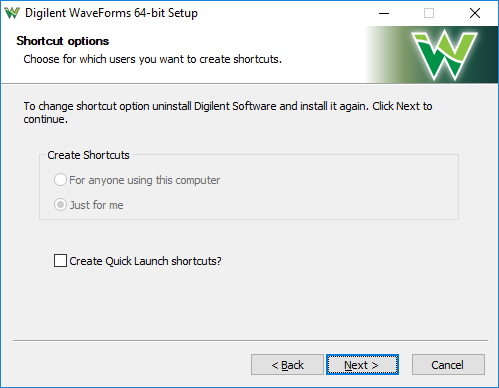
Shortcut Options
Click Next.
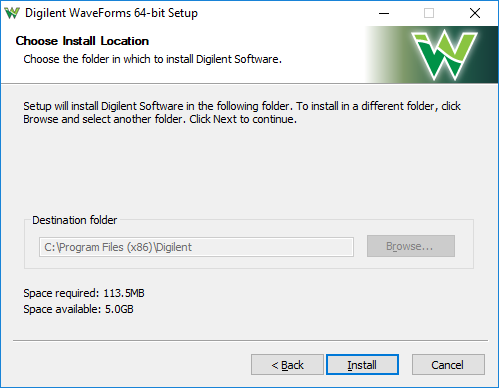
Choose Install Location
Click Install.
Installing / Installation Complete
Wait for the Installation to complete, then click Next.
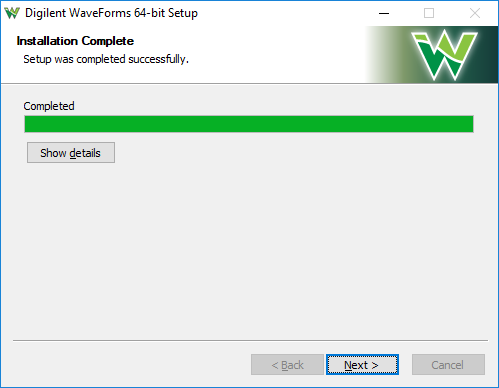
Complete
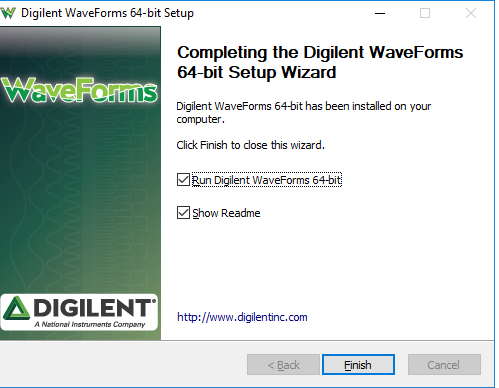
Click Finish to close the installer.
3. Take a Measurement

This section walks through using the Analog Discovery Pro (ADP5250) for the first time. An analog output pin is connected to an analog input pin, and a waveform is generated and captured via this simple loopback circuit.
- Take a Measurement
-
1.
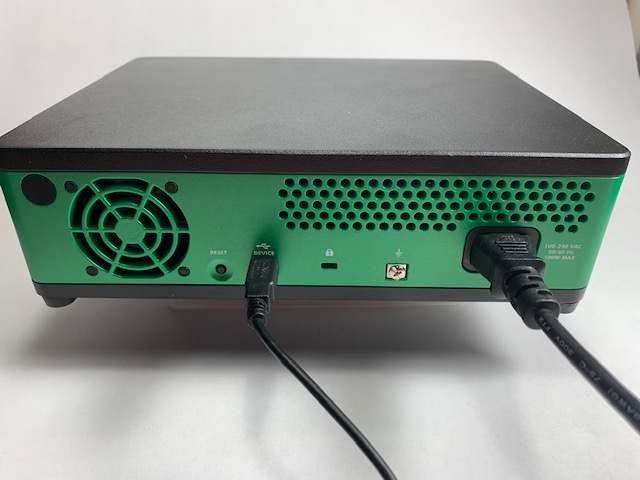
If you haven't yet, plug the Analog Discovery Pro’s power supply into an outlet, then plug the power supply into the Analog Discovery Pro.
2.
Plug the Analog Discovery Pro into the computer via the USB cable.
3.
Press the power button on the top left of the front of the unit and wait for the Analog Discovery Pro to turn on.
4.
Take a BNC oscilloscope probe and connect it to the BNC connector labeled AWG (Arbitrary Waveform Generator) Analog Discovery Set the scope probe's attenuation to 1x.

5.
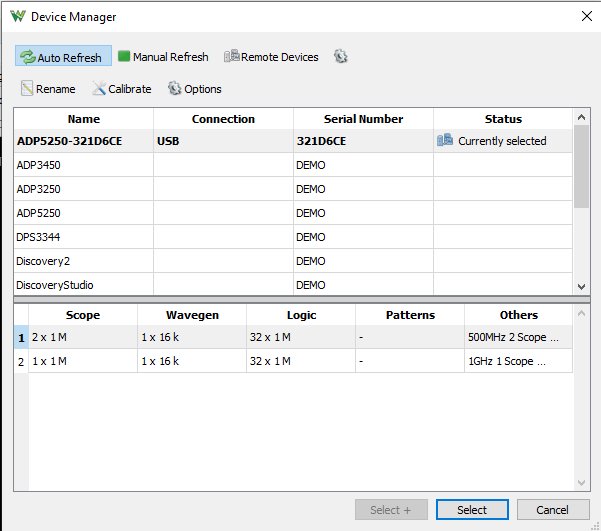
Launch the WaveForms application. Upon launch, WaveForms will automatically detect and connect to the Analog Discovery Pro in the Device Manager. If the Analog Discovery Pro is not connected to the host computer when WaveForms launches, plug in the device and turn it on, at which point it will appear in the Device Manager’s device list.
If your device doesn't show up, you can click the Refresh Stopped button to have WaveForms begin automatically refreshing the list of devices.
If an Update Device button is visible after selecting the device, update the firmware prior to doing anything else. After updating the firmware, select the Device and then click Select to continue.
6.
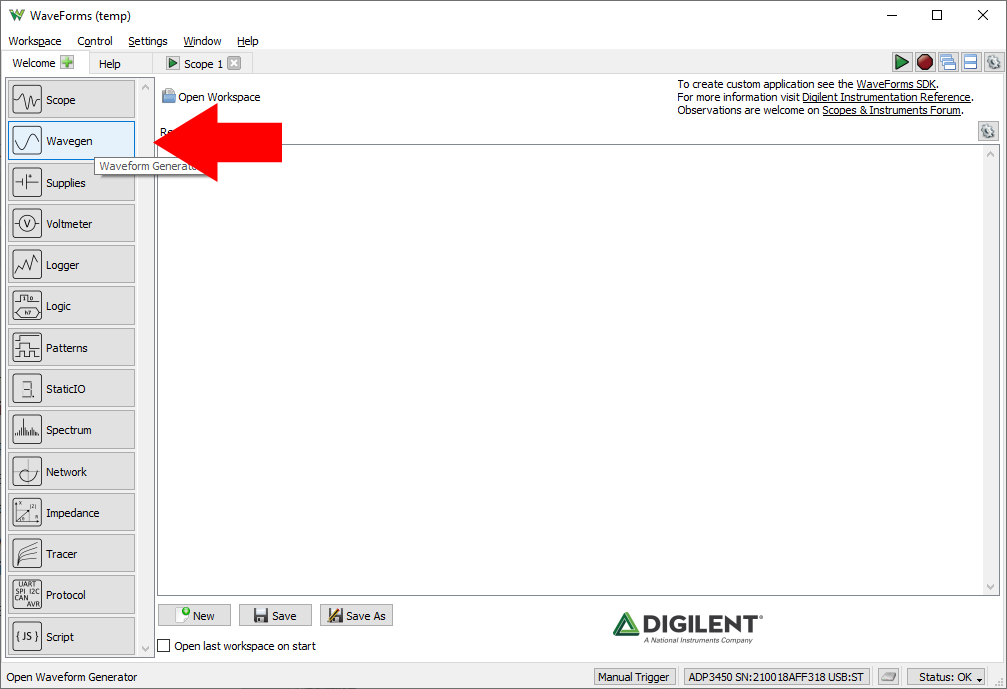
In WaveForms, open the Wavegen instrument by clicking on the Wavegen button in the instrument panel on the left side of the screen.
7.
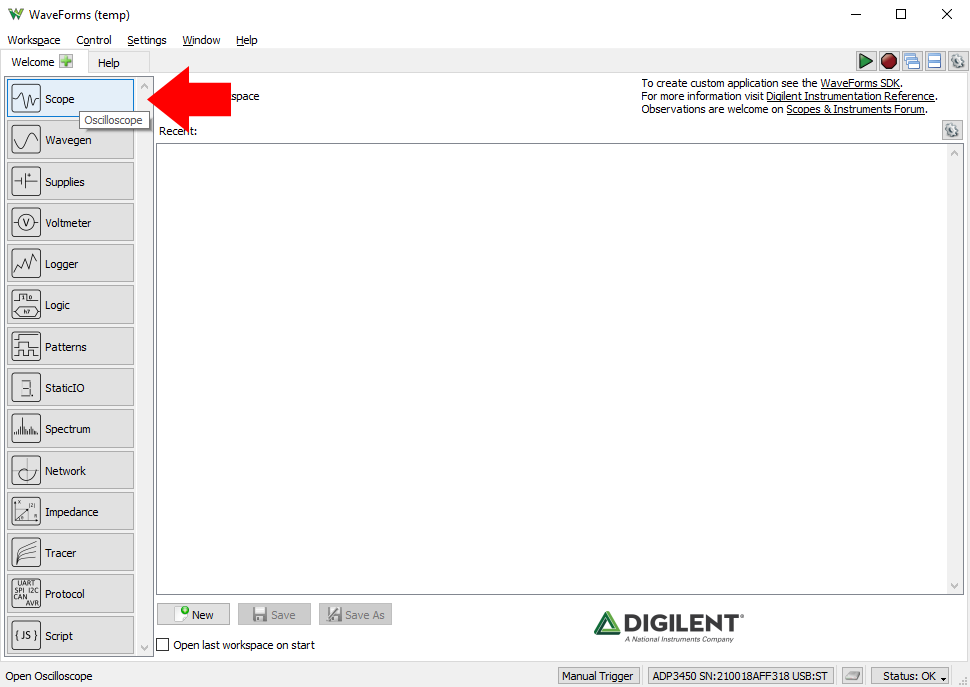
Leave all settings as defaults, and then go back to WaveForms' Welcome tab and click on the Scope button to open the Scope instrument. You will hear a small click from the Analog Discovery Pro when the oscilloscope is enabled.
8.
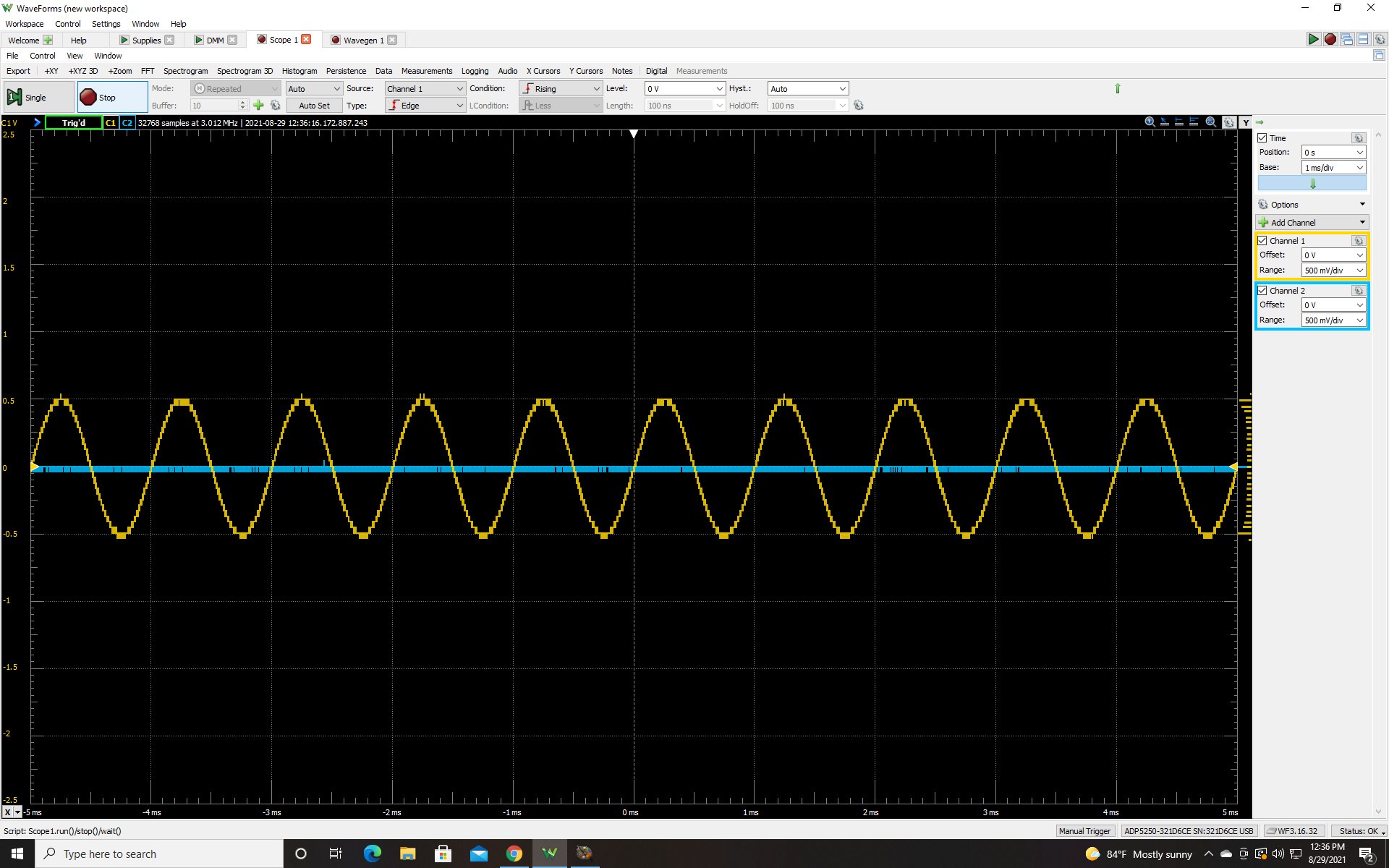
Click the green play arrow in the top right of WaveForms to run all Instruments and begin capturing data.

9.
You have now taken your first measurement!


Other Resources
To find reference materials and guides on how to use the Analog Discovery Pro and WaveForms, please visit the Analog Discovery Pro (ADP5250) Resource Center.
For technical support, please visit the Test and Measurement section of the Digilent Forum.