

This is an old revision of the document!
Building a MIDI Controller with Analog Discovery Pro (ADP3450/3250)
This page is under construction.
A Musical Instrument Digital Interface (MIDI) controller is a key element in electronic music production. Such devices, both hardware and software, can be quite expensive, but with a bit of work, the Analog Discovery Pro can be set up as a highly customizable MIDI controller, with wireless connection capability. This guide presents, how to configure your Test & Measurement device and your computer to be able to send and receive MIDI commands over Ethernet or Wi-Fi.
Prerequisites
Hardware
- Arty S7, or other FPGA development board
- hardware user interface elements (buttons, switches, sliders, etc.)
- passive electronic components
- other…
Software
- On PC:
- BandLab, Serato Studio, or any other DAW of your choice
- Tera Term, or any other terminal emulator of your choice
- Visual Studio Code, or any other editor of your choice
- Multisim Desktop Education version 14.2, or higher
- Vivado version 2021.1, or above
- Adept - optional
- WinSCP - optional
- On Analog Discovery Pro:
- RaveloxMIDI - installation instructions can be found below
- Python 3 - preinstalled
- WaveForms SDK - preinstalled
Introduction
What is MIDI? What is RTP-MIDI? What is a DAW?
Musical Instrument Digital Interface (MIDI) is a technical standard which is used in electronic music production. MIDI controllers are not instruments, they do not produce sounds, but a send a specific set of commands to other devices, or software, like a Digital Audio Workstation (DAW). These commands contain all the information necessary to produce the desired sound, or to apply the desired effect. The most important advantage of a MIDI controller is, that with the same commands, the user can control any instrument of their choice (for example you can “play” a clarinet or a guitar with keypresses).
Connecting a MIDI controller to a DAW usually requires specific connectors. Most laptops do not have such a MIDI connector, nor has the Analog Discovery Pro. While building such connectors is possible, it is simpler to send the MIDI commands over Ethernet or Wi-Fi, using a protocol called Real-time Transfer Protocol - MIDI (RTP-MIDI). RTP-MIDI uses the RTP network protocol to send the commands in real-time to a receiver.
After the MIDI commands are received, they should be “converted” into sound. This conversion is usually done with a Digital Audio Workstation (DAW). A DAW is a hardware or software device which is controlled by MIDI commands and produces audio. In this project the BandLab online DAW will be used, as it is free, and doesn't have to be downloaded.
Signal Transmission and Reception
Setting Up the DAW
To connect to your DAW without a physical MIDI connector, you will need a network MIDI driver. Such a driver is included in the rtpMIDI by Tobias Erichsen. Download, install, and start the program, then rename and enable your first session.

Let the rtpMIDI run in the background and open the DAW. Open the DAW's settings, then find the MIDI settings, or MIDI devices and select the previously created rtpMIDI session as an input device.
Add a new track (or more) to your project and select the desired instrument or effect to control.
Before playing the selected instrument, you must set up your MIDI controller.

Setting Up the Analog Discovery Pro as a MIDI Controller
To successfully run this example, you will need the latest Linux version for your device. To update the ADP3450/ADP3250 Linux image, follow this guide: How to Update or Recover Linux Mode on the Analog Discovery Pro (ADP3450/ADP3250).
The first step is to connect your device to the internet. If you already have internet enabled for Linux mode, just connect the Ethernet cable and skip this step.
- Connect the Analog Discovery Pro (ADP3450/ADP3250) to the Internet
-
The first step is to connect a serial terminal to your device, which will be used later when logging into Linux mode. Make sure that the Analog Discovery Pro is connected to the host computer and powered on.
Find out which serial port the device is connected to and make note of it. For example, if you are running Windows, this will be a COM port listed in the Device Manager.
Note that the serial connection should be established before booting into Linux mode, to ensure that no boot messages are missed.

Open a terminal emulator, such as TeraTerm, and connect to the noted serial port using 115200 Baud, 8 data, 1 stop, and no parity bits.
Note that if the Analog Discovery Pro is connected to immediately after booting, it may take approximately 20 seconds for the login prompt to be presented. If the screen is blank upon successful connection, press Enter on the keyboard and the login prompt should now be displayed.


Open WaveForms. The application will be used to configure the network settings of the device.
If the Device Manager hasn't opened, then select Settings → Device Manager. Make sure your device appears and is selected in the list of devices, boot into Linux Mode if you have not done so already, then click the Network button to open the Network Settings window.

Make sure to check the Apply these settings on Linux boot box.
It is important to note that you can later change these settings from within Linux itself, however, the settings seen here in the Network settings screen will be applied each time the device is rebooted.


To most easily connect to the internet, you should be connected to an access point that provides DHCP, typically a router. Check each of the “obtain automatically” boxes in order to take advantage of this.


Click Apply and Reboot in order to save the changed settings to the device and to reboot it.

You can observe the boot process with the previously-connected serial terminal. When it completes, a login prompt will be seen.
Log into the device. By default, the username and password are both “digilent”.
Note that upon login, a “urandom warning” may be printed to the terminal, and can safely be ignored.

Check out the dropdowns below for instructions on setting up an internet connection through the corresponding interfaces:
- Ethernet
-
Plug one end of the ethernet cable into the back of the Analog Discovery Pro and the other end into the router.

Run the
ip addr show dev eth0command, which will print the network information of the ethernet interface. If successfully connected to the local network it should be assigned an IP address, Gateway, etc.
- WiFi
-
Enter superuser mode by running the command
sudo su, entering the user's password when asked. On success, the active user should change to 'root'.
Plug the USB WiFi dongle into the bottom left USB port.

In the terminal, run
ip lto get a list of network interfaces. In this case, the WiFi interface is `wlx00c0caad6c4b`, the final network interface in the screenshot to the right. Notice that the MAC address is included in the name. Yours will differ.
Create the WIF, WSSID, and WPWD environment variables to be used in the following commands. The WIF is the WiFi interface you found in the last step, while the WSSID and WPWD are the name and password of your WiFi network. This can be done as follows:
WIF=your-interface
WSSID=your-ssid-here
WPWD=your-password-here
Note: If the SSID or WPWD has '!' as a special character, history substitution must first be disabled by running
set +H, and can be re-enabled by runningset -Hafter completing this setup.
For a connection that will persist after a system reboot, run the following:
wpa_passphrase "$WSSID" "$WPWD" > /etc/wpa_supplicant/wpa_supplicant-${WIF}.conf
systemctl enable wpa_supplicant@${WIF}.service
systemctl start wpa_supplicant@${WIF}.service
Note that it may take some time for a WiFi connection to be established when rebooting the device, potentially several minutes.

For a connection that will only exist until a reboot, run the following:
wpa_supplicant -B -i $WIF -c <(wpa_passphrase "$WSSID" "$WPWD")
Note that it may take some time for a WiFi connection to be established when rebooting the device, potentially several minutes.


Now boot into Linux mode. If your device already is in Linux mode, just skip this step.
- Booting into Linux Mode
-
Mode selection can be done through WaveForms using the Device Manager. With the Analog Discovery Pro connected to the host computer by Ethernet, open WaveForms. If the Device Manager hasn't opened yet, then click Settings → Device Manager.

Select the Analog Discovery Pro from the device menu, then click the Boot button. The Boot Mode window should open. By default, Standard Mode which allows the user to communicate with the instrumentation device over USB or Ethernet will be selected.
To change to Linux Mode, select Linux, then click “Apply & Reboot”.

At this time, an audible click should be heard and the Analog Discovery Pro will disconnect from WaveForms. About 10-15 seconds should pass before it reconnects. Confirm that the second column next to the Analog Discovery Pro says “ETH:LX”, confirming the mode has successfully been switched.


Connect to the device with a terminal emulator through the internet.
- Connect to the ADP3450
-
To command the ADP3450/ADP3250, you will have to connect to it through a terminal. To do so, you will need a terminal emulator program, like Tera Term, PuTTY for Windows, or Serial WiFi Terminal for Android (the Analog Discovery Pro can now be controlled from any device connected to the internet).
Tera Term will be used in this guide, but the steps are similar for each of the mentioned programs.
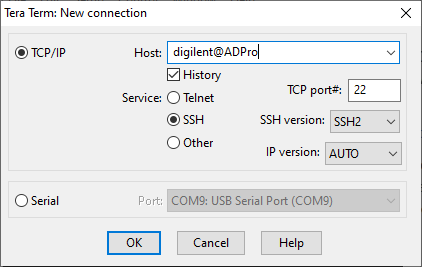
Open the terminal emulator and establish a new Secure Shell (SSH) connection to the Analog Discovery Pro's address: digilent@ADPro. You can leave every other setting as default. When required, enter the user name and the password:
user name: digilent password: digilent You should have now a connected terminal.

First, install the necessary packages by entering the following command into the terminal:
sudo apt-get install autoconf build-essential libavahi-client-dev libavahi-core-dev libasound2-dev git avahi-daemon -y
When required, enter the sudo password:
| sudo password: | digilent |
|---|
Select the location where you want to work with the “cd” command, then clone the RaveloxMIDI GitHub repository:
git clone https://github.com/ravelox/pimidi.git
Open the cloned directory:
cd pimidi
cd raveloxmidi
Install RaveloxMIDI with:
sh ./autogen.sh
./configure
make
sudo make install

Designing and Building the User Interface
Control Signals
The hardware user interface of the MIDI controller consists of several control elements, like buttons, switches, sliders, drum pads, etc. As these elements need certain conditioning circuits and because the ADP3450 has only 16 digital IO pins, 4 analog input and 2 analog output channels, so the large number of control signals must be multiplexed to the reduced number of inputs, an efficient “driver” must be designed.
The control signals can be divided in three main categories: digital signals (coming from buttons, switches and rotary encoders), slowly changing analog signals (coming from potentiometers/sliders) and fast changing analog signals (coming from pressure sensitive pads). These three categories will be discussed separately, as the methods used to register them differ.
Digital signals can bi directly connected in the driver circuit. They must be debounced (the mechanical noise created by the “bouncing” of the pressed pushbuttons must be filtered out) and might be latched (momentary buttons acting like switches). If some signals have to increment/decrement certain counters, these counters can also be implemented in the driver circuit. When the input signals are conditioned, they de multiplexed to the digital inputs of the ADP.
Slowly changing analog signals can't be directly measured by the digital inputs of the ADP. While the analog inputs (oscilloscope channels) can measure them directly, they should be used to record fast changing analog signals, so another solution should be found. One method to transform the analog signals to digital ones is by using comparators: the comparators can compare the provided voltage level to a fast changing sawtooth signal, and output a PWM signal for which the duty cycle is proportional with the voltage level of the original signal. This duty cycle can be measured on a single digital pin, using the logic analyzer. The generated PWM signal comes connected to the driver circuit to be multiplexed to the digital inputs of the ADP.
Fast changing analog signals can be measured by the oscilloscope channels. As there will be more signal sources, then channels, these signals have to be multiplexed as well. In the case of the drum pads, the generated pulses are all positive, so the easiest way of multiplexing them is for every channel to add the output of a drum pad to the inverted output of another drum pad. This way the number of input signals will be double the number of input channels and no digital signals are required to control the “multiplexer”. The negative (inverted pulses) can be easily separated from the positive pulses via software. The only downside of this method is, that two simultaneous pulses with equal amplitude can cancel each other, but the probability of this is negligible (humans can't strike two drum pads in the exact same moment).
PLD Design
As most of the control signals are digital (including the converted slow analog signals), the conditioning circuits for them will be also digital. To prototype a complex digital circuit, the easiest way is to use an FPGA development board. In this project the Arty-S7 FPGA board will be used, for which the design will be created in Multisim, to avoid using VHDL, or Verilog (which can be challenging, especially for new users) and to make the final circuit easier to understand by drawing a schematic of it.
If your chosen FPGA board isn't available in Multisim PLD design, follow the instructions in this guide to create the configuration files for it.
Start a new PLD design in Multisim, select your board and create the conditioning circuits for your signals. You should use some digital I/O pins of the ADP3450 as outputs to control the multiplexers connected to the input pins, this way connecting much more signals to the input, then the number of input pins.
When ready, click Transfer → Export to PLD… → Generate and save programming file to use Vivado and compile the bit file from the design.

Configuring the ADP3450 to Upload the Bit File
Download and copy the Adept Utilities to the USB flash drive. Select Linux ARM-Raspberry Pi as the operating system.

Copy your bit file to the USB flash drive as well, then insert the drive into the back of the Analog Discovery Pro.
Open the terminal emulator on your PC and connect to the ADP. Find the USB device path. It should look like /dev/sd<drive letter><partition number>. This guide will use /dev/sda1 in its text and images, and care must be taken to match the drive letter and partition number of your USB drive.
sudo fdisk -l
Make the drive contents accessible by entering the following command:
sudo mount /dev/sda1 /mnt
Navigate to the USB's directory:
cd /mnt

Now install the Adept Utilities with:
sudo dpkg -i digilent.adept.utilities_2.4.1-armhf.deb
Don't forget to change the name of the file according to the downloaded program version.
Now you can use the “djtgcfg” tool to upload bit files to Digilent FPGA boards.
Build and Connect the Circuit
The controller consists of three hardware parts: the actual user interface, the UI driver realized on the FPGA board and the Analog Discovery Pro. Before designing the driver and the software, the user interface must be built. Use several buttons, switches, sliders, rotary encoders, etc. to create your user interface. The control interface used in this design is presented in detail below.
- The User Interface Circuit
-
Use buttons with pull-down resistors for functions such as play/pause, record, channel change, octave change, timing select.

The voltages falling on the volume, equalizer (high, middle and low) and effect potentiometers must be converted to PWM signals (digitized) in the way discussed previously under the Control Signals heading.

Rotary encoder modules used for modulation and attack time/release time settings are just powered from the 3.3V supply, their output signals going directly into the driver.

The keys of the “piano” correspond of the notes C, C#, D, D#, E, F, F#, G, G#, A, A#, B and are connected in a similar way to the control buttons.

Certain parts of the controller will be lit by RGB LED lights, the color depending on the channel used. To realize the lighting, an LED strip is used, which is powered from 5V. The color is set by three PWM signals coming from the ADP, the certain color LEDs being driven by N-channel MOSFETs in the Pmod OD1 (which also includes the MOSFET drivers).

The current MIDI channel and the index of the selected octave are displayed on two dual 7 segment displays with common cathodes (Pmod SSD), driven by the FPGA board and control signals from the ADP.

As drum pads, piezoelectric sensors are used. These contain materials, which generate a voltage if their shape changes. The generated voltage is rectified and clamped by a Zener diode. A current limiting resistor is also used in series with the transducers. The output of the “sensor” is pulled down by a large resistor, then a differential amplifier adds to every sensor signal the inverted signal of another sensor, this way the signals are multiplexed.


As there are too many control signals to connect them directly into the ADP, they have to be multiplexed. This multiplexing and also some signal conditioning can be done by a digital “driver” realized on an FPGA board. The design used on the Arty-S7 FPGA board is presented below.
- Signal Conditioning and Multiplexing with FPGA
-
Hierarchical Blocks
Before creating the driver, design and test certain circuits which will be used multiple times in the driver, to make your final design easier to create and understand.
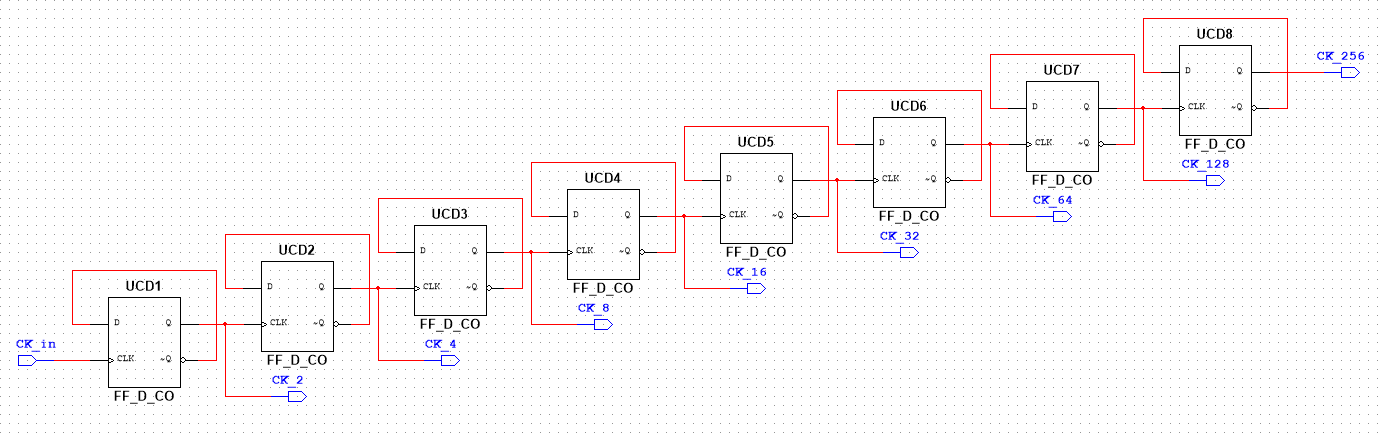
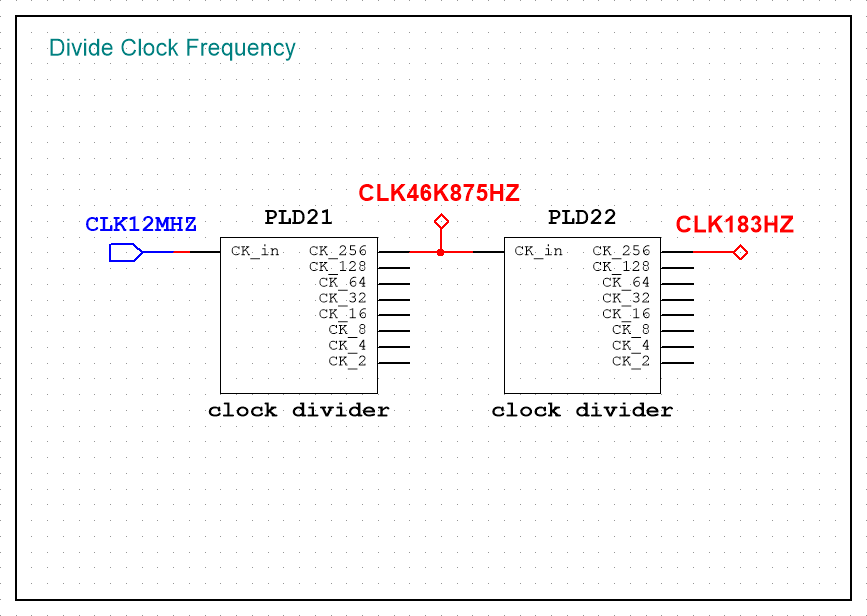
The first hierarchical block created is the clock divider. Several D flip-flops are used to reduce the clock frequency to the desired value. If the clock rate must be further reduced, multiple clock divider blocks can be cascaded.
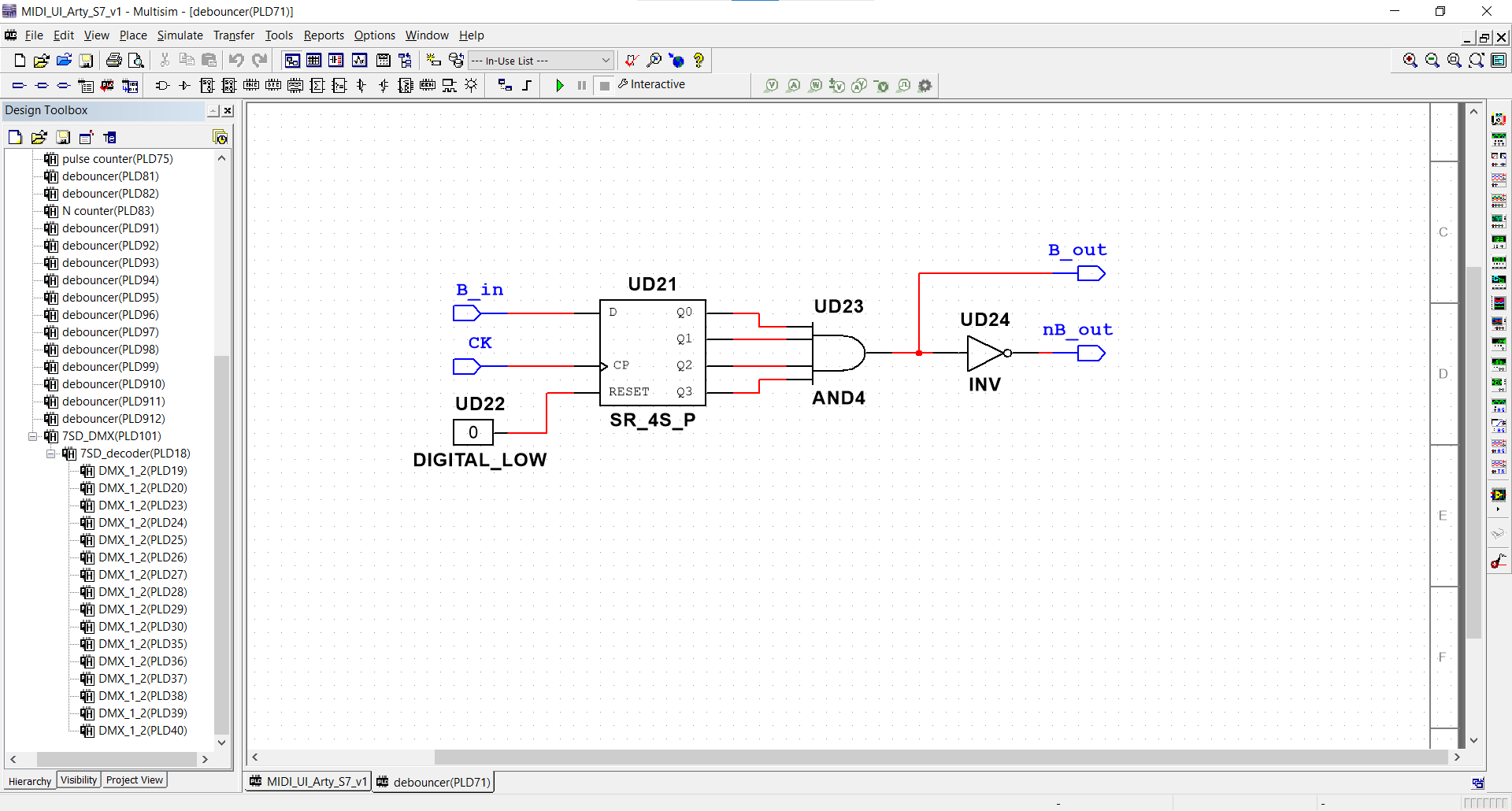
One of the most important building blocks is the debouncer. When a button is pressed, some mechanical noise appears in the signal (the bouncing of the two metal plates on each other), so if the action is taken on the edge of the signal, the circuit will be triggered multiple times. A debouncer “validates” the output signal only after a certain time, so the bouncing can come to an end before.
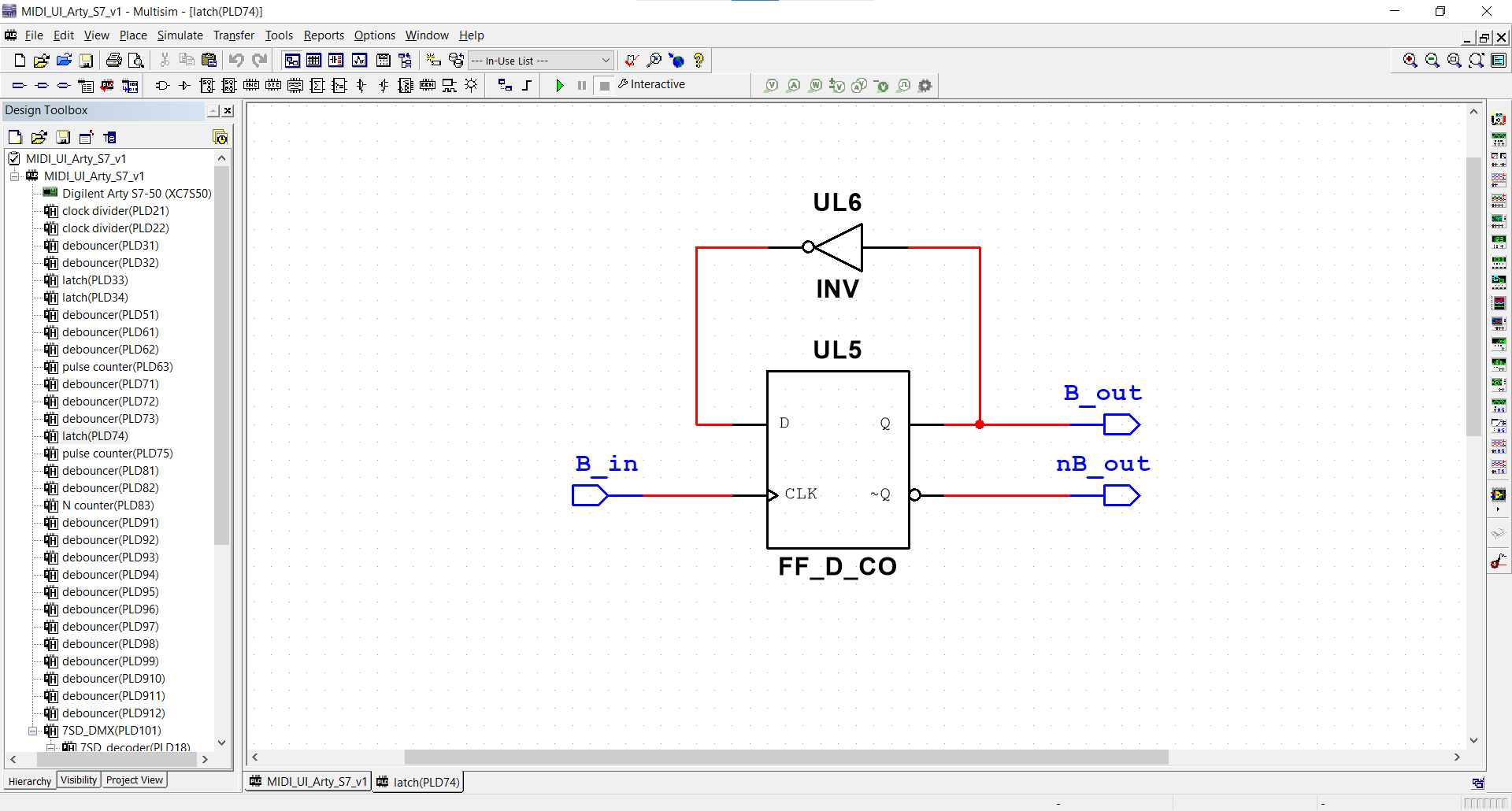
A simple latch should also be implemented, so buttons can be used as switches (on press turns the signal high, the next one turns it low).
A 1:2 demultiplexer is also implemented as Multisim contains only larger circuits (1:8).
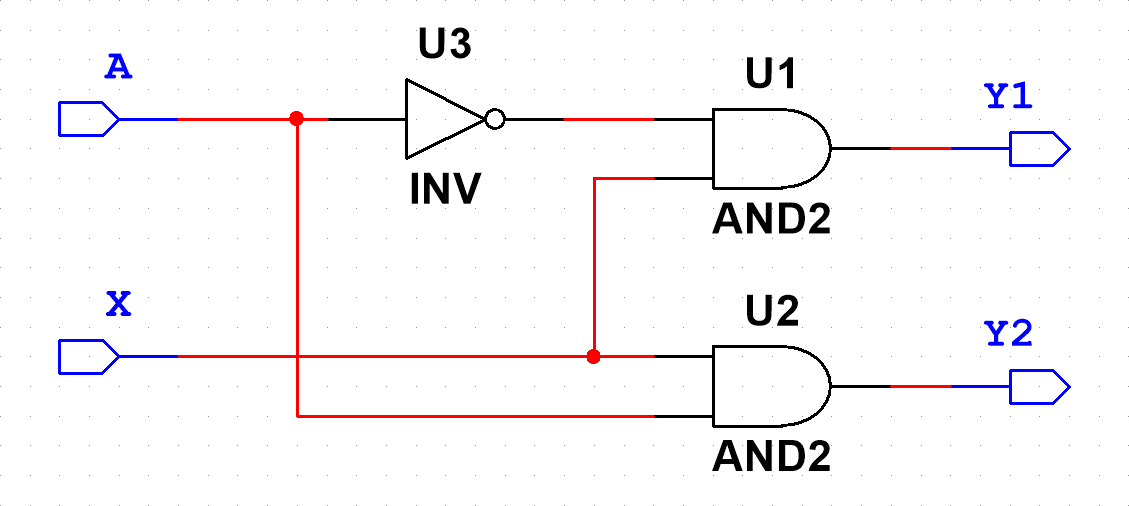
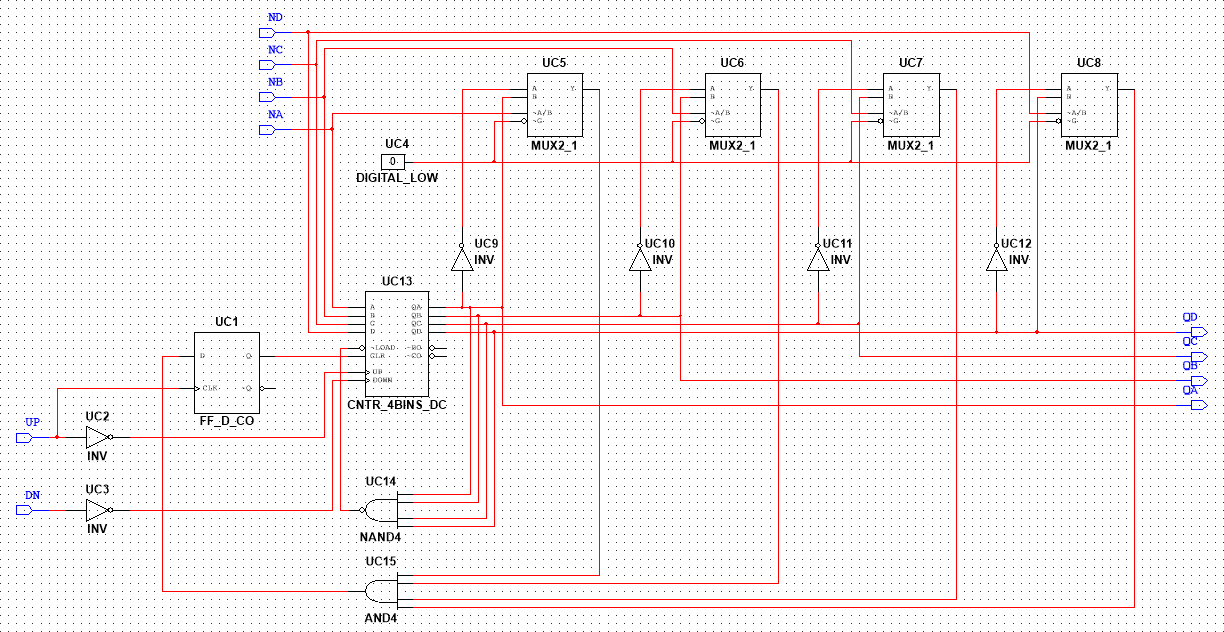
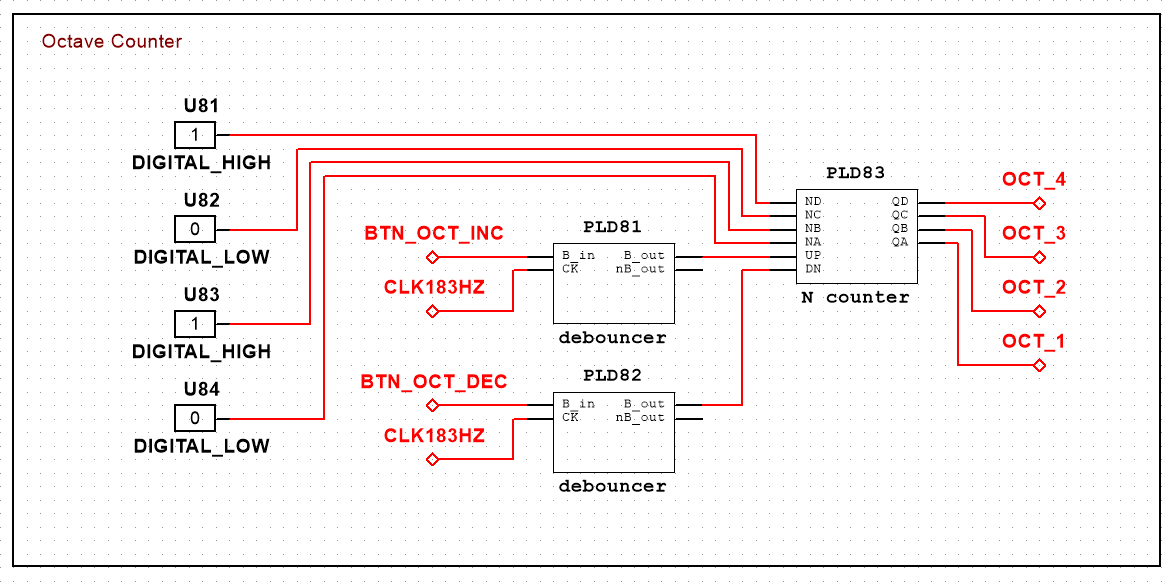
The next block to be prepared is an up-down counter to N (0<N<15). This circuit will be used to change the octaves (there are only 11 valid octaves, so counting to 15 is unnecessary).
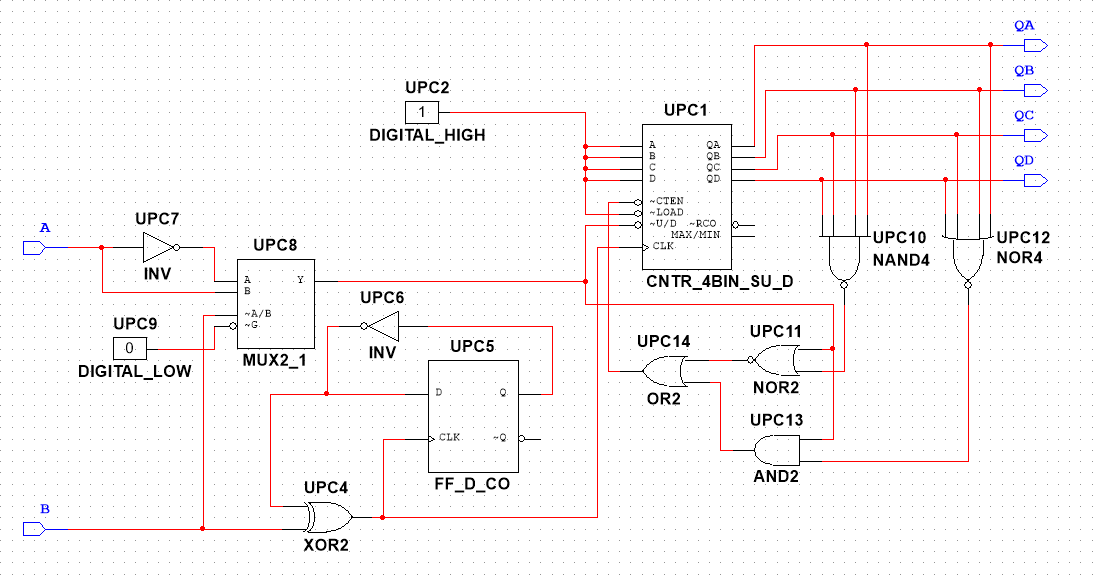
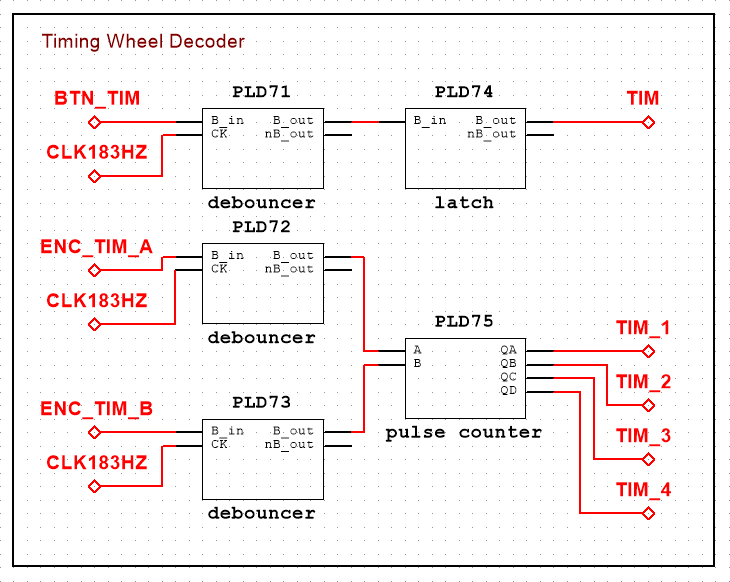
As the Python script will use polling to measure every signal, it might miss certain events of the rotary encoders, so they should be re-encoded as numbers. This is why a pulse counter is designed, which is an up-down counter clocked by the two waves of the rotary encoder in quadrature. The block turns the incremental rotary encoders into 4-bit absolute encoders.
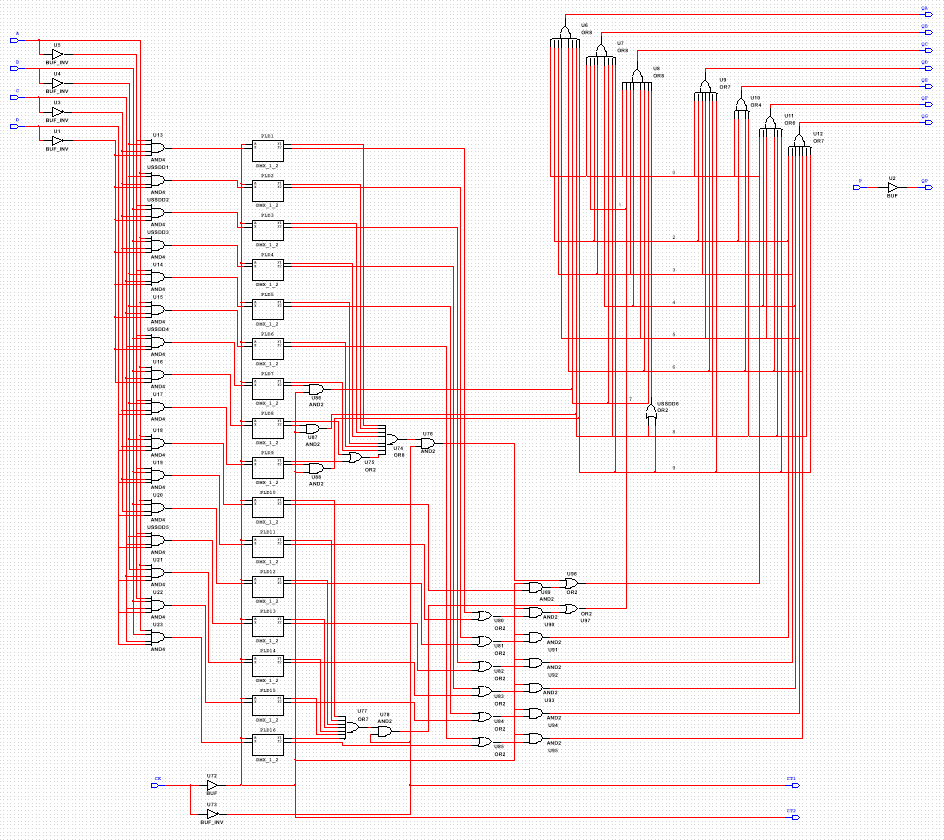
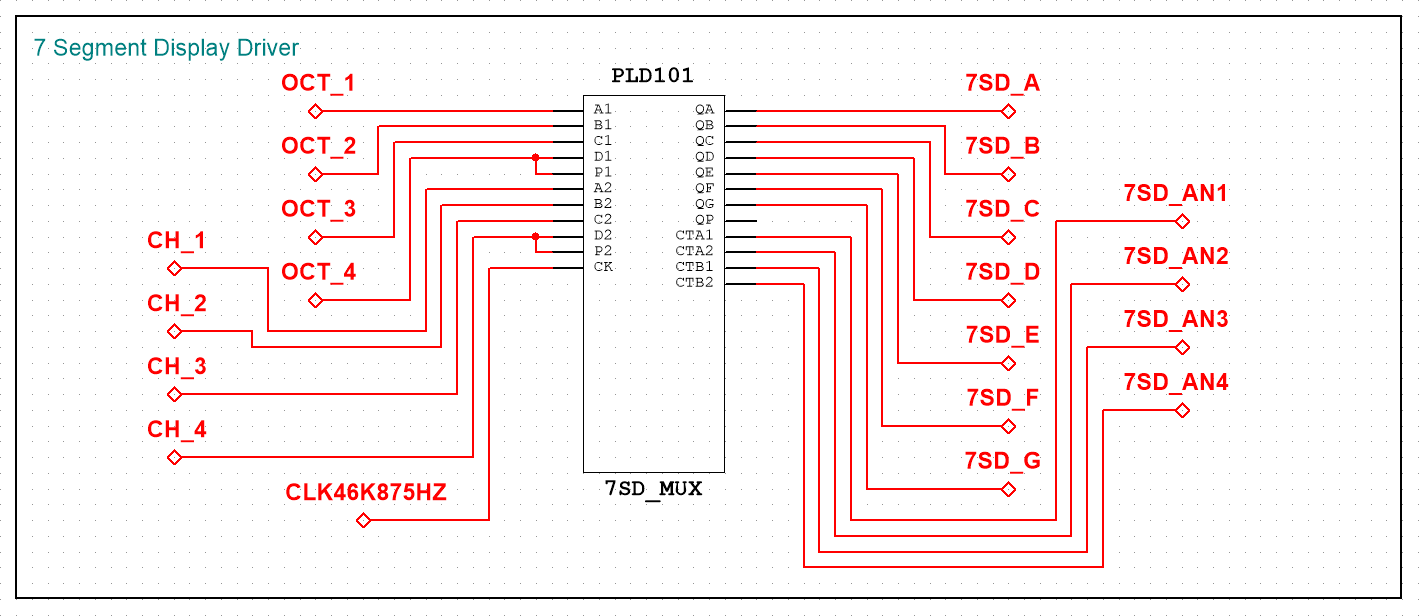
While 4-bit binary numbers might be easy to understand for machines, on a user interface (created for humans) numbers should appear in decimal representation. This is why a decoder must be used for the dual 7 segment displays, which displays a number between 1 and 16 (received in binary) in decimal representation.
While most FPGA boards have many pins, there are some cases, when “many” is still not enough. This is why the cathodes of the two dual displays should be multiplexed (the same cathodes are used in different times). This block takes two binary numbers (and one clock) as inputs and displays the first number on the first display (decoded) and the second number on the second display.
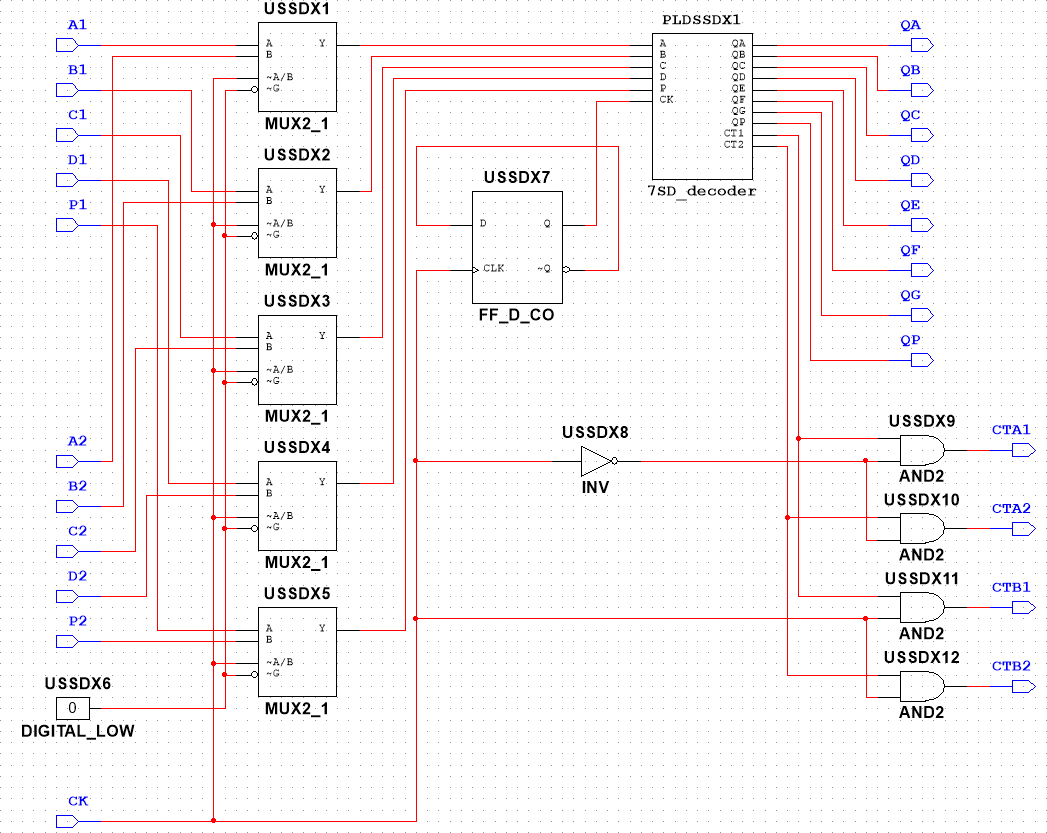
Driver
After all the blocks were designed and tested, the actual driver can be built.
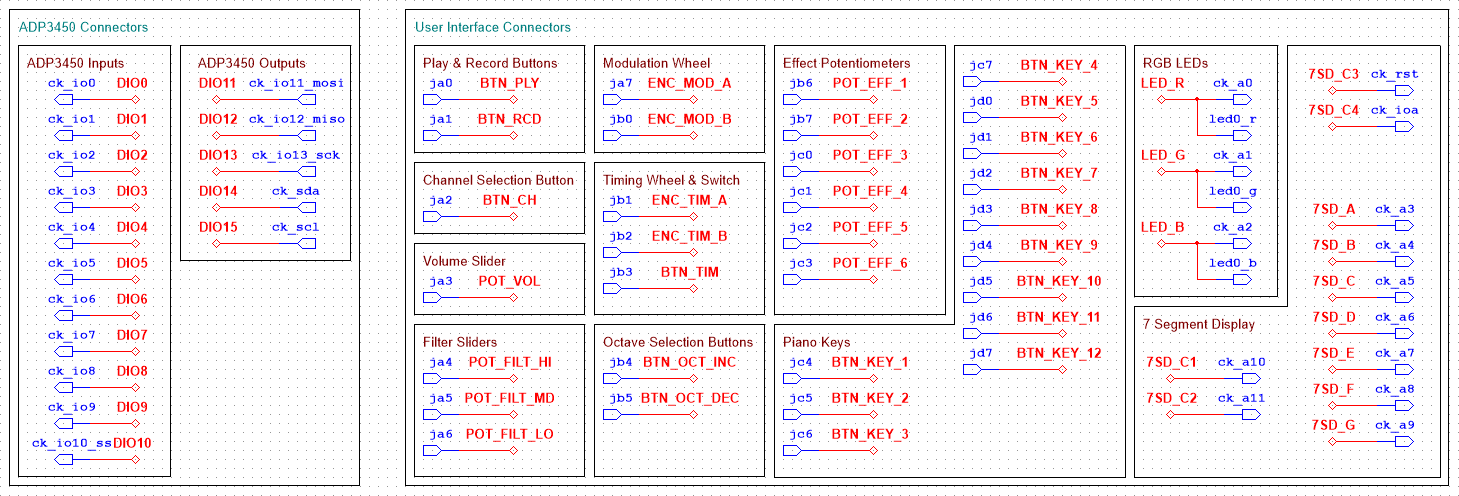
Because both the user interface circuit and the Analog Discovery Pro will be connected to the FPGA board, these connections have to be defined first. To reduce the number of the required wires on the schematic, net labels or on-page connectors can be used.
As almost all conditioning circuits need clock signals, the derived clocks (with the desired frequency) must be obtained from the FPGA clock. Use clock dividers to reduce the frequency.
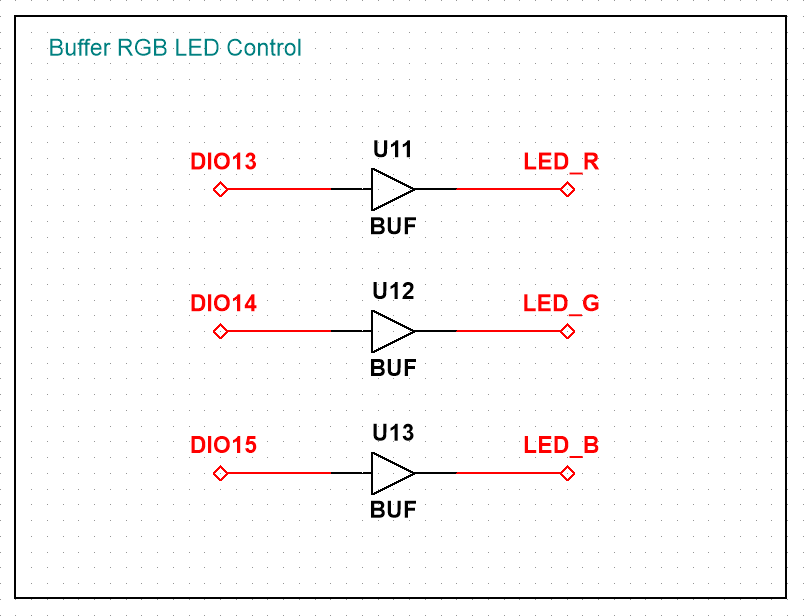
The RGB LED control signals are just passed through the FPGA, they are entirely generated by the ADP.
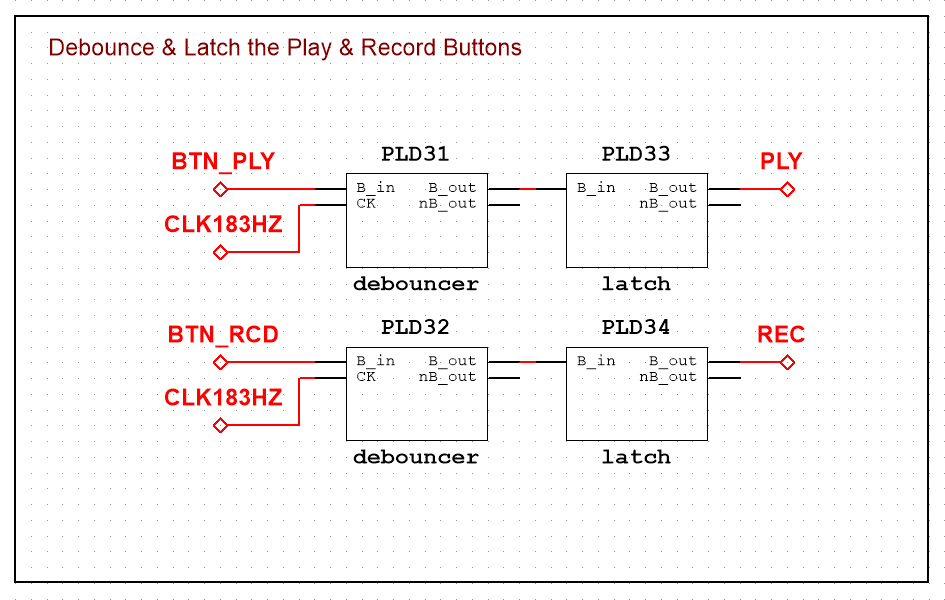
The play/pause and record buttons are debounced and latched to act like switches.
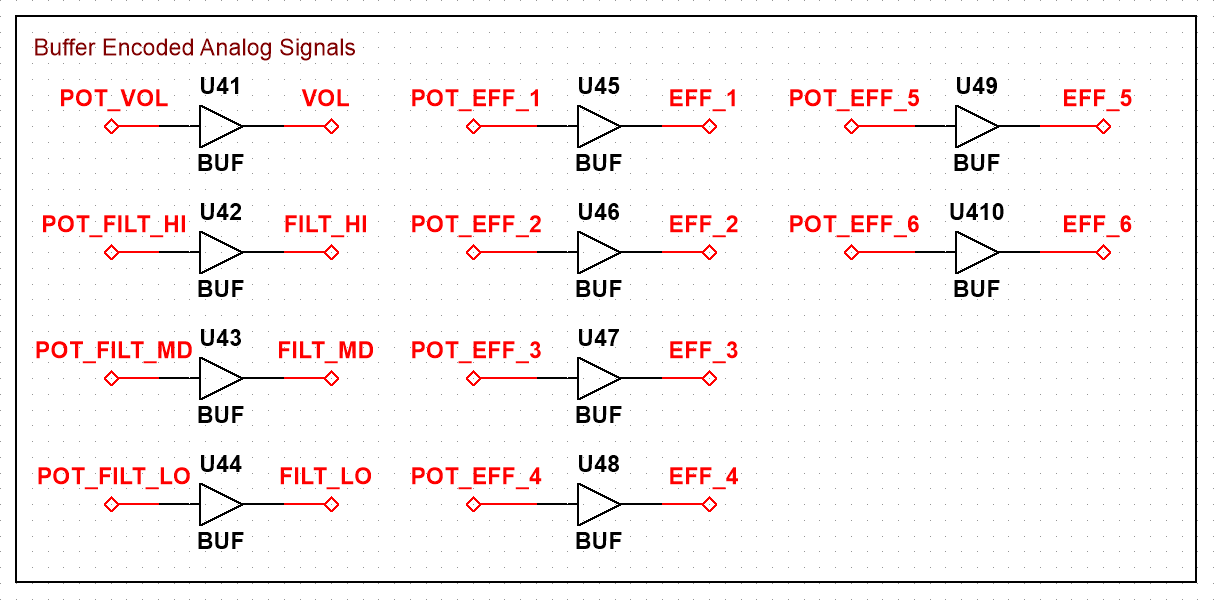
The PWM signals coming from the potentiometer conditioning circuits are again buffered, then sent to the multiplexers.
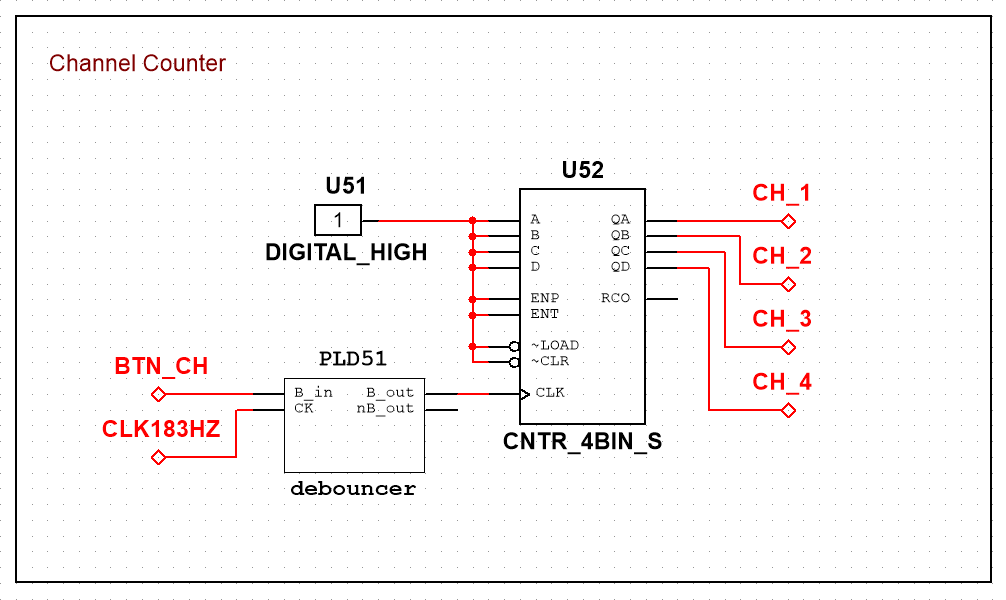
The button selecting the MIDI channel is debounced, then connected to an up counter. The output of the counter is connected to the multiplexers.
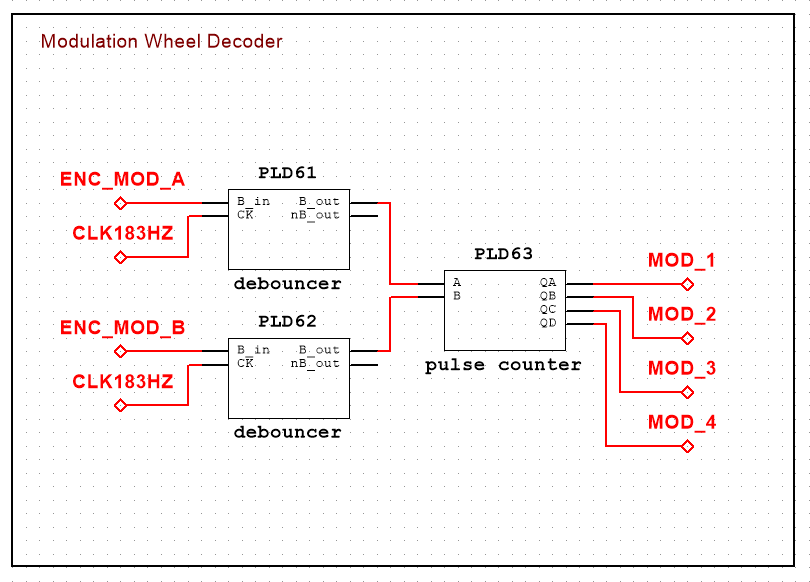
The pulse counter block is used to turn the incremental encoder used as modulation wheel into an absolute encoder.
The same is done for the timing wheel, but the latched timing button decides, if the output is used for the attack time, or for the release time (the distinction is made from software).
Octaves are set by two buttons: one buttons shifts the octave up, the other one down. The N counter block is used to set the upper limit of counting to 10 (the block will count from 0 to 10 - 11 positions).
The piano keys are debounced and sent to the multiplexers.

The previously created hierarchical blocks are used to display the channel number and the octave index on the 7 segment displays.
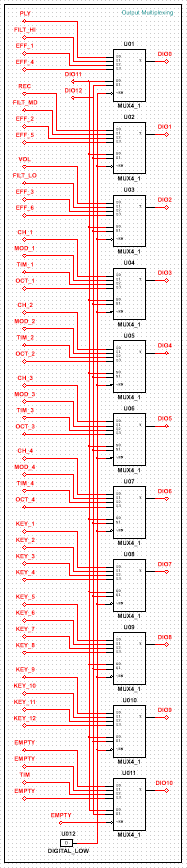
Finally, the conditioned output signals are multiplexed (4:1) to the digital I/O pins of the ADP. To generate the multiplexer addresses, two digital pins of the ADP are used, the address being generated from software.


Finally connect the conditioned input and output signals into the ADP. Also connect the FPGA board to one USB port of the Analog Discovery Pro, the Wi-Fi dongle to another one and use a third port as a power supply.
- Connections to the ADP3450
-
The next step is to connect the three main parts of the controller. The Pmod connectors are used on the Arty-S7 to connect the user interface control elements, while the Chipkit analog headers are used to connect the displays and the LEDs. The ADP3450 digital pins are connected to the outer digital Chipkit header.
The BNC oscilloscope connectors are connected directly to the drum pad outputs (multiplexed) and the waveform generator channels are used to generate the reference signal for the PWM generator and the -5V DC voltage reference. The USB ports on the ADP are used to power and program the FPGA, connect the Wi-Fi dongle and supply power to the displays and LEDs through a micro USB connector.


Writing the Software
Script Overview
The Python script which controls the Analog Discovery Pro consists of 8 modules plus the dwfconstants python module from the WaveForms SDK and a configuration file for RaveloxMIDI. In the following, these modules will be presented briefly. The full source code of the project can be downloaded here.
main.py
The main.py file is a wrapper: it imports other modules, initializes the input and output devices and processes, then, in an infinite loop, decodes and sends keypad events. The script is terminated by pressing Ctrl+C, in which case a proper cleanup is done before exiting.
try:
    # initialize input and output processes
    DI.open()
    DO.open()

    # repeat
    while True:
        # send decoded keypad events
        DO.write(DI.read())

except KeyboardInterrupt:
    # exit on Ctrl+C
    pass

finally:
    # close every opened device/process
    DI.close()
    DO.close()
data_input.py
The input module gets the current state of the keypad and compares it to the previous state, then returns only the differences between the two states. This way only the keypad events like pressing and releasing the buttons will be processed.
def read():
    # read the keypad events
    global last_state   # load last state
    current = KYPD.get_keys()   # get the current state
    buffer = []  # a buffer to store the results
    # if the two states are not equal
    if current != last_state:
        buffer = difference(current, last_state)    # get the differences

        # if the script has to be debugged
        if param.DEBUG == "IN" or param.DEBUG == "ALL":
            # print the differences
            print(buffer)

        # save the current state of the keypad
        last_state = current

    # return the results
    return buffer
The comparison function consists of two loops: the first one takes every element from the first list and compares it with every element from the second one, and the second loop compares every element of the second list to every element of the first one. The results contain tuples of the unique elements and a True, or False constant. If the unique element appears in the first list, the constant is true, otherwise it is false.
def difference(a, b):
    # return the differences between two lists
    result = []  # store the result

    # go through the first list
    for element_a in a:
        unique = True   # flag to signal uniqueness
        # compare the current element with every element from the second list
        for element_b in b:
            # if they are equal
            if element_a == element_b:
                unique = False  # set the flag to false
        # if the flag is still true
        if unique:
            # append the element and a True constant to the results
            result.append(tuple([element_a, True]))

    # go through the second list
    for element_b in b:
        unique = True   # flag to signal uniqueness
        # compare the current element with every element from the first list
        for element_a in a:
            # if they are equal
            if element_b == element_a:
                unique = False  # set the flag to false
        # if the flag is still true
        if unique:
            # append the element and a False constant to the results
            result.append(tuple([element_b, False]))

    # return the results
    return result
data_output.py
The data output module decodes the keypad events according to the parameters set by the user, then sends the decoded message using RTP-MIDI protocol.
def write(buffer):
    # send the decoded keypad events
    # go through the buffer
    for element in buffer:
        command = None  # a variable to save the event type

        # check for event type
        if element[1]:
            # if the key is pressed, send a NOTE_ON command
            command = msg.NOTE_ON
        else:
            # if the key is released, send a NOTE_OFF command
            command = msg.NOTE_OFF

        # send the decoded keypress with the command
        MIDI.send(command, msg.CH1, [
                  param.NOTE_keymap.get(element[0]), velocity])

        # if the script has to be debugged
        if param.DEBUG == "OUT" or param.DEBUG == "ALL":
            # print the current keypad event
            print(element)
    return
parameter.py
The module containing the parameters is the place where the user can modify the behavior of the MIDI controller, by setting a specific command, or note for every button. The structure of the keypad is also set here, along with the list of pins, to which it is connected.
# set keypad parameters
KYPD_rows = [7, 6, 5, 4]    # pins connected to keypad rows
KYPD_columns = [3, 2, 1, 0]  # pins connected to keypad columns
# the layout of the keypad
KYPD_keymap = [["1", "2", "3", "A"],
               ["4", "5", "6", "B"],
               ["7", "8", "9", "C"],
               ["0", "F", "E", "D"]]
# set event decoding parameters
NOTE_velocity = 127  # note velocity
# what do the keys mean
NOTE_keymap = {
    "1": GREAT_O + C, "2": GREAT_O + CS, "3": GREAT_O + D, "A": GREAT_O + DS,
    "4": GREAT_O + E, "5": GREAT_O + F, "6": GREAT_O + FS, "B": GREAT_O + G,
    "7": GREAT_O + GS, "8": GREAT_O + A, "9": GREAT_O + AS, "C": GREAT_O + B,
    "0": SMALL_O + C, "F": SMALL_O + CS, "E": SMALL_O + D, "D": SMALL_O + DS
}
PMOD_KYPD.py
This module contains functions specific to the Pmod KYPD. Initialization is done by initializing the WaveForms SDK, connecting the Analog Discovery Pro, turning on the power supplies and setting a specified list of pins to a starting state.
The state of the keypad is retrieved by sweeping through the row pins, setting one to a HIGH state and the others to a LOW state in every iteration. After setting a specific row to HIGH, all the columns are checked. If the state of a column pin is HIGH, it means, that the button which is in the respective column, in the respective row, is pressed.
def get_keys():
    # get the current state of the Pmod KYPD
    result = []  # buffer to store the results

    # go through all the rows
    for index_1 in range(len(rows)):
        # set the state of every row
        for index_2 in range(len(rows)):
            # only one row is HIGH at every moment
            if index_1 == index_2:
                # set the current row HIGH
                WF.write(rows[index_2], True)
            else:
                # set the current row LOW
                WF.write(rows[index_2], False)

        # check every column
        for index_2 in range(len(columns)):
            # if the current column is HIGH
            if WF.read(columns[index_2]):
                # append the respective key to the results
                result.append(keymap[index_1][index_2])

    # return the results
    return result
WF_SDK.py
To make the project more modular, thus easier to debug, “user friendly” function to control certain instruments with the WaveForms SDK are implemented in a separate module. The WF_SDK.py file contains functions like the one needed to initialize communication with the Analog Discovery Pro, functions for setting digital pins as output, to read, or to write their states.
def read(pin):
    # read a digital pin
    # load internal buffer with current state of the pins
    dwf.FDwfDigitalIOStatus(hdwf)
    dwRead = c_uint32()  # variable for this current state
    # get the current state of the pins
    dwf.FDwfDigitalIOInputStatus(hdwf, byref(dwRead))
    # convert the state to a 16 character binary string
    data = list(bin(dwRead.value)[2:].zfill(16))

    # check the required bit
    if data[15 - pin] != "0":
        # if it is one, return True (HIGH)
        return True
    else:
        # else return False (LOW)
        return False
def write(pin, state):
    # write a logic value on a pin
    global output_state  # load current state
    index = pow(2, pin)  # calculate the position of the required pin

    # if a HIGH value has to be written
    if state != 0 and state != False:
        # calculate the bitmask
        mask = int(output_state, 2) | index
        # convert the current state to a list
        temp = list(output_state)
        # edit this list to save the new state
        temp[15 - pin] = "1"
        # convert back the list to string
        output_state = "".join(temp)

    # if a LOW value has to be written
    else:
        # calculate the bitmask
        mask = int(output_state, 2) & (~index)
        # convert the current state to a list
        temp = list(output_state)
        # edit this list to save the new state
        temp[15 - pin] = "0"
        # convert back the list to string
        output_state = "".join(temp)

    # set the bits according to the mask
    dwf.FDwfDigitalIOOutputSet(hdwf, c_int(mask))
    return
rtpmidi.py
The module which realizes the actual RTP-MIDI communication, using RaveloxMIDI, is implemented in the rtpmidi.py file. In this module the RaveloxMIDI is started as a background process, then communication is resolved through a socket. The script is a modified version of some RaveloxMIDI example scripts.
midi_message.py
This module contains the list of MIDI commands for different operations. For a more detailed insight, check the drop-downs below, or the file itself.
- MIDI Message Types
-
Message Type Code Meaning NOTE_OFF 0x80 This message is sent when a note is stopped. NOTE_ON 0x90 This message is sent when a note is started. POLY_KEY_PRES 0xA0 Polyphonic Key Pressure (Aftertouch) CTRL_CHG 0xB0 Sent when a controller value changes. PRG_CHG 0xC0 Sent when a patch number changes. CH_PRS_AFTT 0xD0 Channel Aftertouch PITCH_BND 0xE0 This message is sent to indicate a change in the pitch wheel. SYS_EX_START 0xF0 This message makes up for all that MIDI doesn't support.
- MIDI Notes (must be added to the octave)
-
Note Value C 0 C# 1 D 2 D# 3 E 4 F 5 F# 6 G 7 G# 8 A 9 A# 10 B 11
- MIDI Octaves (must be added to the note)
-
Notation Value Meaning CN2_O 0 Starts with $C_{-2}$. CN1_O 12 Starts with $C_{-1}$. SUB_CONTRA_O 24 Starts with $C_{0}$. CONTRA_O 36 Starts with $C_{1}$. GREAT_O 48 Starts with $C_{2}$. SMALL_O 60 Starts with $C_{3}$. LINE1_O 72 Starts with $C_{4}$. LINE2_O 84 Starts with $C_{5}$. LINE3_O 96 Starts with $C_{6}$. LINE4_O 108 Starts with $C_{7}$. LINE5_O 120 Starts with $C_{8}$.
Testing
Copy the Python scripts to a USB flash drive, formatted in FAT32 format, then plug it in one of the USB slots of the Analog Discovery Pro. List the available USB drives by:
sudo fdisk -l
Note the drive letter and the partition number of your drive, as you will have to use these in the following. Mount and open the content of the drive by typing the following commands in the terminal emulator:
sudo mount /dev/sda1 /mnt
cd /mnt
Run the script by typing
sudo python3 main.py

On your PC open the rtpMIDI program, then connect to the directory called “raveloxmidi”. The connection should appear in the participants tab.

Now you can use your wireless MIDI controller, to play any instrument you like - the limit is your imagination. You can expand the capabilities of your controller by adding extra digital and analog control elements, like sliders, more buttons, switches, etc.

Next Steps
The script can be modified as needed for your project.
For more information on WaveForms SDK, see its Resource Center.
For technical support, please visit the Test and Measurement section of the Digilent Forums.