

This is an old revision of the document!
Arty Z7 HDMI Input Demo
Under Construction

Description
The Arty Z7 HDMI In project demonstrates the usage of the HDMI in and out ports on the Arty Z7 board. There are two variants of the demo, one for each variant of the board: Arty Z7-10 and Arty Z7-20. The behavior is as follows:
- Video data streams in through the HDMI in port and out through the HDMI out port.
- A UART interface is available to configure what is output through HDMI.
- There are 3 display frame buffers that the user can choose to display or write to.
Note: Video processing functions are primarily implemented in the Zynq Processing System (PS).
Inventory
- Arty Z7 (-10 or -20) with a MicroUSB Programming Cable
- Vivado and Vitis installations compatible with the latest release of this demo (2020.1)
- See Installing Vivado, Vitis, and Digilent Board Files for installation instructions.
- Serial Terminal application to receive messages printed by the demo
- See Installing and Using a Terminal Emulator (Redirect) for more information.
- HDMI-capable Monitor/TV
- HDMI-capable Source (likely the computer used for Vivado and Vitis)
- 2 HDMI Cables
Download and Usage Instructions
First and foremost, releases - consisting of a set of files for download - are only compatible with a specific version of the Xilinx tools, as specified in the name of the release (referred to as a release tag). In addition, releases are only compatible with the specified variant of the board. For example, a release tagged “20/DMA/2020.1” for the Zybo Z7 is only to be used with the -20 variant of the board and Xilinx tools (Vivado and Vitis) version 2020.1.
The latest release version for this demo is highlighted in green.
Note: Releases for FPGA demos from before 2020.1 used a different git structure, and used a different release tag naming scheme.
| Board Variant | Release Tag | Release Downloads | Setup Instructions |
|---|---|---|---|
| Arty Z7-10 | 10/HDMI-in/2020.1-1 | Release ZIP Downloads | See Using the Latest Release, below |
| Arty Z7-20 | 20/HDMI-in/2020.1-1 | Release ZIP Downloads | See Using the Latest Release, below |
| Arty Z7-10 | v2018.2-2 | Release ZIP Downloads | Github README |
| Arty Z7-20 | v2018.2-2 | Release ZIP Downloads | Github README |
| Arty Z7-10 | v2016.4-2 | Release ZIP Downloads | Using Digilent Github Demo Projects (Legacy) |
| Arty Z7-20 | v2016.4-4 | Release ZIP Downloads | Using Digilent Github Demo Projects (Legacy) |
Note for Advanced Users: All demos for the (Board) are provided through the Arty-Z7 repository on Github. Further documentation on the structure of this repository can be found on this wiki's Digilent FPGA Demo Git Repositories (Redirect) page.
Instructions on the use of the latest release can be found in this dropdown:
- Using the Latest Release
-
This page has been moved, the new location is Using a Digilent FPGA Github Demo's Releases (2020.1).
- Set up the Arty Z7
-
Plug the Arty Z7 into the computer via the microUSB programming cable.
Plug one end of the HDMI cable into a video monitor and the other into the Arty Z7 HDMI out port. Do the same for an HDMI source, likely your computer, and the HDMI in port.
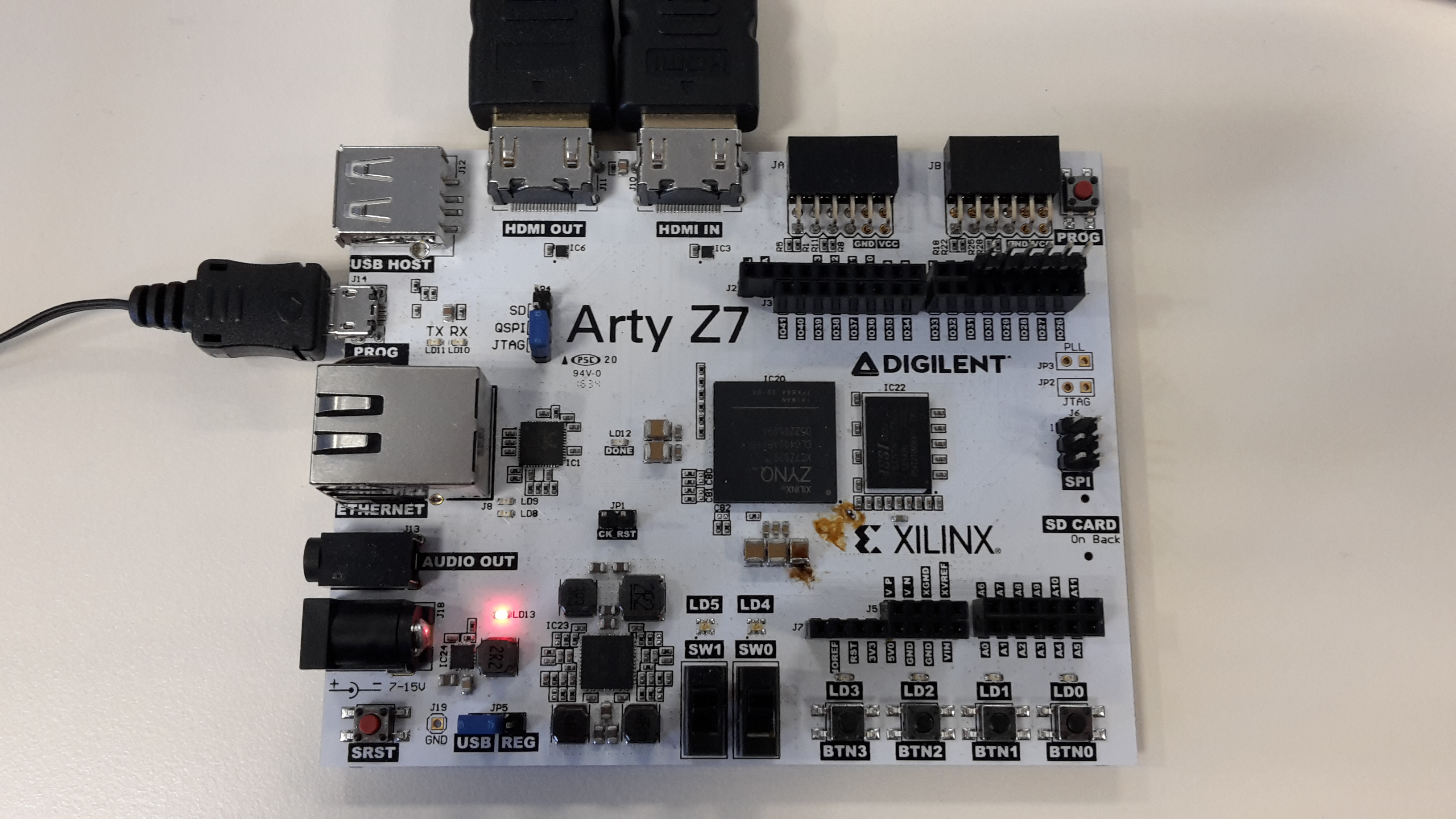
This page has been moved, the new location is Using a Digilent FPGA Github Demo's Releases (2020.1).At this point, the demo is now running on your board. Refer to the Description section of this document for more information on what it does. The HDMI Display Options section, below, presents each of the commands that can be sent over serial to the application in order to configure it or have it perform some operation.
Additional steps beyond here present how you can use the other archive provided in the release, containing the hardware project, to rebuild the Vivado project, and use a newly exported XSA file to update the platform in Vitis.
This page has been moved, the new location is Using a Digilent FPGA Github Demo's Releases (2020.1).

HDMI Display Options
1. Change Display Resolution
Changes the resolution used for HDMI Output. Note that 1080p (1920×1080@60Hz) is not fully supported.
It should be noted that changing the display resolution does not change the resolution of data received from the video input pipeline. In cases where the input and output resolutions don't match, the video may appear to be cropped, or padded with black, if no data has been previously written to the framebuffer. The input resolution cannot be directly controlled by the demo, and is determined by the HDMI source that the Arty Z7 is connected to. The video input defaults to 720p, as determined by EDID information included in the demo's hardware project.
2. Change Display Framebuffer Index
Changes the VDMA framebuffer used for the video output. When the input buffer (“video framebuffer index”) and output buffer (“display framebuffer index”) match, data is streamed through from the input to the output. When they do not match, whatever is currently stored in the DDR memory assigned to the output buffer is shown, updating as video input streams in. This may be a test pattern, a saved input frame, or something else, depending on other commands previously issued.
3/4. Print Test Pattern to Display Framebuffer
Stores one of two test test patterns (blended colors or vertical color bars) into the output buffer, to be displayed immediately. Note that if video input is streaming into the same buffer, the test pattern may be immediately overwritten.
Also to note, if the resolution of the video output is later changed, the video data is cropped or padded to fit the screen. This cropping and padding does not affect the actual stored memory, as it is a result of how the VDMA indexes the framebuffer's region of DDR memory. Storing a new test pattern does not affect the memory in the framebuffer outside of the current display area - including areas that would not be displayed with the current output resolution.


5. Start/Stop Video Stream into Video Framebuffer
Stops the video input. Upon being stopped, the current video input frame is not blanked, resulting in the video output displaying a static image of the last frame received, when the framebuffer that frame was stored into is used.
6. Change Video Framebuffer Index
Increments the index of the framebuffer used for video input. For example, if data is streaming into buffer 0, and the video framebuffer index is incremented, a final frame will be received into buffer 0, then video will begin streaming into buffer 1. The last frame received can then be viewed on buffer 0, and streaming input can be viewed on buffer 1, by changing the display framebuffer index.
7. Grab Video Frame and Invert Colors
Captures one frame from the video input buffer, and inverts all of the colors in that frame, then stores the result to the next framebuffer and sets the display output to view the inverted frame.
Note: A bug in the */HDMI-in/2020.1 releases causes the saved frame to be overwritten by the input stream when the inverted frame is stored into framebuffer 0.


8. Grab Video Frame and Scale to Display Resolution
Captures one frame from the video input buffer, scales it to the resolution used by the display output, then stores the result to the next framebuffer and sets the display output to view the scaled frame. Bilinear interpolation is used for scaling.
Note: As with option 7, a bug in the */HDMI-in/2020.1 releases causes the saved frame to be overwritten by the input stream when the scaled frame is stored into framebuffer 0.
Additional Resources
All materials related to the use of the Arty Z7 can be found on its Resource Center.
For a walkthrough of the process of creating a simple baremetal software project in Vivado and Vitis, see Getting Started with Vivado IP Integrator and Vitis (Redirect). Information on important parts of the GUIs, and indirect discussion of the steps required to modify, rebuild, and run this demo in hardware can also be found here.
For technical support, please visit the FPGA section of the Digilent Forum.