

This is an old revision of the document!
Arty A7 General I/O Demo
Under Construction
Description
Introductory level demonstration project for the Arty A7's LEDs, switches, buttons, and USB-UART bridge.
Inventory
- Arty A7 with a MicroUSB Programming Cable
- Vivado installation compatible with the latest release of this demo (2020.1)
- See Installing Vivado, Vitis, and Digilent Board Files for installation instructions.
- Serial Terminal application to receive messages printed by the demo
- See Installing and Using a Terminal Emulator (Redirect) for more information.
Download and Usage Instructions
First and foremost, releases - consisting of a set of files for download - are only compatible with a specific version of the Xilinx tools, as specified in the name of the release (referred to as a release tag). In addition, releases are only compatible with the specified variant of the board. For example, a release tagged “20/DMA/2020.1” for the Zybo Z7 is only to be used with the -20 variant of the board and Vivado 2020.1.
The latest release version for this demo is highlighted in green.
Note: Releases for FPGA demos from before 2020.1 used a different git structure, and used a different release tag naming scheme.
| Board Variant | Release Tag | Release Downloads | Setup Instructions |
|---|---|---|---|
| Arty A7-35 | 35/GPIO/2020.1-1 | Release ZIP Downloads | See Using the Latest Release, below |
| Arty A7-100 | 100/GPIO/2020.1-1 | Release ZIP Downloads | See Using the Latest Release, below |
| Arty A7-35 | v2018.2-1 | Release ZIP Downloads | v2018.2-1 Github README |
| Arty A7-100 | v2018.2-1 | Release ZIP Downloads | v2018.2-1 Github README |
Note for Advanced Users: All demos for the Arty A7 are provided through the Arty-A7 repository on Github. Further documentation on the structure of this repository can be found on this wiki's Digilent FPGA Demo Git Repositories (Redirect) page.
Instructions on the use of the latest release can be found in this dropdown:
- Using the Latest Release
-
This page has been moved, the new location is Using a Digilent FPGA Github Demo's Releases (2020.1).
- Set up the Arty A7
-
Plug the microUSB programming cable into the Arty A7's PROG/UART port.
This page has been moved, the new location is Using a Digilent FPGA Github Demo's Releases (2020.1).At this point, the demo is now running on your board. Refer to the Description and Functionality sections of this document for more information on what it does.
Functionality
1. Using the Switches with Leds
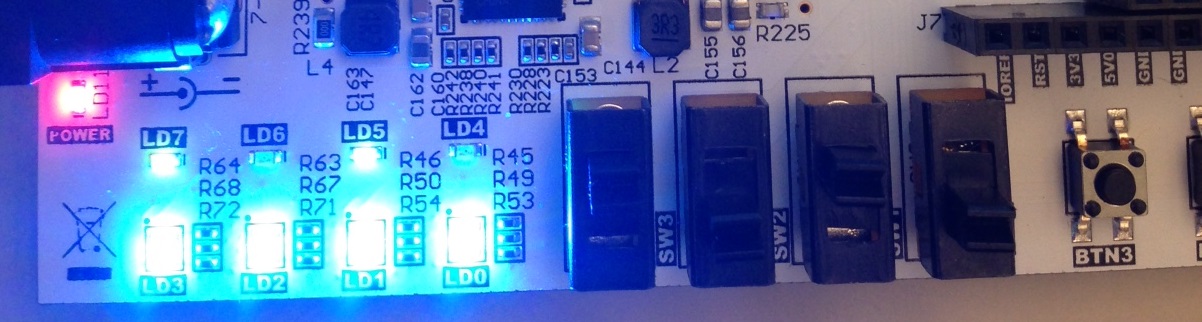
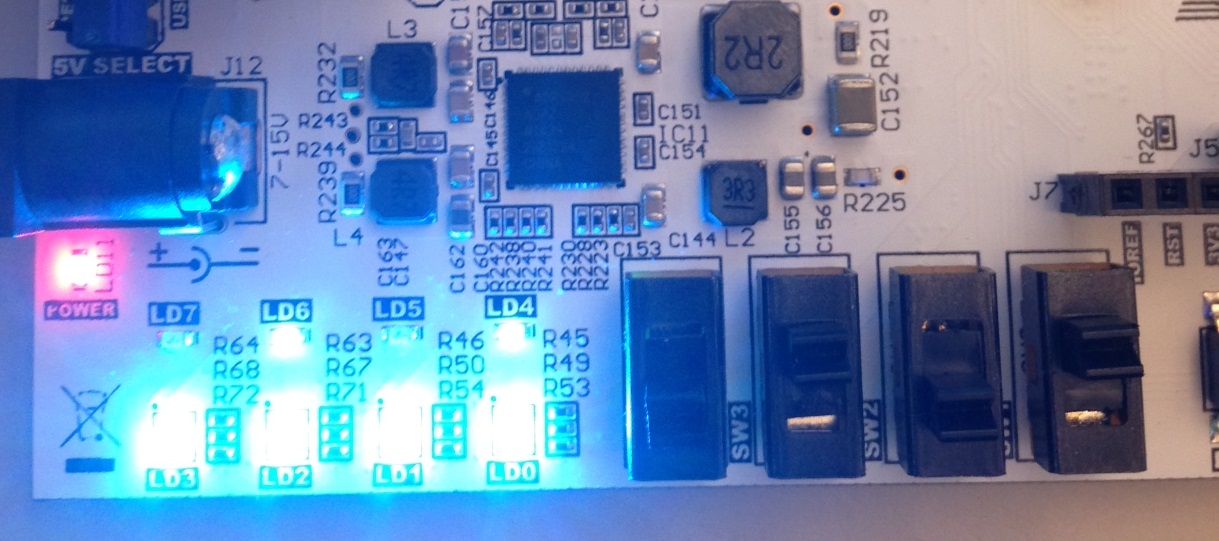
For this section, all the switches are tied to their corresponding led. Every time a switch is toggled, the led directly above it will toggle with it.
The four tri-color LEDs will cycle colors with no interruption from other I/O.
2. UART Communication Using the Buttons
On startup, ARTY will transmit “ARTY GPIO/UART DEMO!”. Whenever a button is pressed, ARTY transmits “Button press detected!”.


Additional Resources
All materials related to the use of the Arty A7 can be found on its Resource Center.
For a walkthrough of the process of creating a simple HDL project in Vivado, see Getting Started with Vivado for Hardware-Only Designs (Redirect). Information on important parts of the GUI, and indirect discussion of the steps required to modify, rebuild, and run this demo in hardware can also be found here.
For technical support, please visit the FPGA section of the Digilent Forum.
{{tag>project arty-a7}}