

This is an old revision of the document!
Getting Started with Zynq Servers

Overview
This guide will provide a step by step walk-through of creating a Microblaze based hardware design using the Vivado IP Integrator that will build over the Getting Started with Zynq guide by making use of the on-board Ethernet port and GPIOs for the Zybo FPGA board.
At the end of this tutorial you will have a comprehensive hardware design for Nexys4 DDR that makes use of various Hardware ports on the Zybo which are managed by the Zynq Softcore Processor block.
Prerequisites
Hardware
- Digilent's Zybo Development Board and a Micro USB cable for UART communication and JTAG programming
Software
- Xilinx Vivado 2015.X with the SDK package.
Board Support Files
- Zybo Support Files
- These files will describe GPIO interfaces on your board and make it easier to select your board in the initial design setup and add GPIO IP blocks in the block design
- Follow this Wiki guide Vivado Board Files for Digilent 7-Series FPGA Boards on how to install Board Support Files for Vivado 2015.X
Tutorial
General Design Flow
I. Vivado
- Open Vivado and select Zybo board
- Create an new Vivado Project
- Create empty block design workspace inside the new project
- Add required IP blocks using the IP integrator tool and build Hardware Design
- Validate and save block design
- Create HDL system wrapper
- Run design Synthesis and Implementation
- Generate Bit File
- Export Hardware Design including the generated bit stream file to SDK tool
- Launch SDK
Now the Hardware design is exported to the SDK tool. The Vivado to SDK hand-off is done internally through Vivado. We will use SDK to create a Software application that will use the customized board interface data and FPGA hardware configuration by importing the hardware design information from Vivado.
II. SDK
- Create new application project and select default Hello World template
- Program FPGA and run application
1. Creating a New Project
When you first run Vivado this will be the main start window where you can create a new project or open a recent one.
1.1) Click on Create New Project.

1.2) You will be presented with the project creation wizard. Click Next.

1.3) Enter a project name and location the click Next.

1.4) Select RTL Project and click Next.

1.5) This demo does not use any existing sources, existing IP or constraints. Click through the next three screens.

1.6) Select Boards and select the Zybo board file. Click Next and then Finish.

2. Creating a New Block Design
2.1) Once the process has completed, click Create Block Design in the flow navigator.

2.2) Click OK.

2.3) A blank Block Design will open up.

3. Run the Connection Automation Tool
3.1) Click theAdd IP button and search for ZYNQ. Double click on ZYNQ7 Processing System to place the bare Zynq block.

3.2) The connection automation tool will add the required logic blocks for the demo. Select Run Connection Automation highlighted in blue.
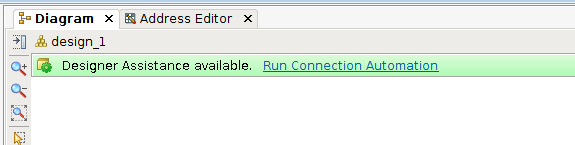
3.3) Click the Run Block Automation link
3.4) Connect FCLK_CLK0 to M_AXI_GPO_ACLK

Your Zynq block should now look like the picture below.

—–