This is an old revision of the document!
Nexys4 Abacus Demo
Overview
Features Used
| Not Used | Used | |
|---|---|---|
| 16 user switches | X | |
| 16 user LEDs | X | |
| 5 user pushbuttons | X | |
| 2 × 4-digit 7-segment display | X | |
| 4 Pmod connectors | X | |
| XADC Analog input | X | |
| 12-bit VGA output | X | |
| USB-UART Bridge | X | |
| Serial Flash for application data | X | |
| USB HID Host with mouse | X | |
| USB HID Host with keyboard | X |
Description
Abacus demonstration project that implements several arithmetic operations using the Nexys4's switches, LEDs, buttons and 7-segment display. See this video for instructions on building the project from only source files.
Prerequisites
Hardware
- Nexys4 FPGA board
- Micro-USB cable
Software
- Vivado Design Suite 2016.4
- Newer versions can be used, but the procedure may vary slightly
- Digilent Board Support Files for Vivado
- Follow the Vivado Board Files for Digilent 7-Series FPGA Boards guide on how to install Board Support Files for Vivado.
Downloads
Nexys4 Support Repository – GIT Repo
How to...
1. Generate the Project
1.1) Download the repository linked in the download section and unzip it in the location of your choosing.
1.2) Generate the Abacus project in the Projects folder by following this guide before continuing: How to Generate a Project from Digilent's Github
2. Build the Project
2.1) Click Generate Bitstream on the left hand menu towards the bottom. Vivado will run through both Run Synthesis and Run Implementation before it generates the bitstream automatically.
Note: If you want, you can click each step by itself in the order of Run Synthesis, Run Implementation and then Generate Bitstream.

3. Program the Board
3.1) Once you have generated your bit file, Click on the hardware manager and connect to your board by choosing the local server option.

3.2) Click program to load the project onto your Nexys4.
4. Run the Project
To run all the features of this demo, all you will need is your programmed Nexys4. The abacus can perform 4 arithmetic functions on two 8-bit numbers. Switches 15-8 represent input A. Switches 7-0 represent input B. The abacus works by setting the slide switches to your desired operands and then selecting an operation with the buttons. The result will be displayed on the two 7 segment displays.
4.1) On startup, the display will read whatever the input switches values are set to.
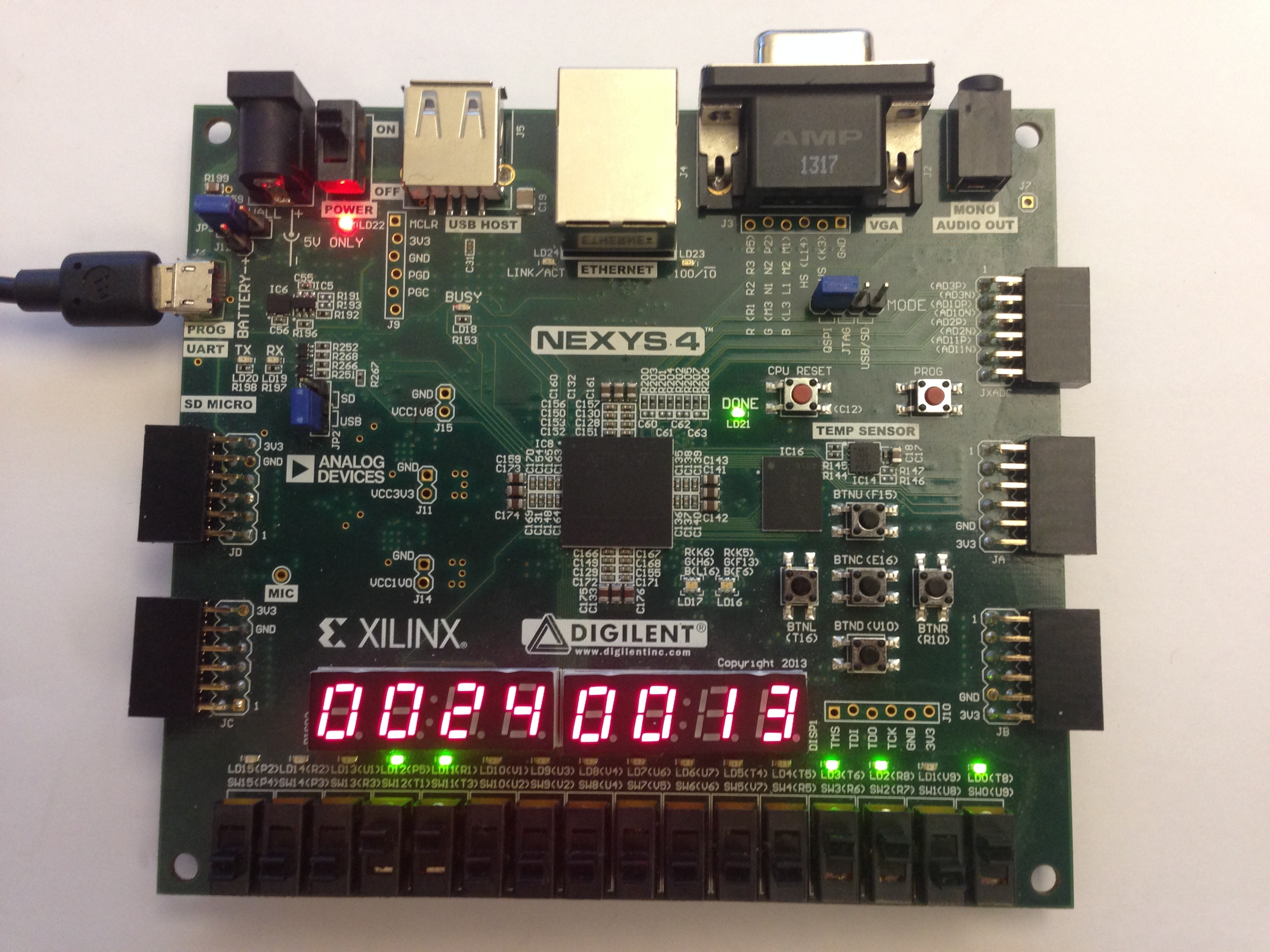
Displaying the two inputs when no button is pressed.
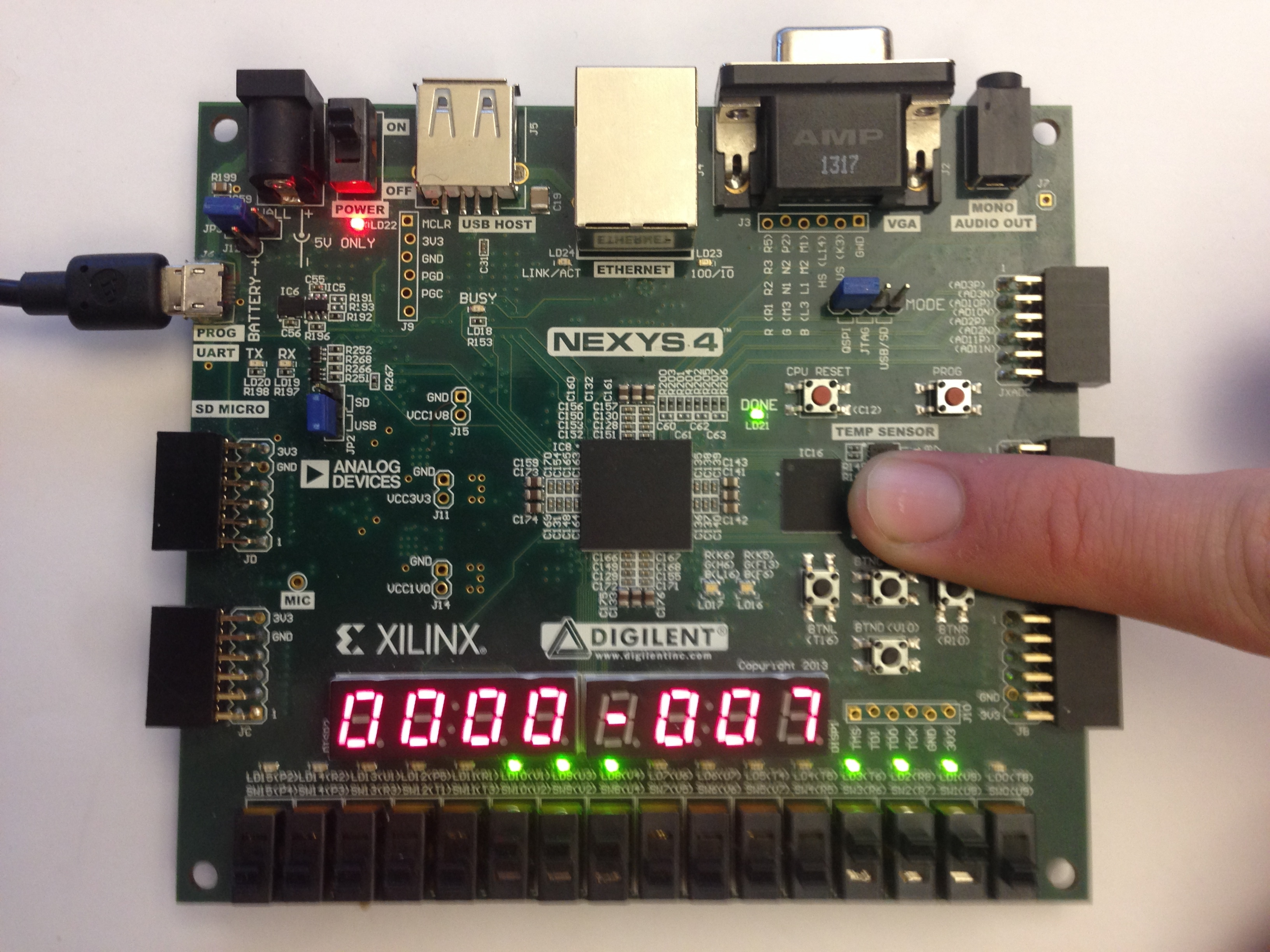
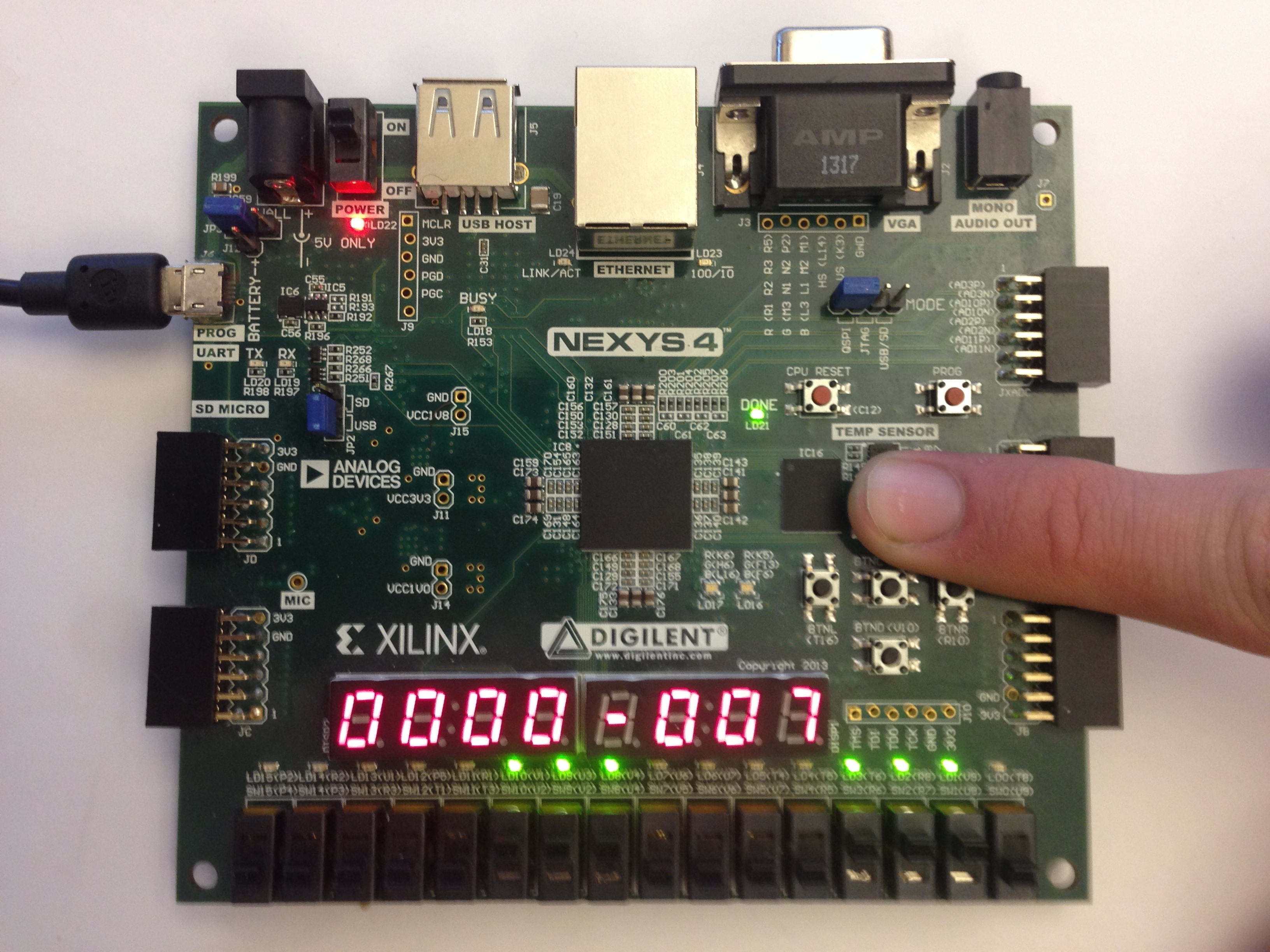
4.2) Subraction (BTNU)
When BTNU is pressed down, this activates subtraction. This function uses the formula A - B. While the button is held down, the display will show a static number that will also display whether it is positive or negative.
Displaying 24-13
Displaying 7-14
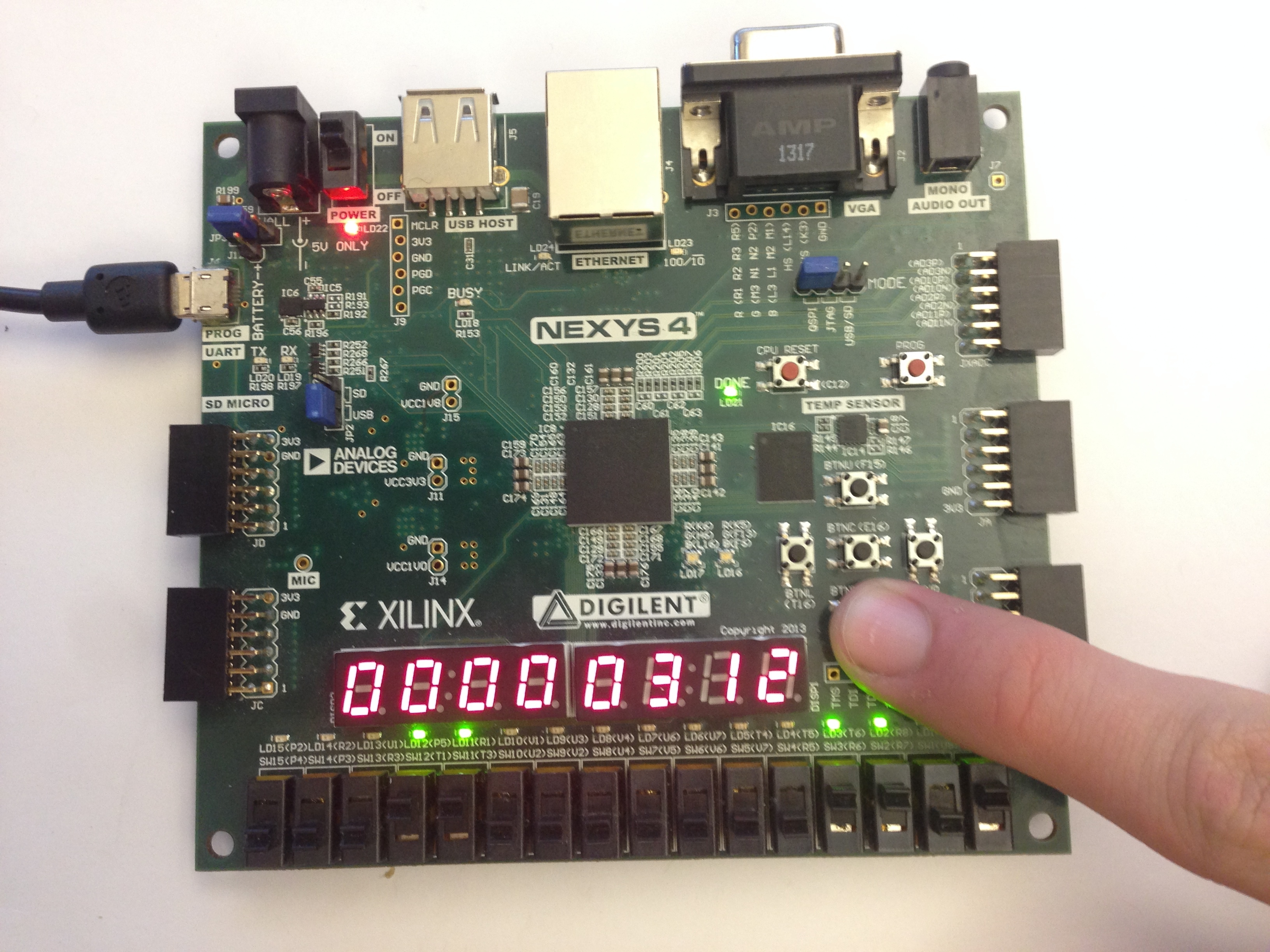
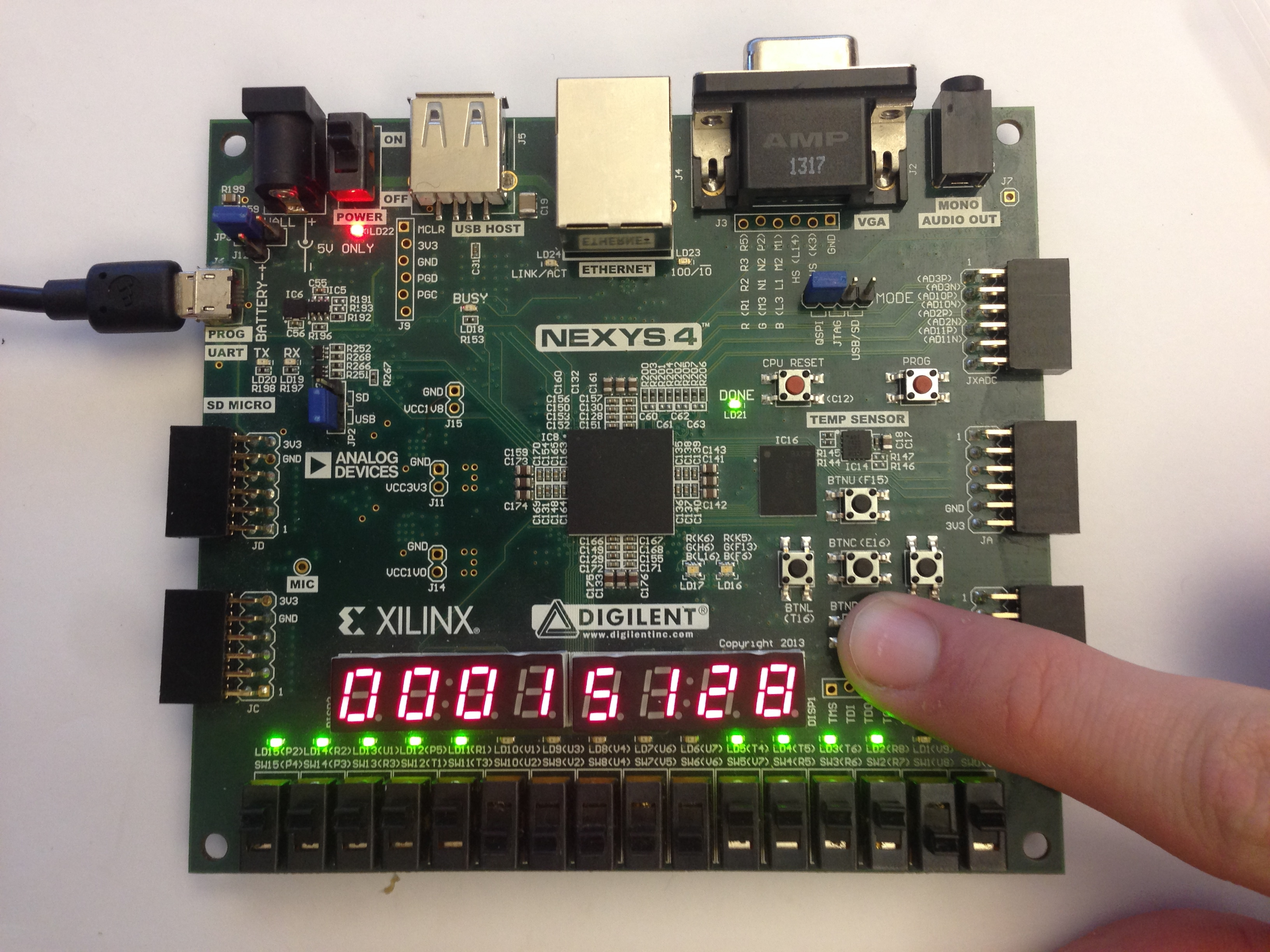
4.3) Multiplication (BTND)
When BTND is pressed down, this activates multiplication. This function uses the formula A * B. While the button is held down, the display will show the product.
Displaying 24×13
Displaying 248×61
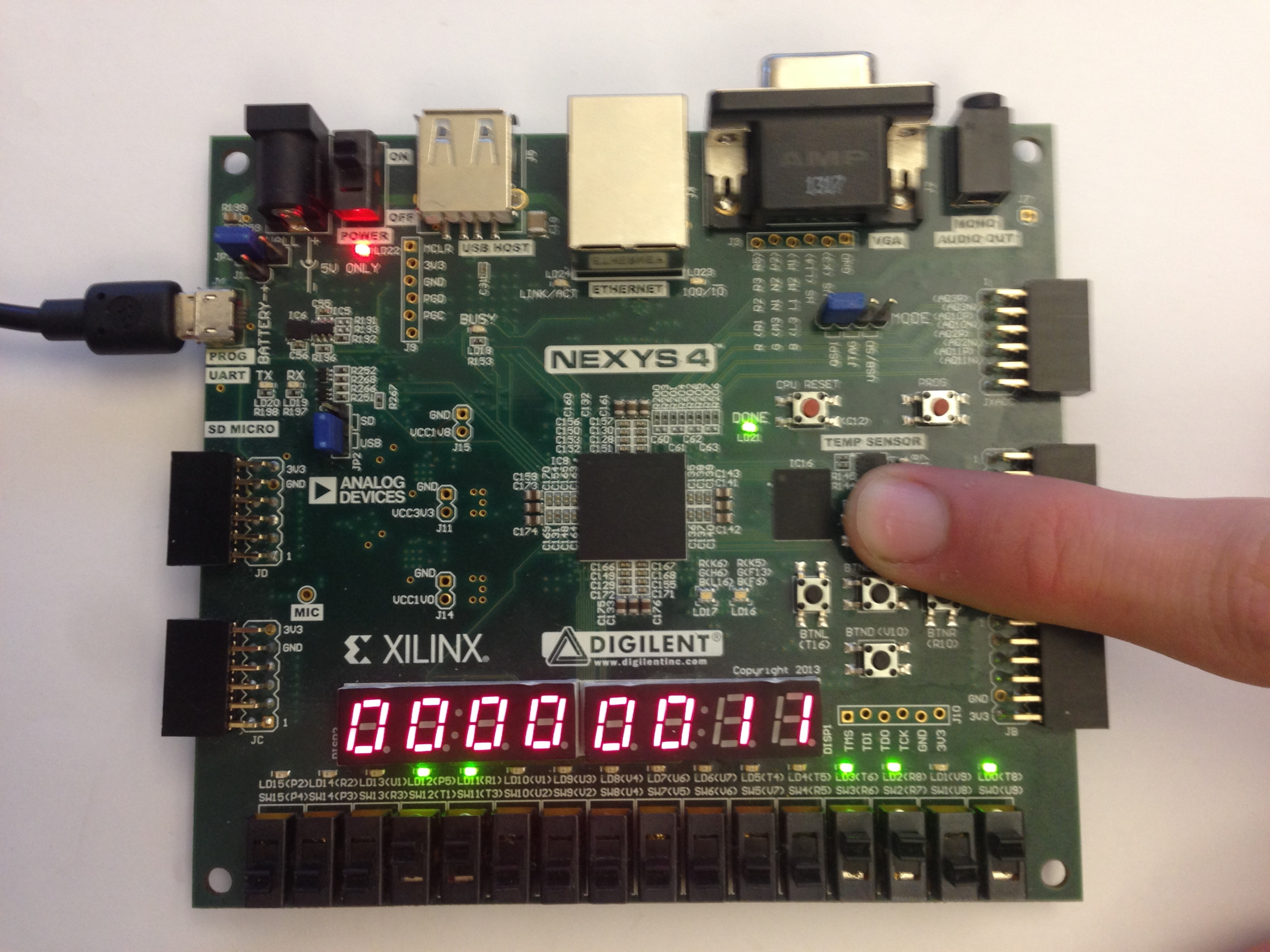
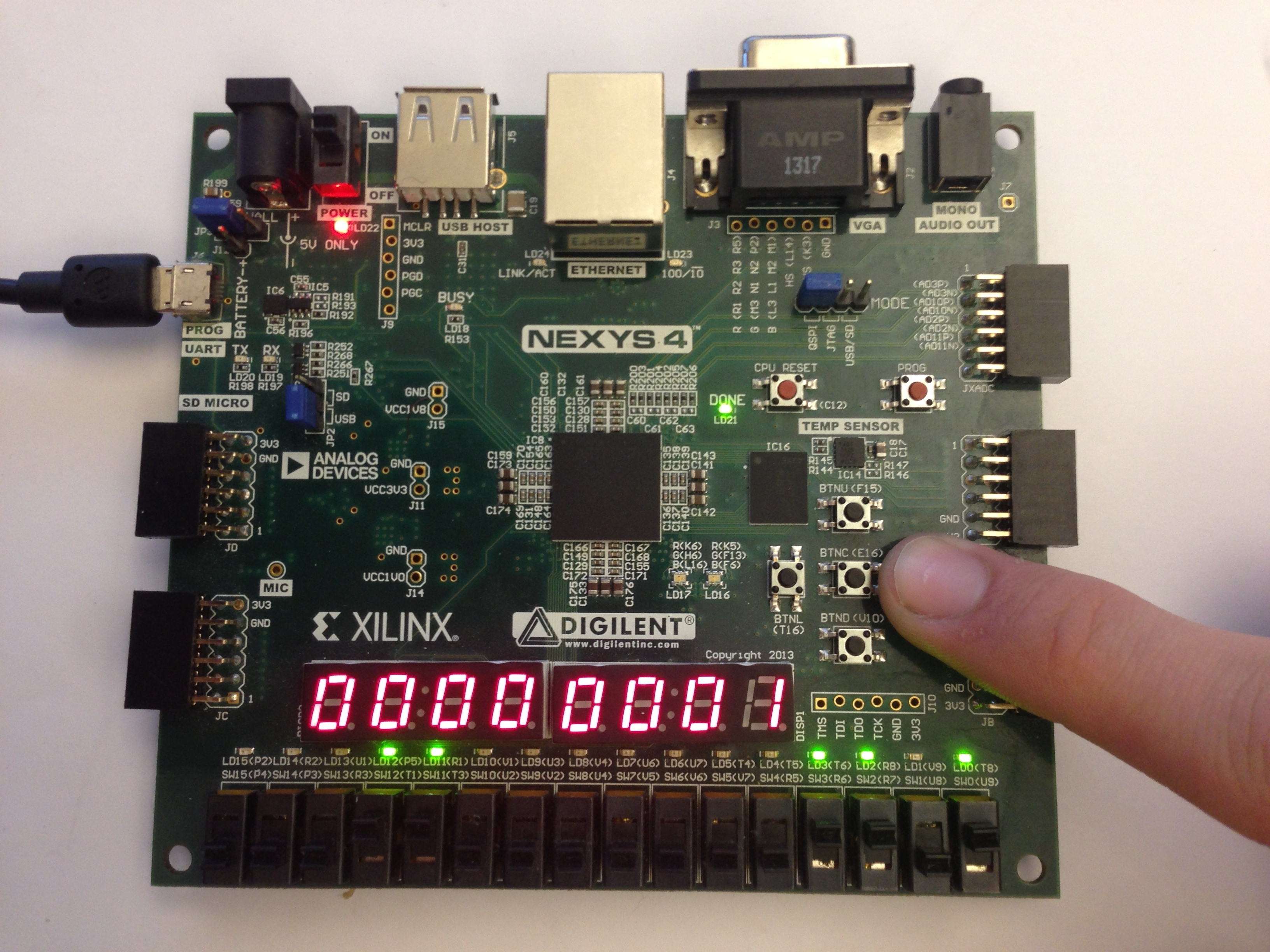
4.4) Division (BTNR)
When BTNR is pressed down, this activates division. This function uses the formula A / B. While the button is held down, the display will show the quotient.
Displaying 24/13 (Rounded down to 1)
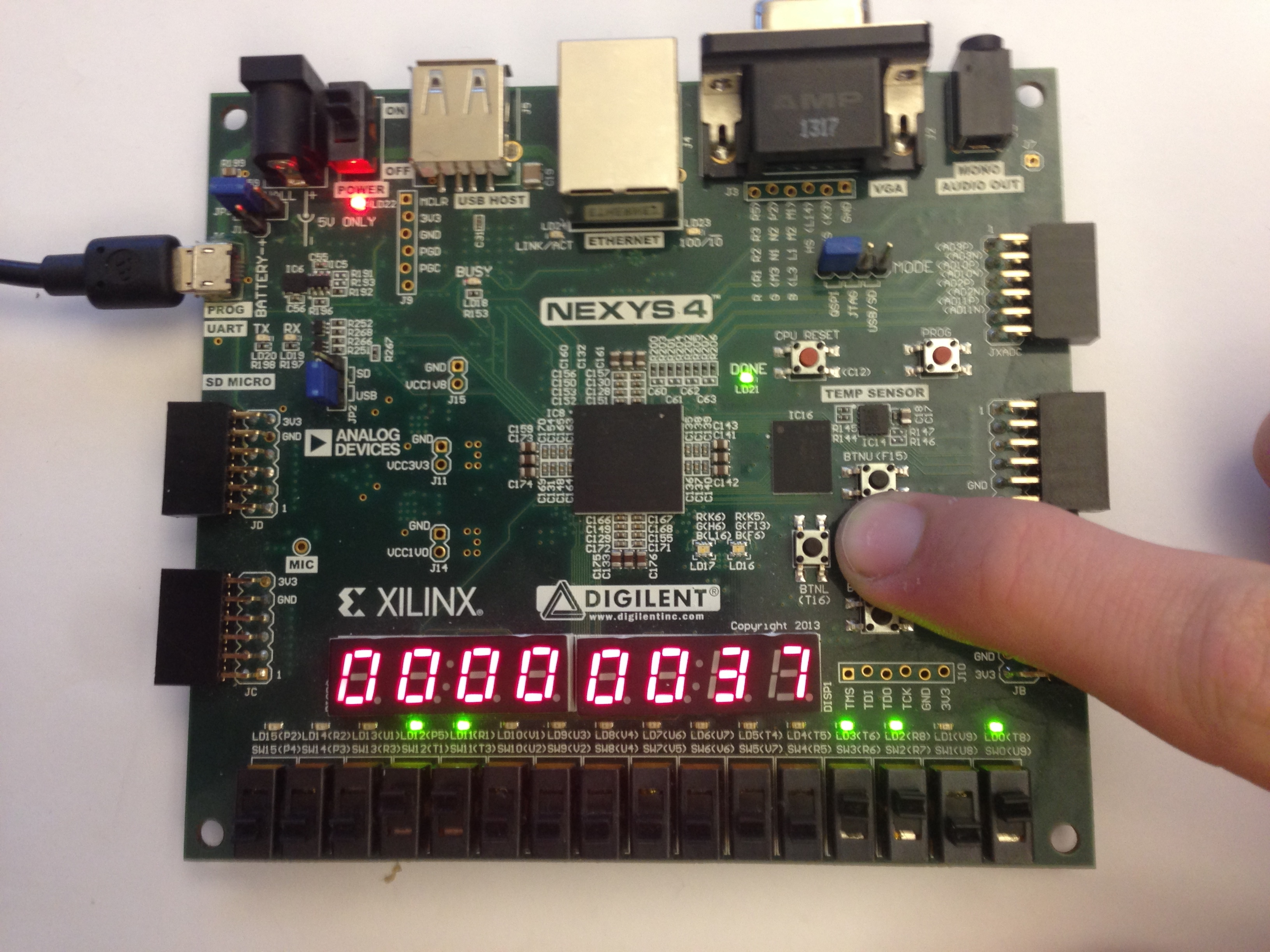
4.5) Modulo/Remainder (BTNL)
When BTNL is pressed down, this activates modulo. This function uses the formula A % B. While the button is held down, the display will show the remainder.
Displaying 24%13
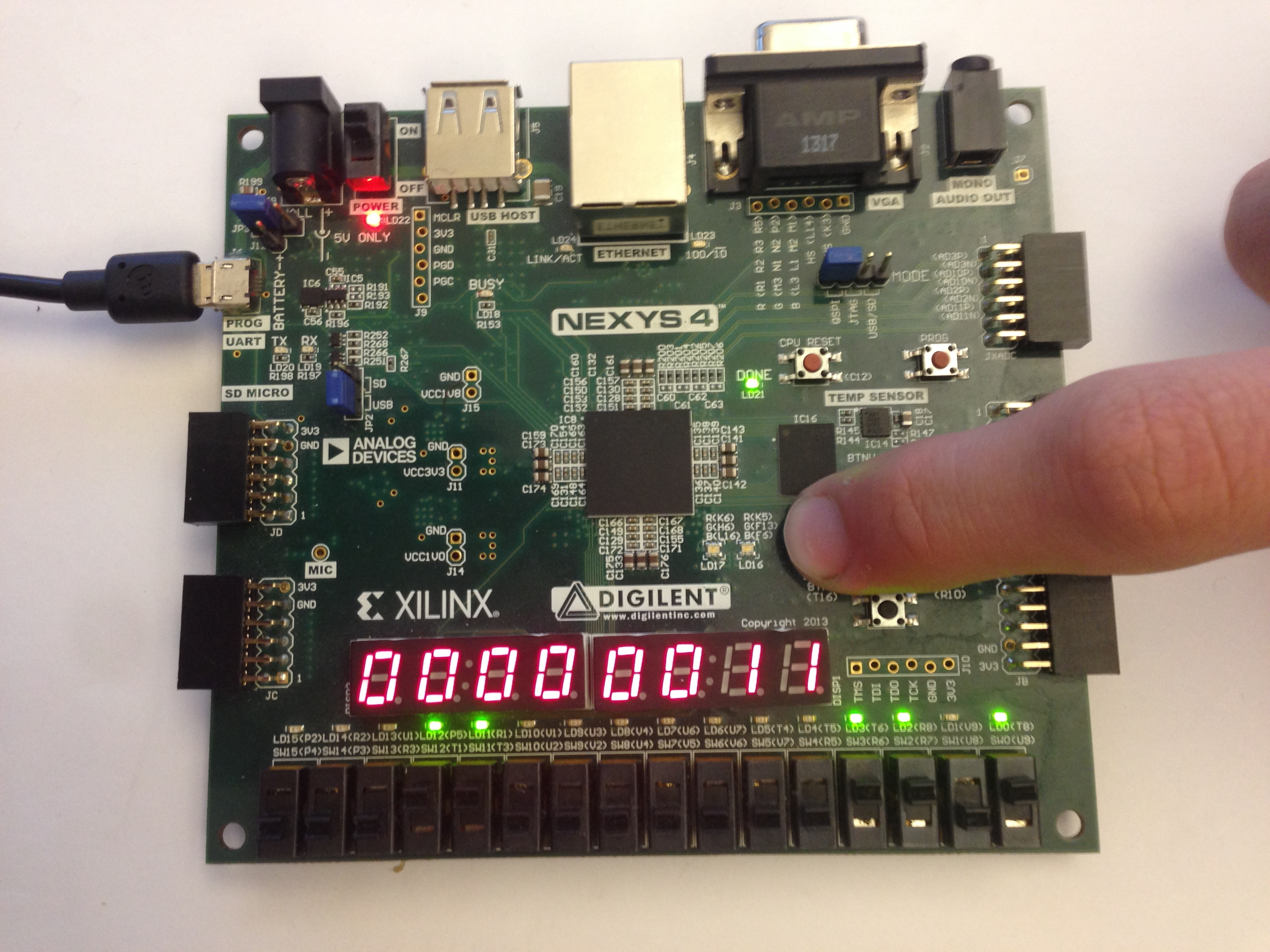
4.6) Addition (BTNC)
When BTNC is pressed down, this activates addition. This function uses the formula A + B. While the button is help down, the display will show the sum.
Displaying 24+13