

This is an old revision of the document!
Using the Digital I/O (Under Construction)
 splash image
Introduction
This guide explains the use of the Static I/O instrument in WaveForms. This instrument is used to interact with a Test & Measurement Device's digital input/output channels through simulated buttons, LEDs, displays, and sliders.
Prerequisites
- A Digilent Test & Measurement Device with Digital Input/Output Channels
- A Computer with WaveForms Software Installed
1. Opening the Static I/O
1.1
Plug in the Test & Measurement Device, then start WaveForms and make sure the device is connected.
If no device is connected to the host computer when WaveForms launches, the Device Manager will be launched. Make sure that the device is plugged in and turned on, at which point it will appear in the Device Manager's device list (1). Click on the device in the list to select it, then click the Select button (2) to close the Device Manager.
Note: “Demo” devices are also listed, which allow the user to use WaveForms and create projects without a physical device.
Note: The Device Manager can be opened by clicking on the “Connected Device” button in the bottom right corner of the screen (3), or by selecting “Device Manager” from the “Settings” menu at the top of the screen.

1.2
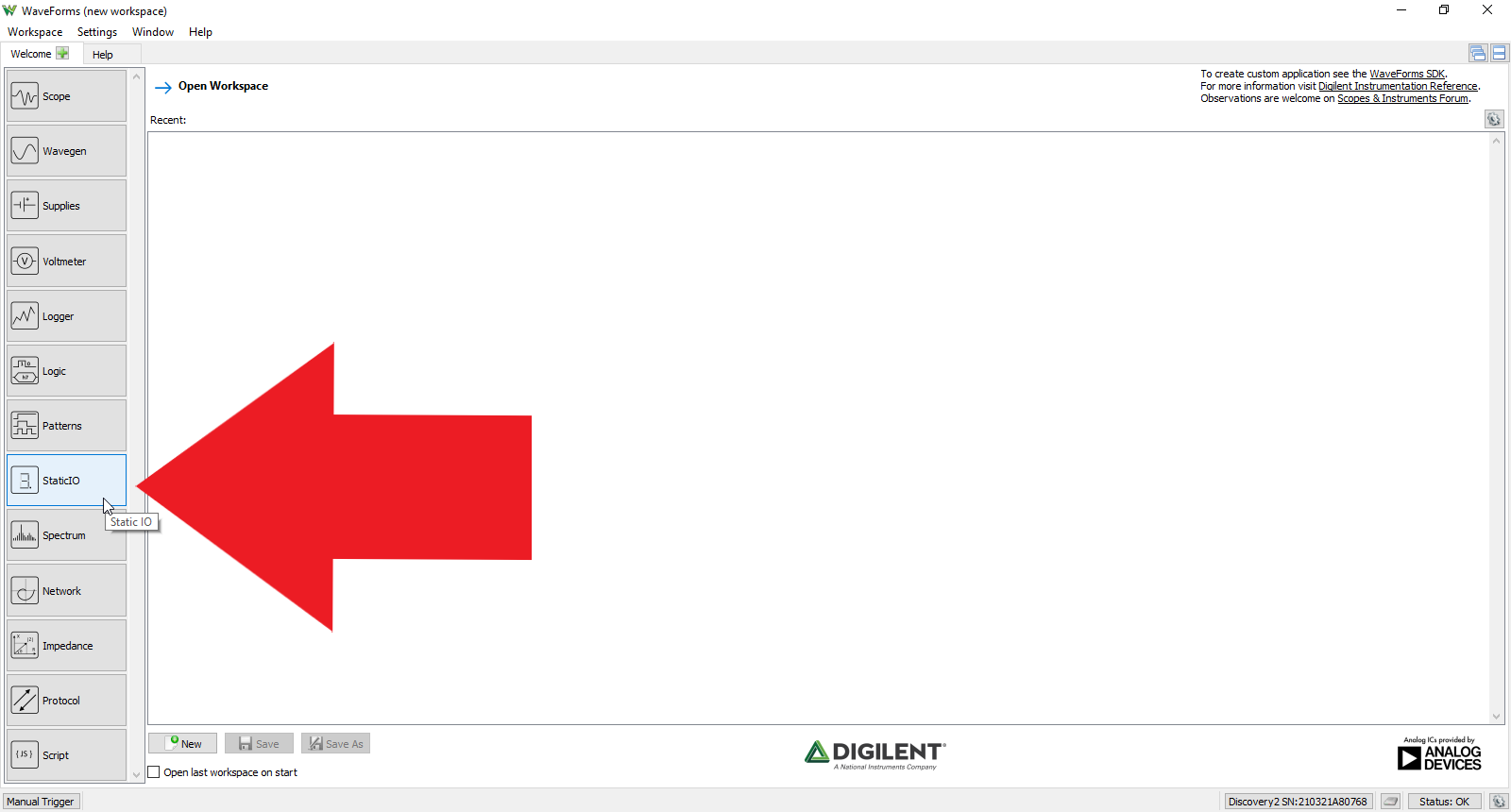
Once the Welcome page loads, in the instrument panel at the left side of the window, click on the StaticI0 button to open the Static I/O instrument.
1.3
Once the Static I/O instrument opens, the window contains two rows of Bit I/O digital input and output ports with DIO15-DIO8 in the top row and DIO7-DIO0 in the bottom row all assigned to LED state indicators by default.

2. Using the Static I/O
This section walks through setting up the StaticIO instrument to display and interact with digital I/O ports and their logic levels.
Note: This guide can be followed using a “Demo” device selected in the WaveForms Device Manager. Doing so allows the user to follow along without having access to an Analog Discovery Studio.
2.1 Software Display Setup
This demo does not require any hardware setup but relies on the Logic Analyzer and Pattern Generator tools in Waveforms. To set up these tools and view them simultaneously, follow these steps:
2.1.1
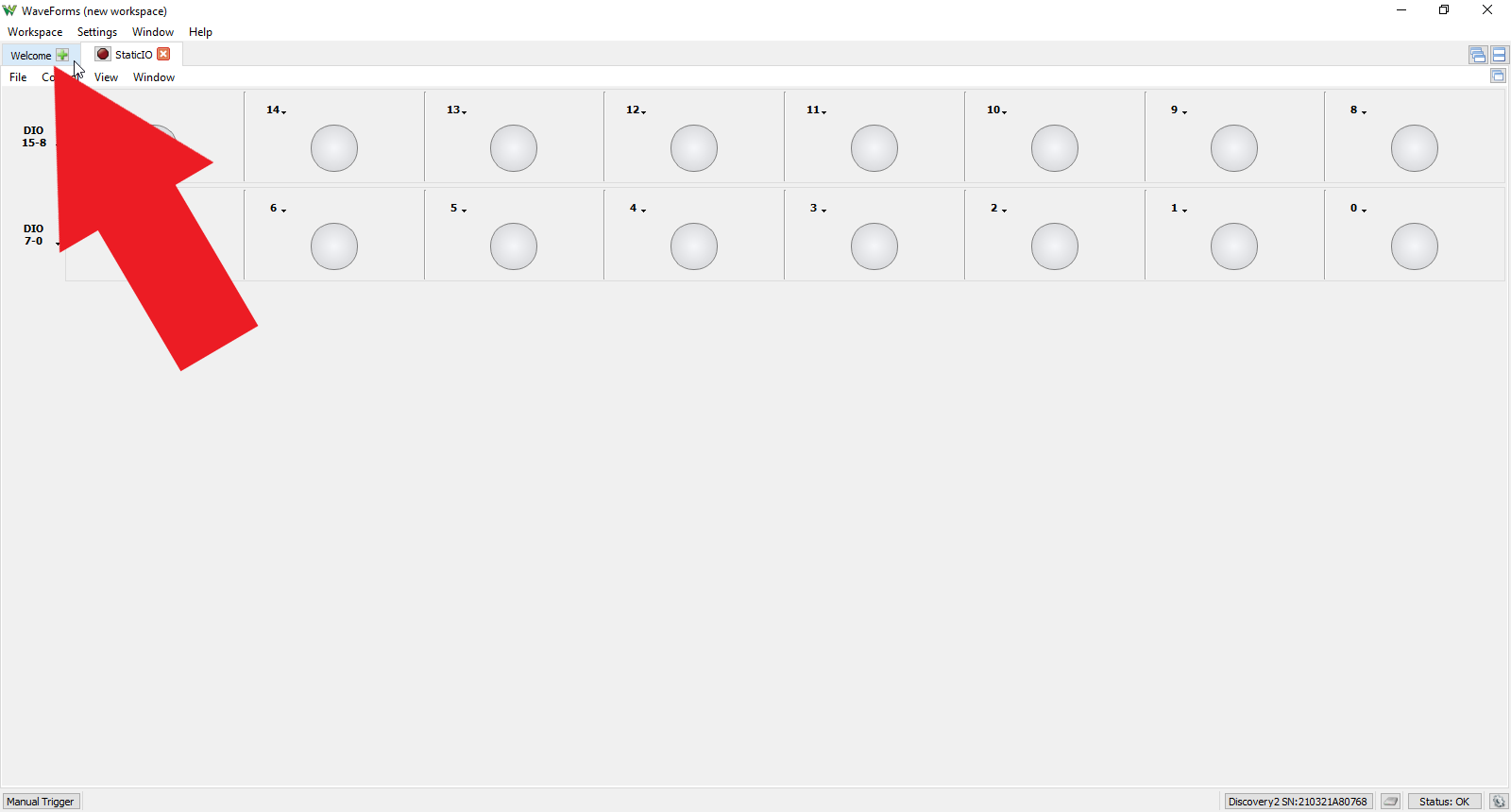
Click on the Welcome page icon in the upper left corner of Waveforms
2.1.2
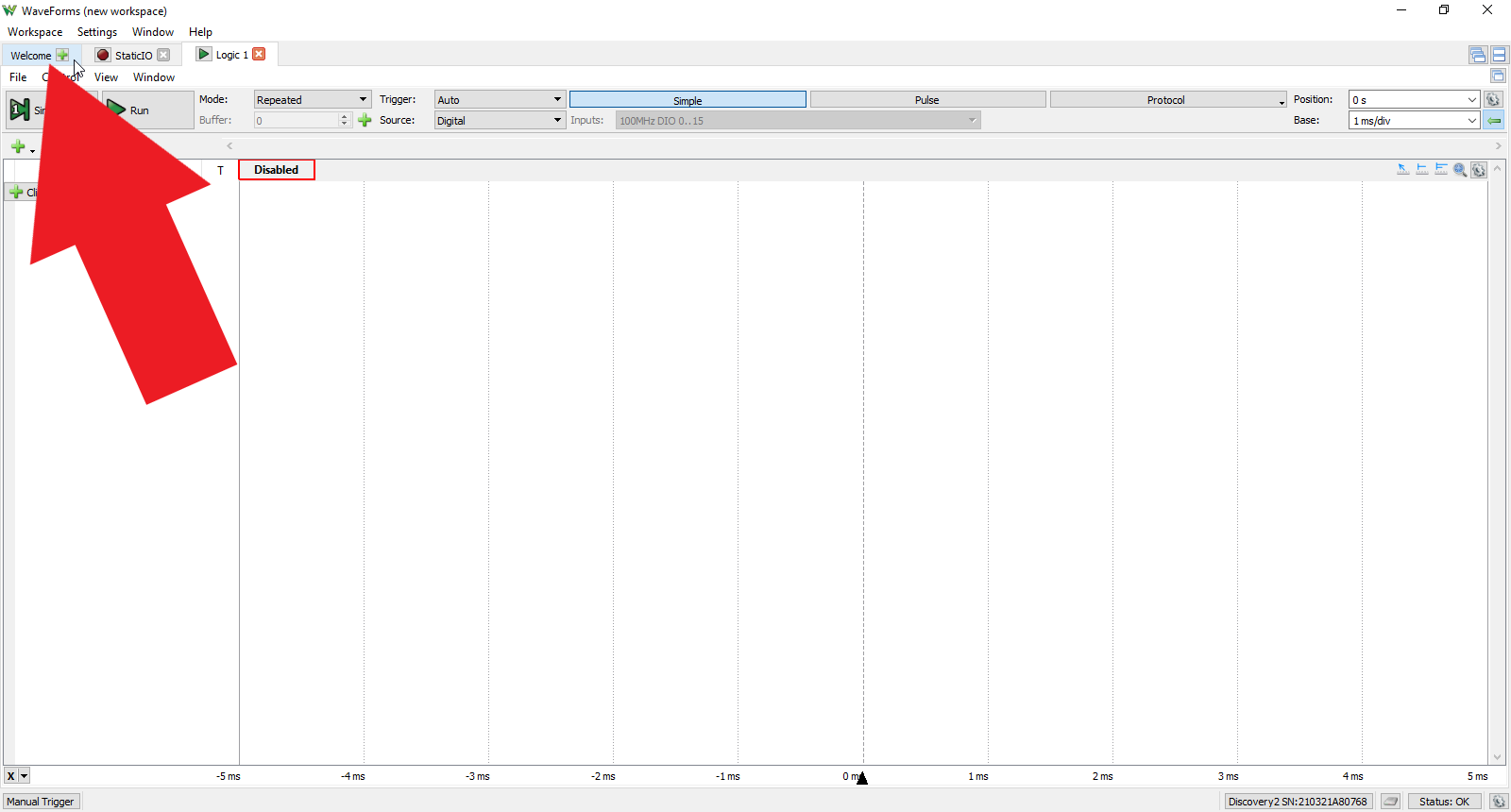
Click the Logic tool
2.1.3
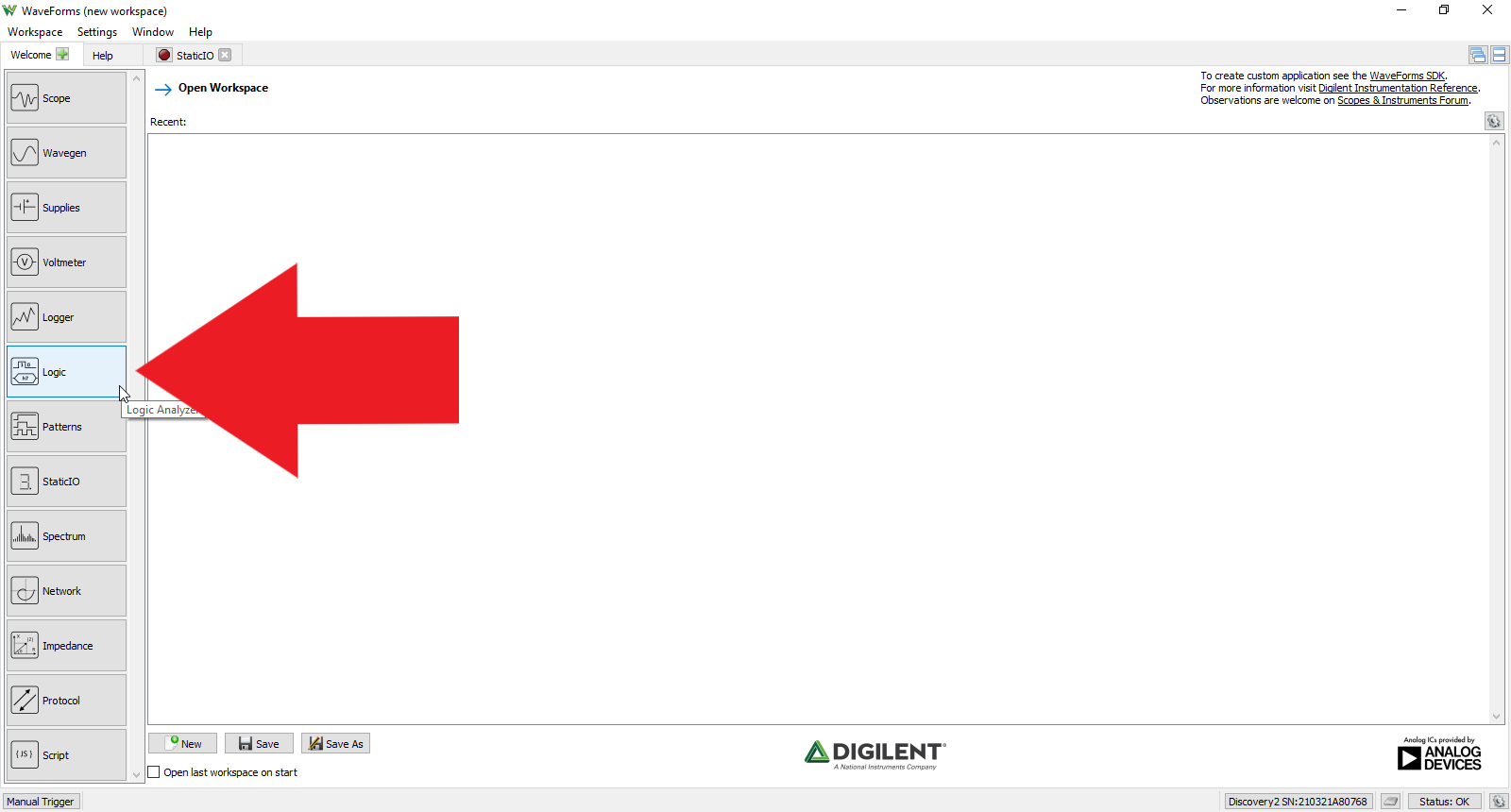
Click on the Welcome page again
2.1.4
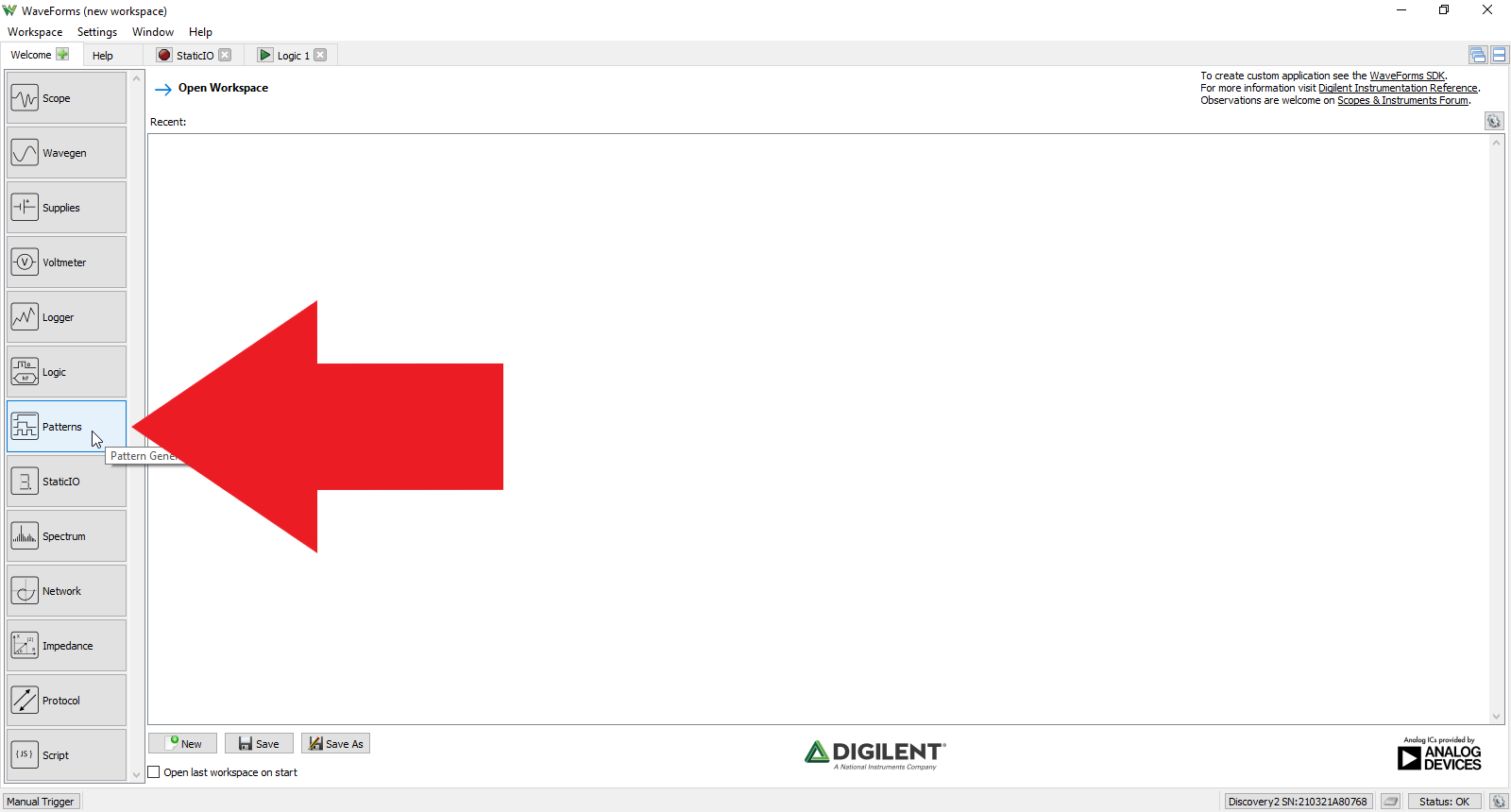
Click the Patterns tool
2.1.5
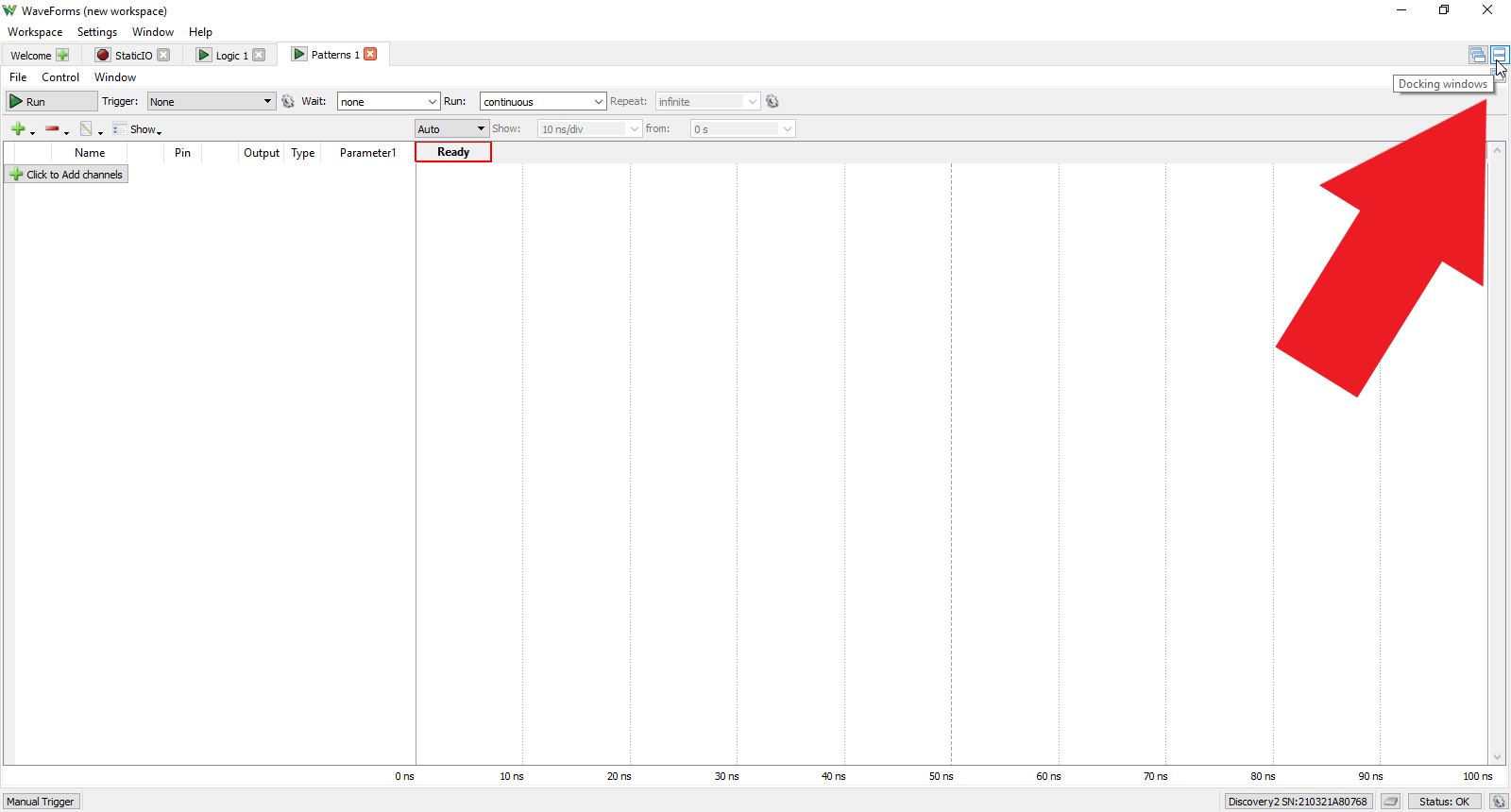
Click the Docking Windows icon in the upper right corner of Waveforms
2.1.6
Now, the Static I/O, Logic Analyzer, and Pattern Generator tools should all be open and viewed together in the same window with the Logic Analyzer in the top portion of the window, the Static I/O in the bottom left portion of the window, and the Pattern Generator in the bottom right portion of the window.

2.2 Software Function Setup
These next steps will set up two types of logic displays for the Static I/O tool. First, the Patterns tool will be set up for an LED display in the Static I/O tool, then a button will be configured in the Static I/O tool to observe logic high and logic low outputs in the Logic tool.
2.2.1
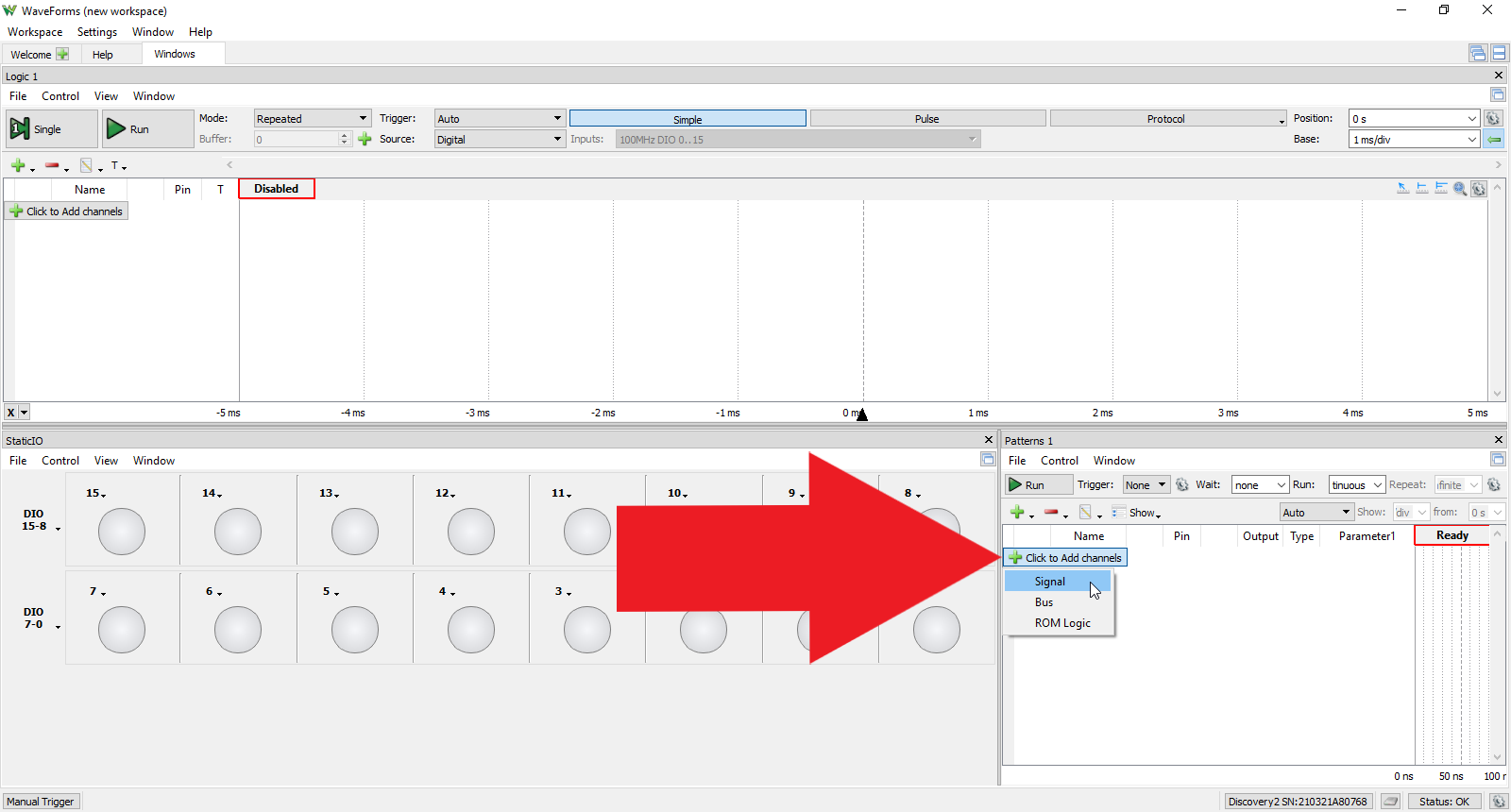
In the Patterns tool window, click the “Click to Add channels” button and select “Signal”.
2.2.2
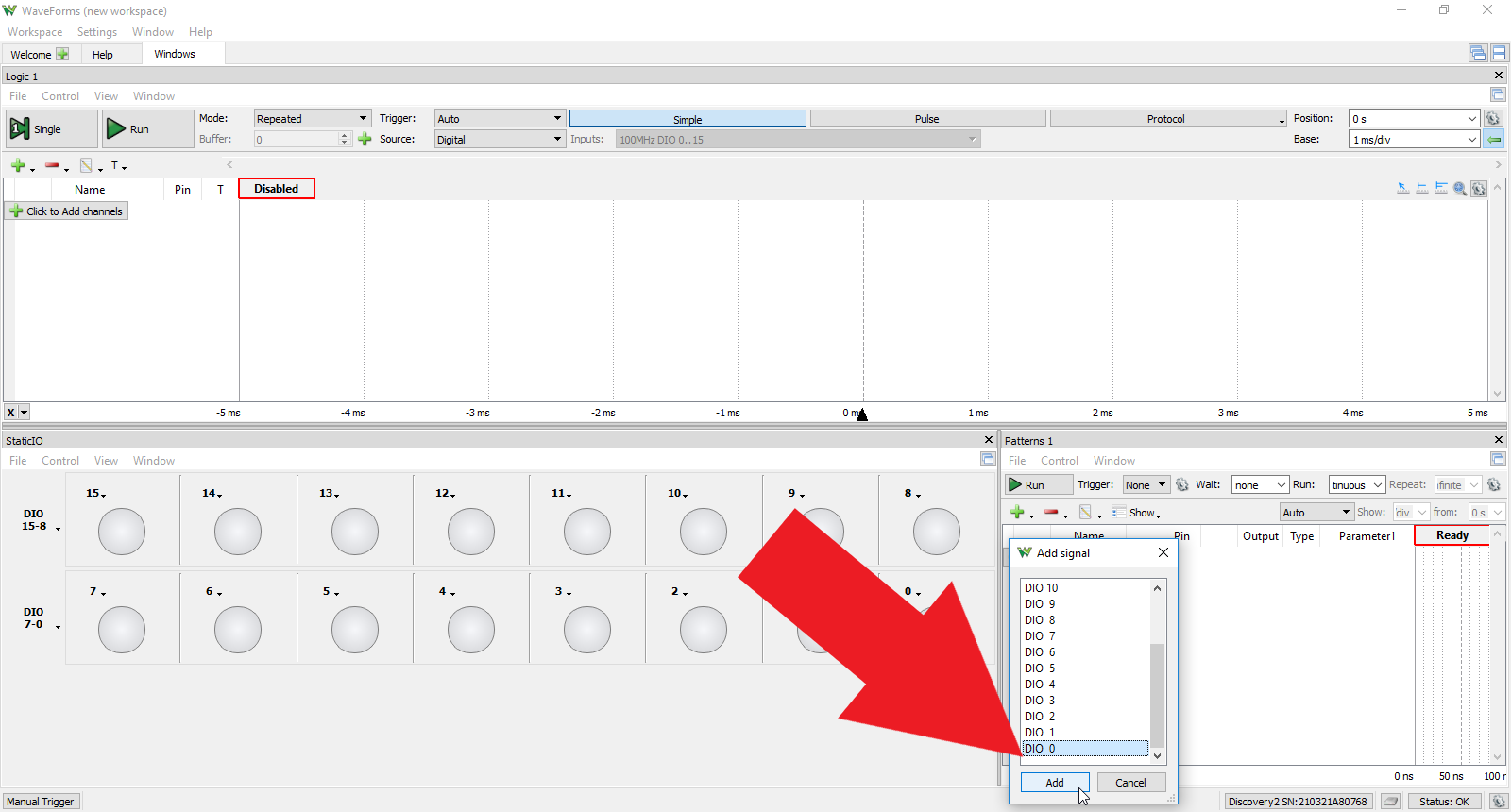
In the “Add Signal” window, scroll down “DIO 0”, select it, and click “Add”. DIO 0 should appear in the Patterns tool window.
2.2.3
In the Patterns tool window under “Type”, click the drop down menu to change it to “Clock”.

2.2.4
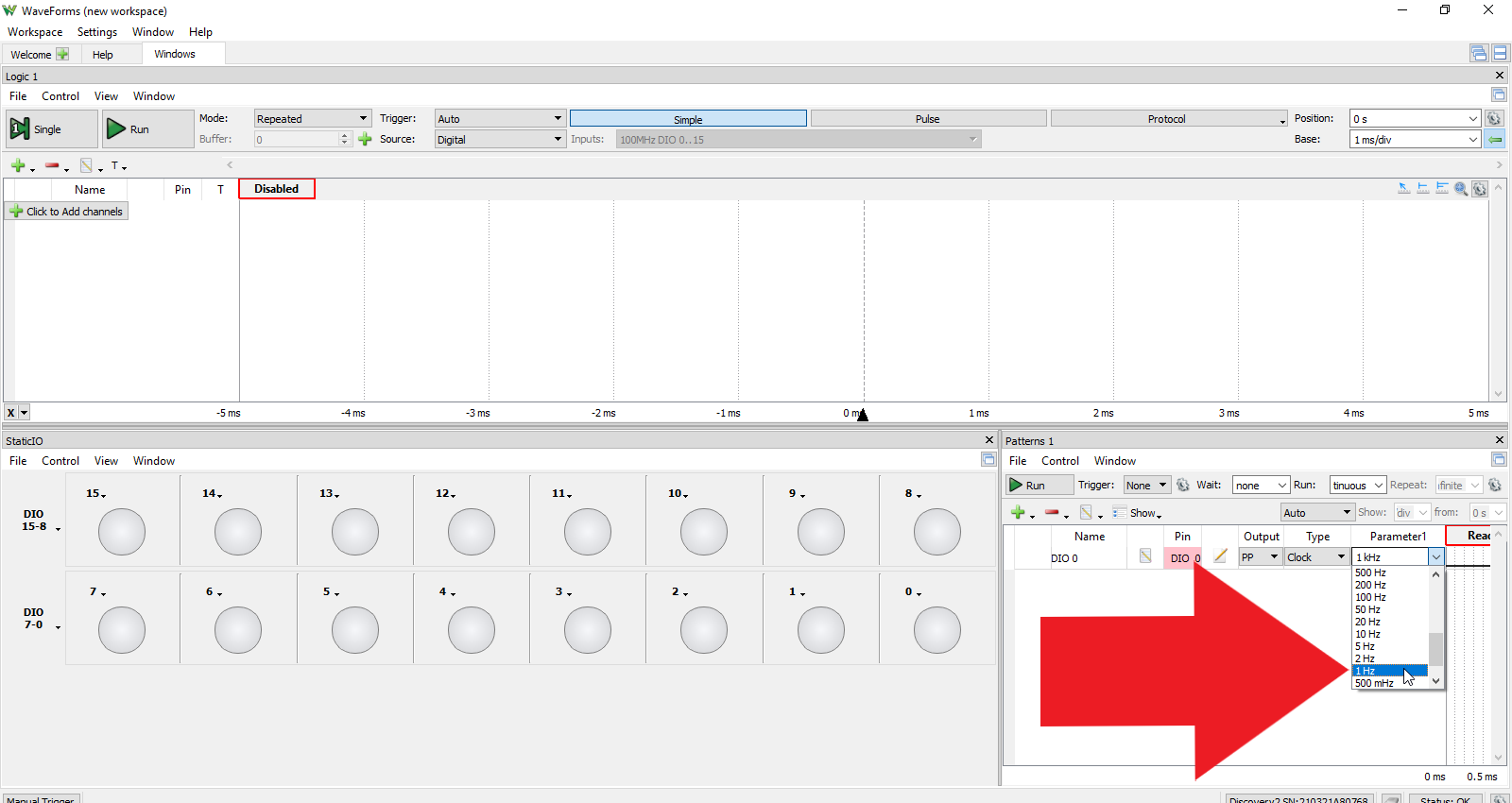
In the Patterns tool window under “Parameter 1”, click the drop down menu, scroll down to and select “1 Hz”.
2.2.5
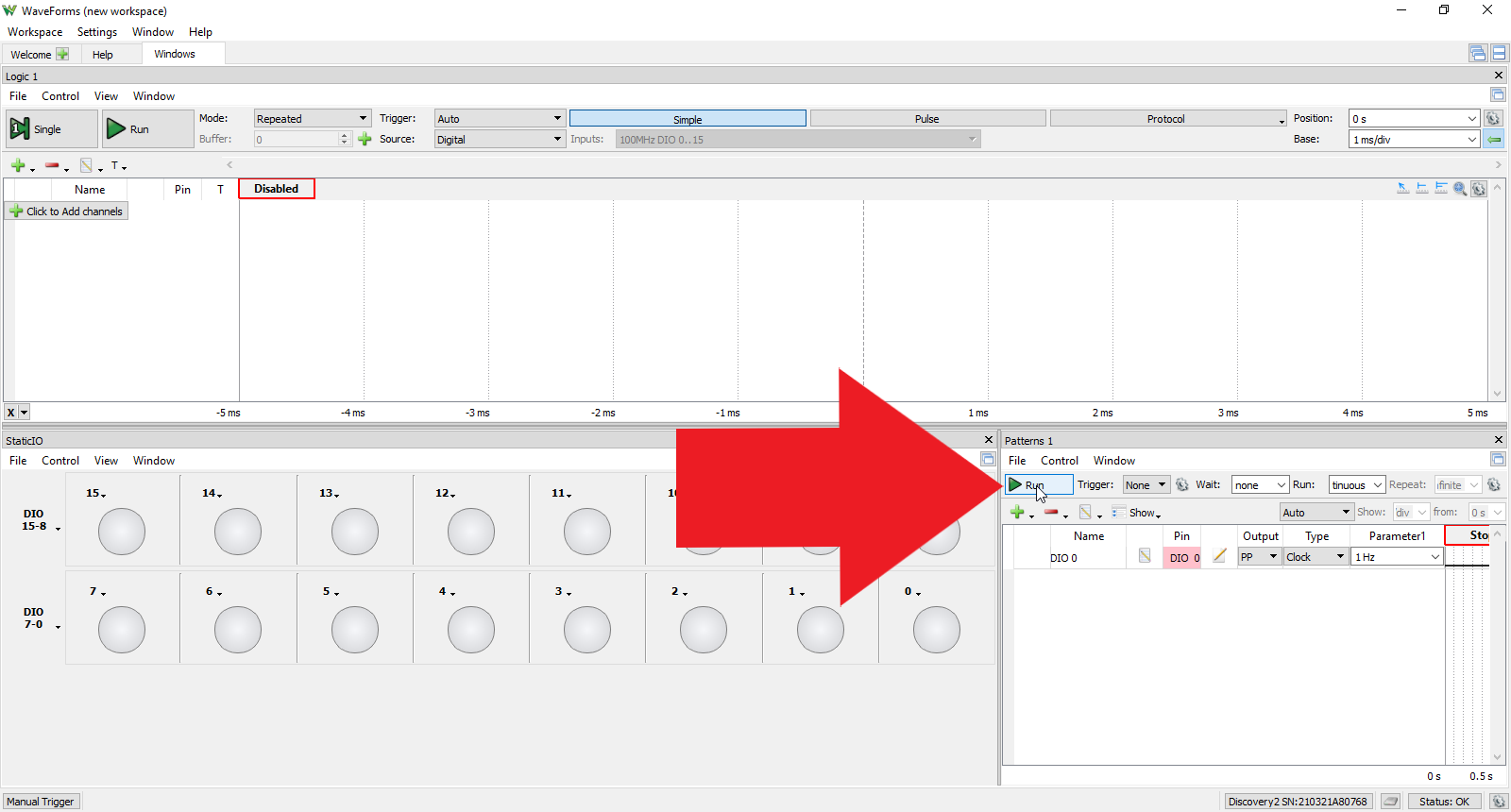
In the Patterns tool window, click the “Run” button.
2.2.6
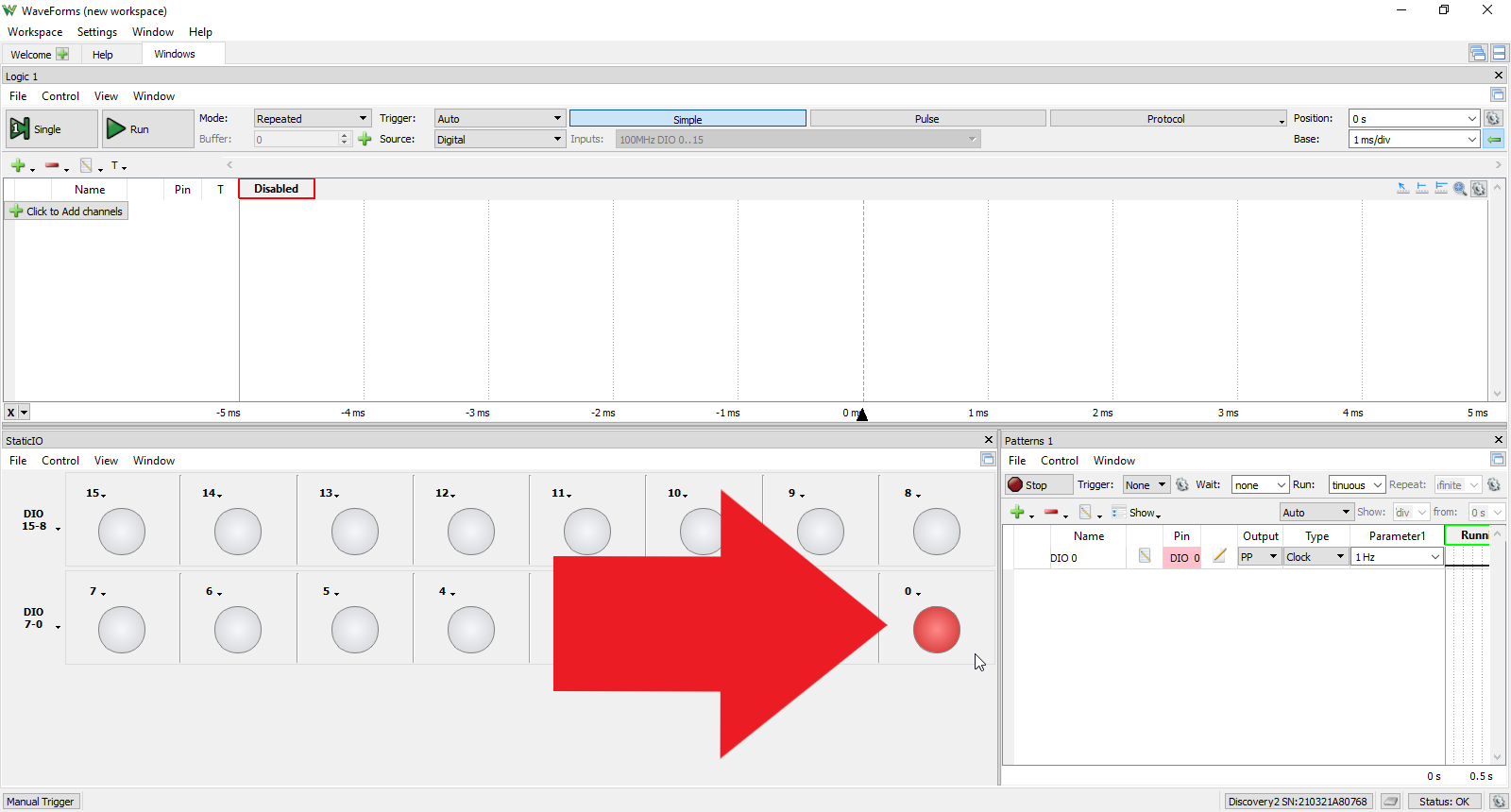
In the Static I/0 tool, observe DIO 0 flash at the 1 Hz clock rate set by the Patterns tool.
2.2.7
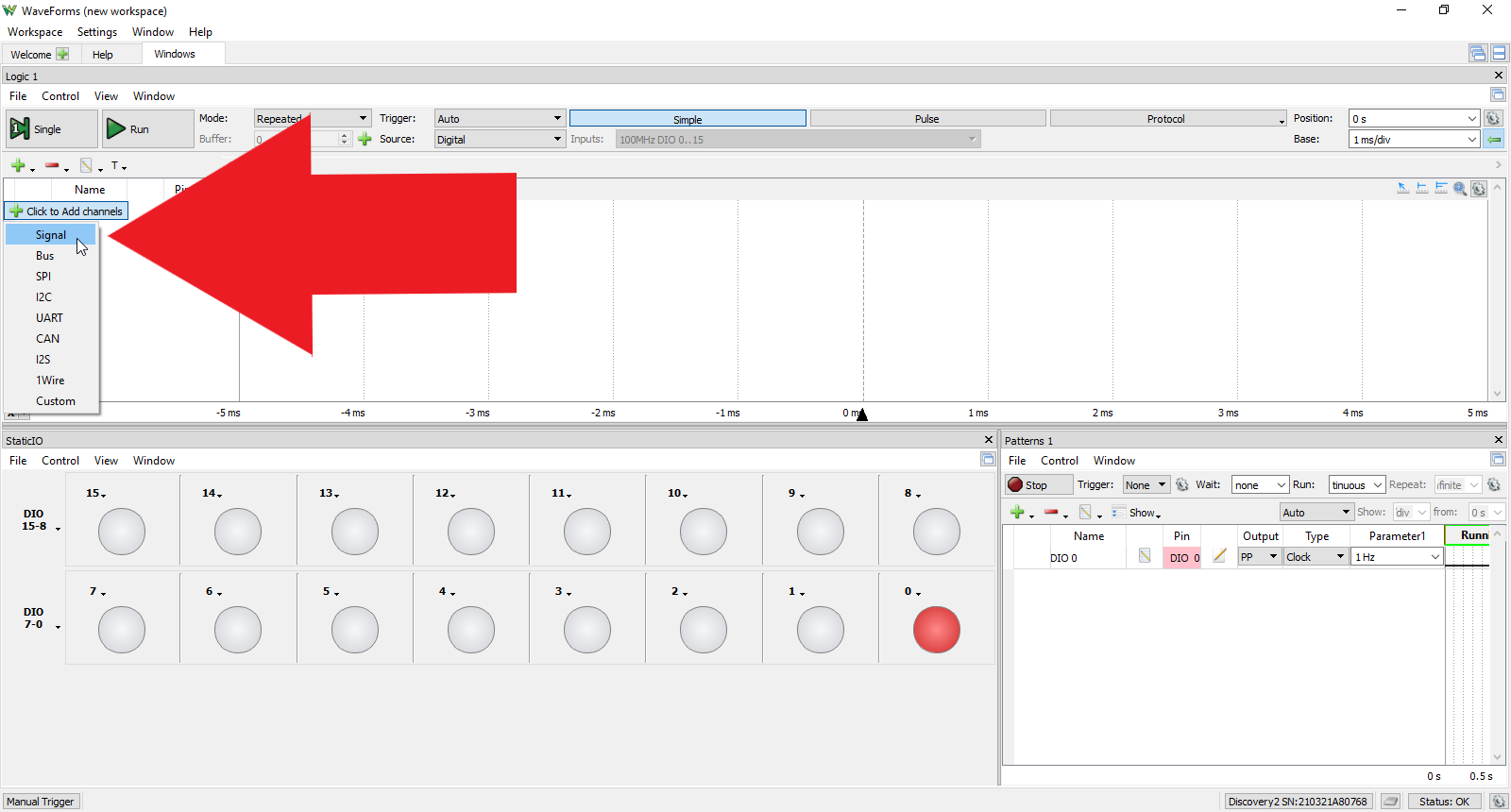
In the Logic tool window, click the “Click to Add channel” button and select “Signal” from the drop down menu.
2.2.8
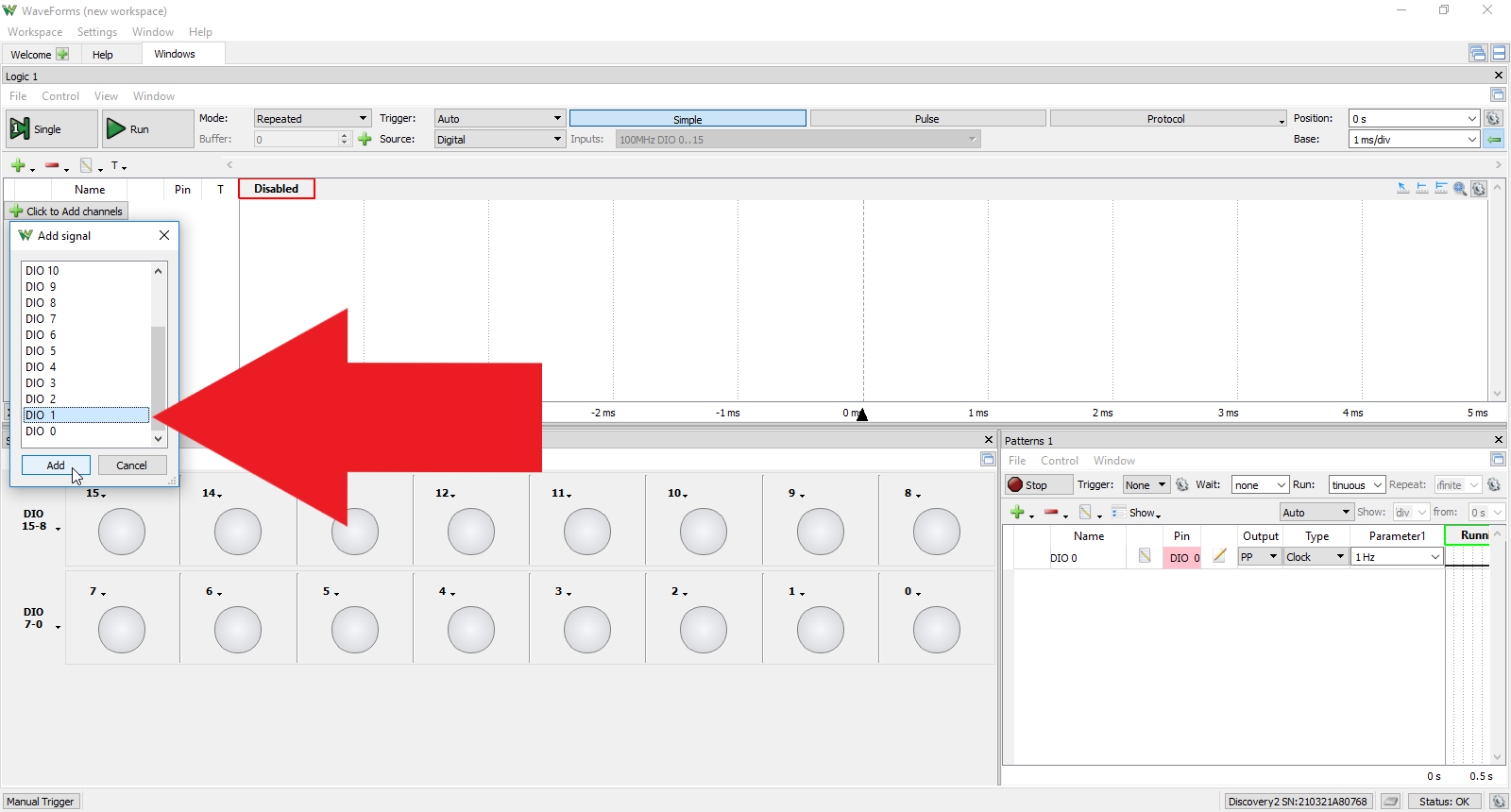
In the “Add Signal” window, scroll down to “DIO 1”, select it, then click “Add”.
2.2.9
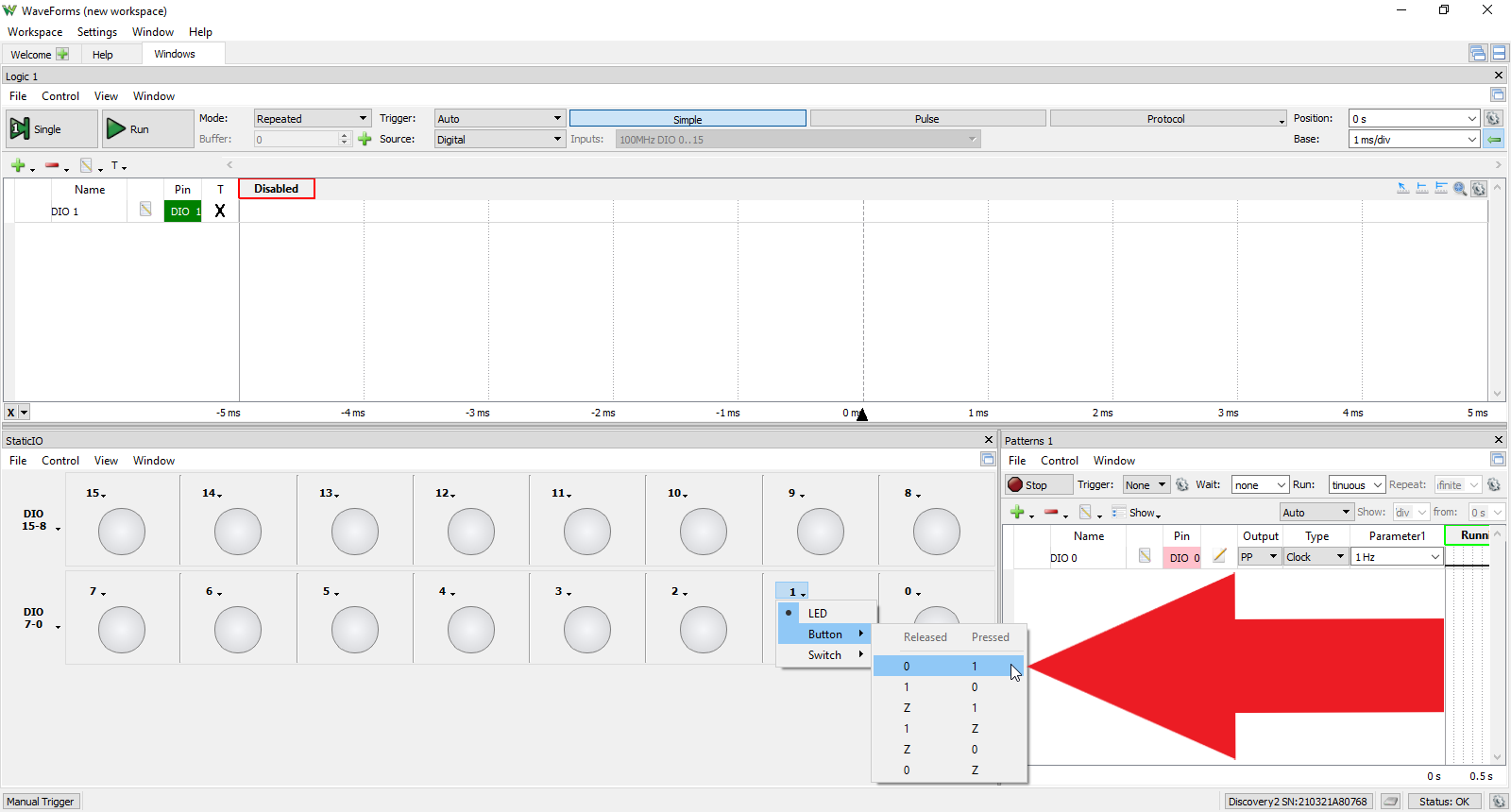
In the Static I/O tool window, navigate to the DIO 1 box next to the flashing DIO 0 box. Click on the downward arrow, select “Button”, and select the configuration at the top of the list (Released: 0, Pressed: 1).
2.2.10
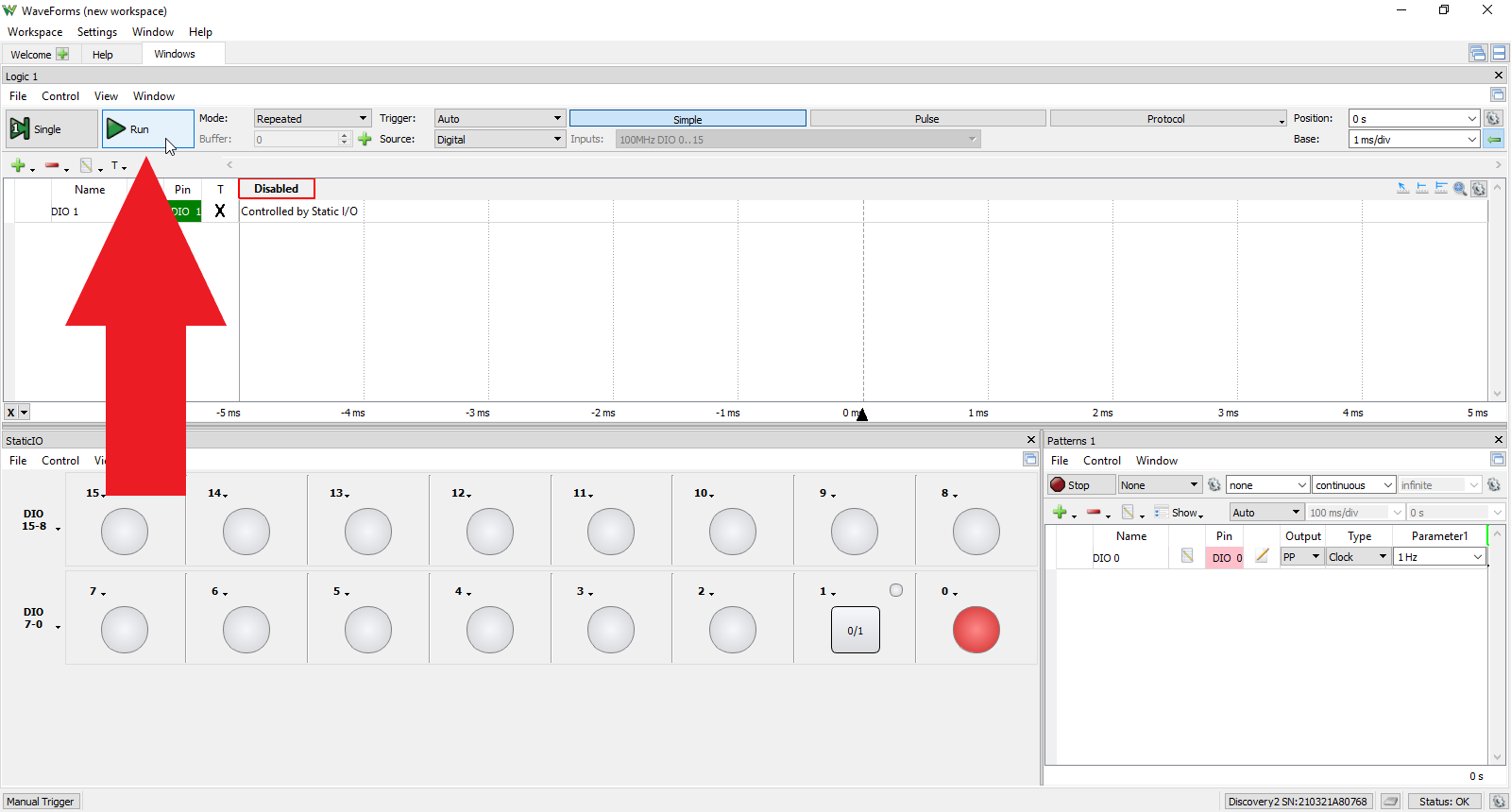
In the Logic tool window, click the “Run” button near the top.
2.2.11
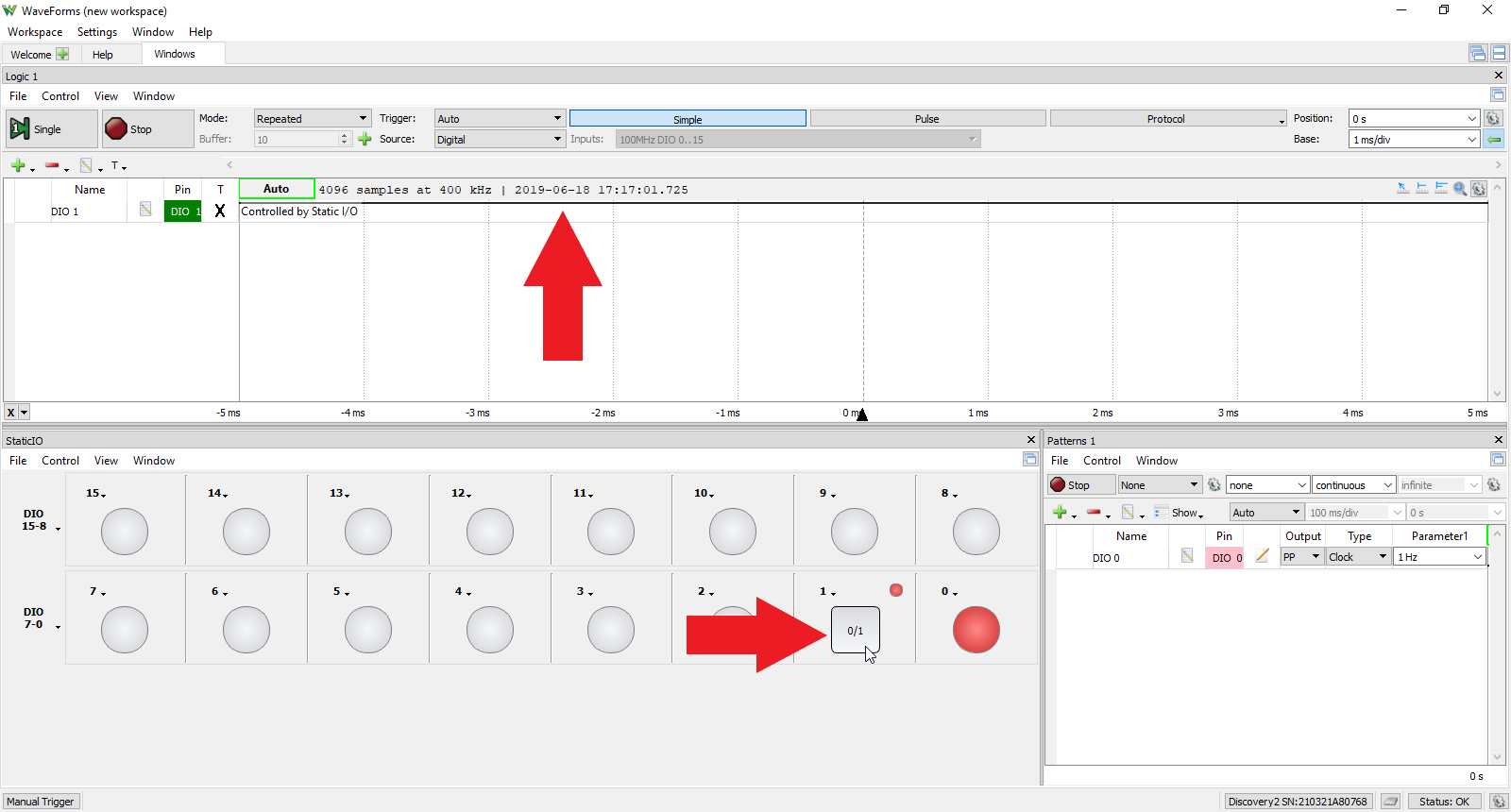
In the Static I/O tool, click on the DIO 1 button and observe the logic level of DIO 1 change from low to high in the Logic tool window.
3. Static I/O User Interface Overview
This section walks through the various configuration options for the Static I/O interface. These configurations can be used to interact with and display digital signals and circuits either with the previously explored tools in Waveforms or with external digital circuits. However, the scope of this section will be limited to only configuration with brief application discussions.
3.1 Group Bus Assignments
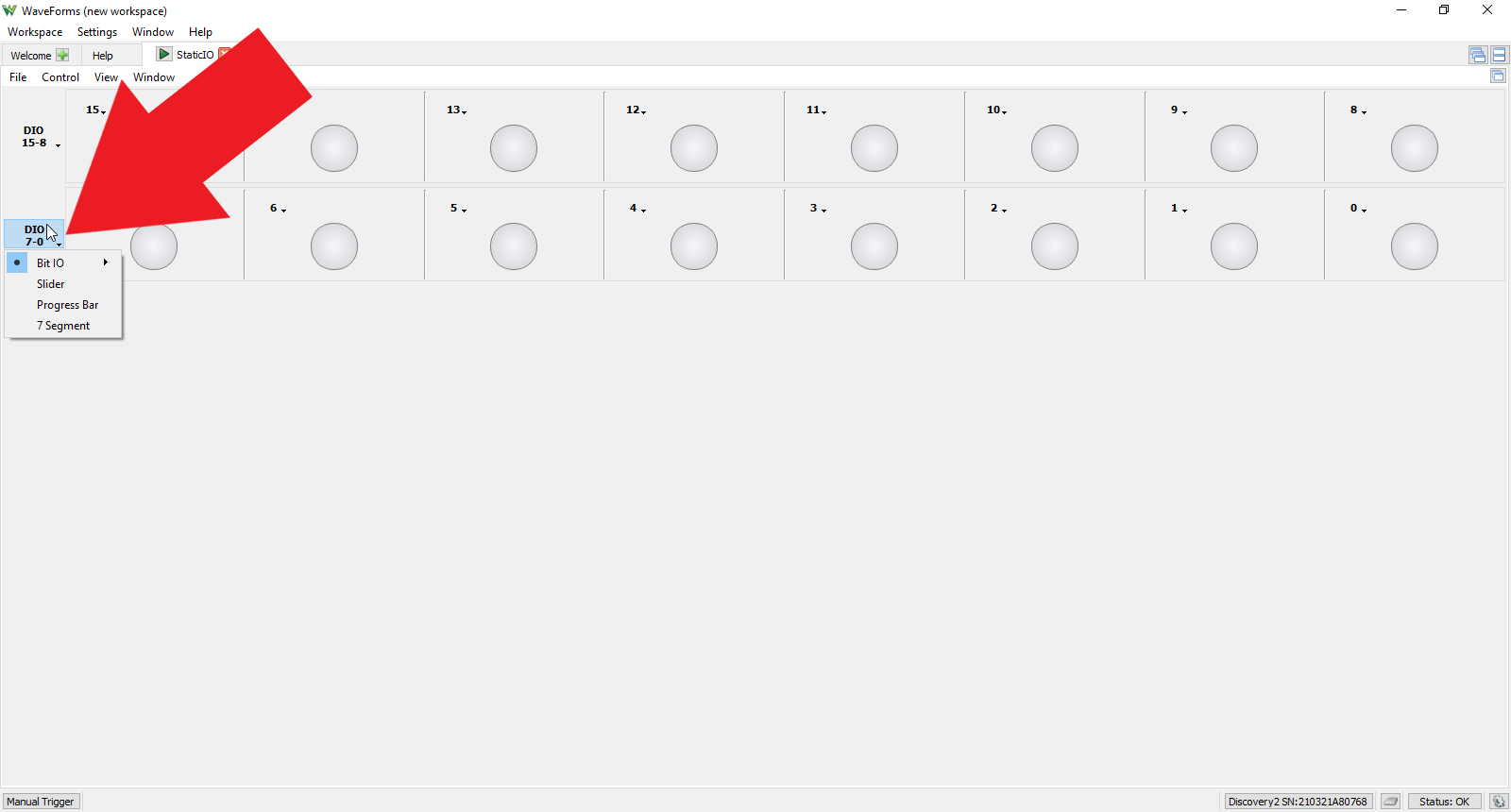
By default, the Static I/O tool opens with all the available DIO lines from your Test and Measurement Device in groups of 8, descending from left to right and top to bottom all configured as LED state indicators for each line. To change a particular group, click on the group configuration drop down menu located on the left of the group row. This menu includes:
- Bit IO: (Input/Output) Last IO, LED, Button, Switch (Discussed further in Section 3.2)
- Slider (Output)
- Progress Bar (Input)
- 7 Segment Display (Input)
3.1.1 Slider
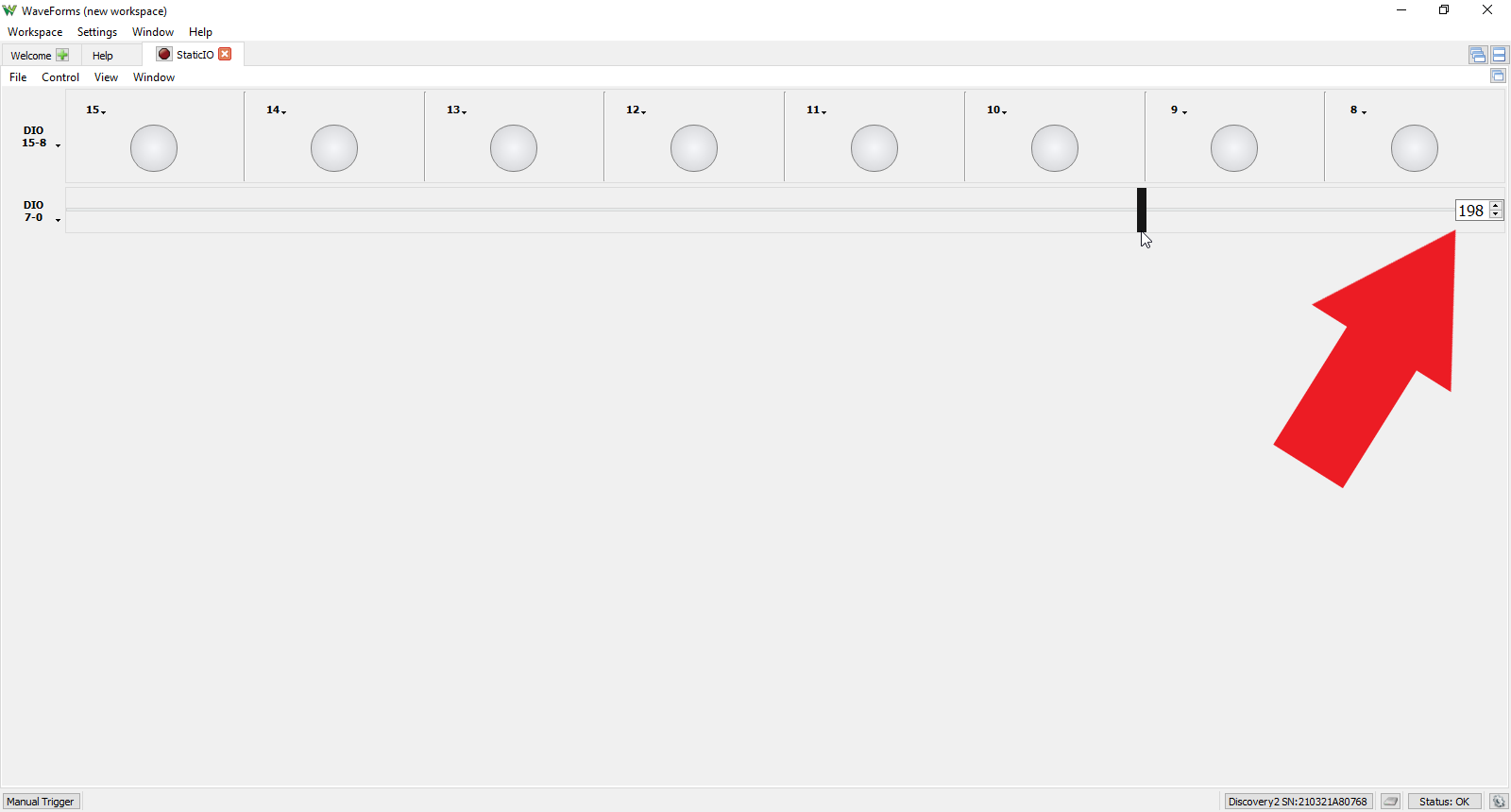
Selecting “Slider” from the group assignments drop down menu groups those eight DIO lines into an 8-bit binary value output that can be changed by either moving the slider left to right or by entering a value between 0 and 255 in the value text field located to the right of the slider bar. The highest digital line is the most significant bit (MSB) and each digital line will get the corresponding bit value related to the bus value.
3.1.2 Progress Bar
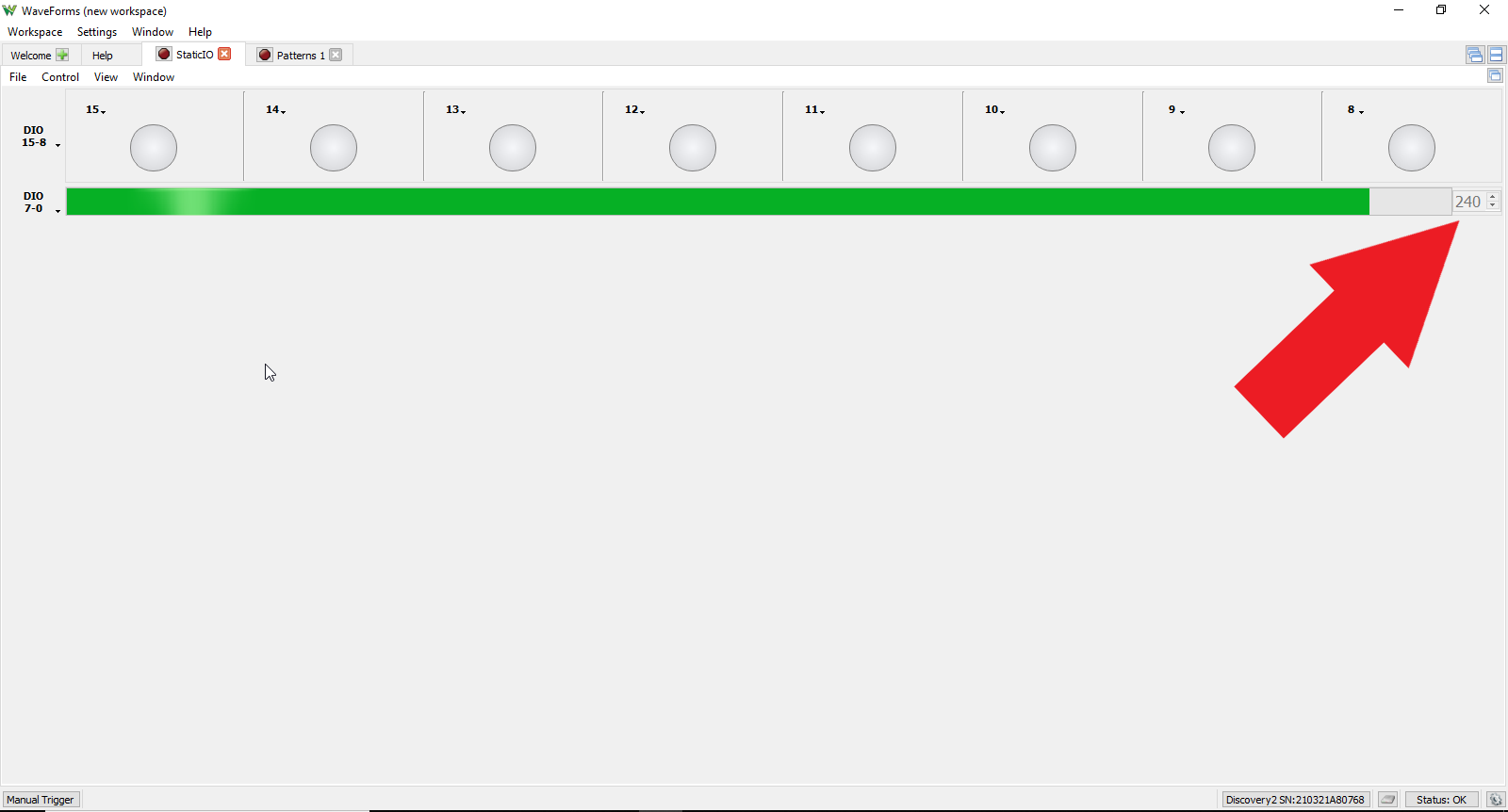
Selecting “Progress Bar” from the group assignments drop down menu groups those eight DIO lines into an 8-bit bus input that displays the binary value of the 8-bit bus as a progress bar (increasing from left to right) and displaying the exact value (from 0 to 255) in the text field to the right of the progress bar. The highest digital line is the most significant bit (MSB) and each digital line will get the corresponding bit value related to the bus value.
3.1.3 Seven Segment Display
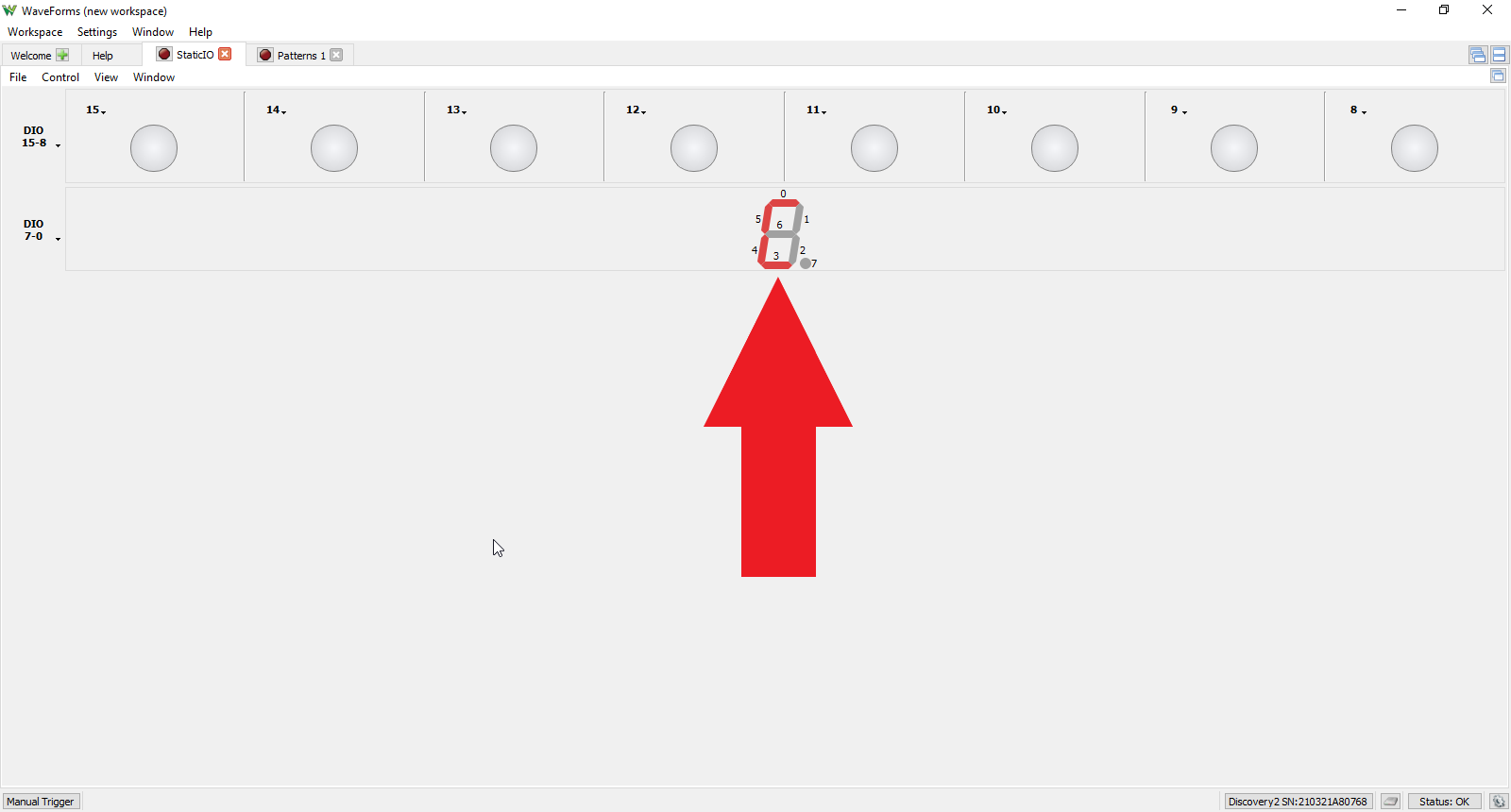
Selecting “7 Segment” from the group assignments drop down menu groups those eight DIO lines into a 7 segment display input. Each of the eight digital lines correspond to one of the segments or the decimal point as seen in the picture to the right. A logic high level illuminates the segment associated with that DIO line.
3.2 Individual DIO Assignments
To change the assignment for an individual DIO rather than an entire group, click on the DIO drop down menu located in the upper left corner of the individual DIO window. This menu includes:
- LED (input)
- Button (input and output)
- Switch (input and output)
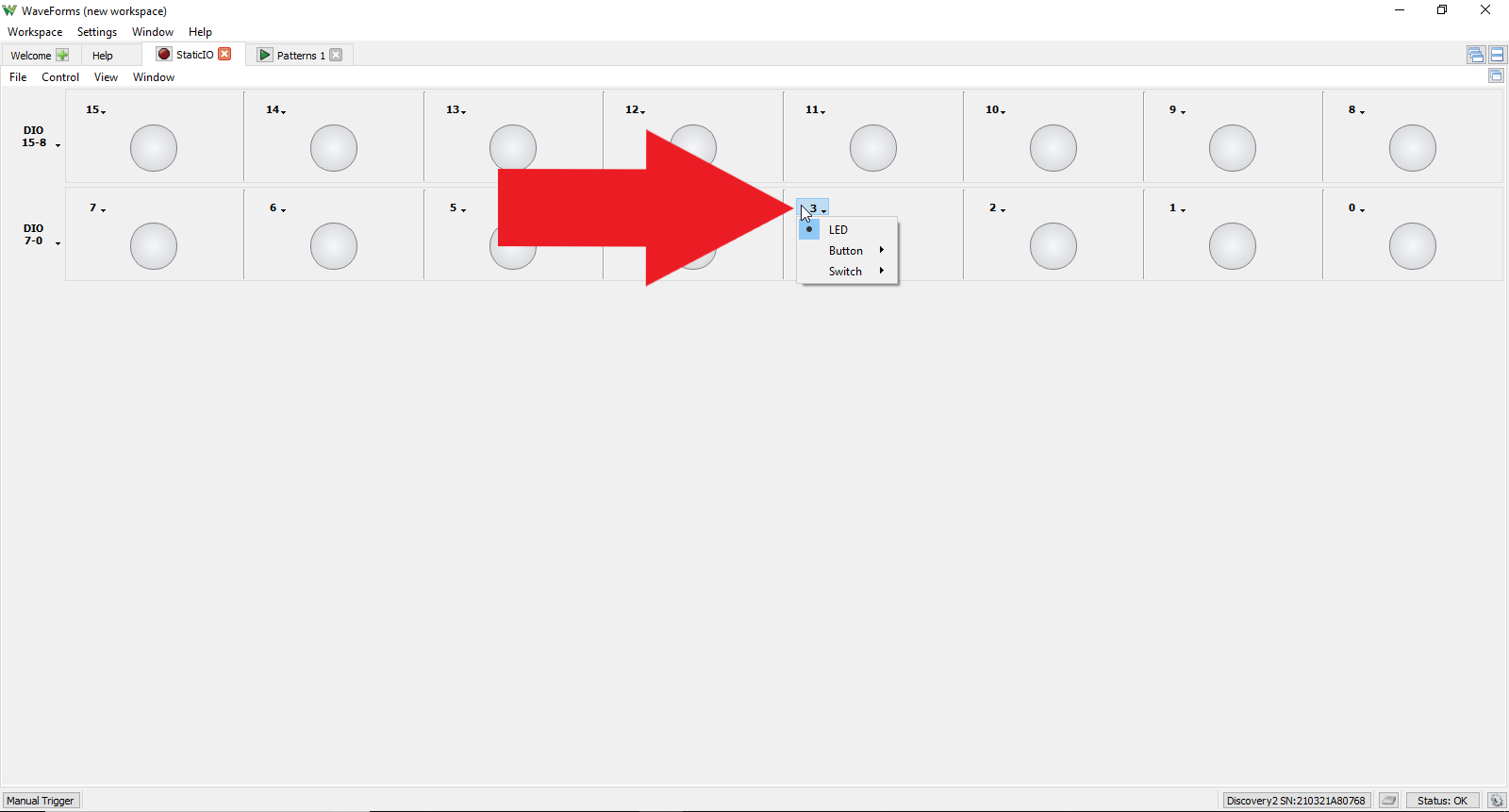
3.2.1 LED
The LED input display is the default setting for all DIO lines. This displays the current state of the DIO line: red if logic high, grey if logic low.

3.2.2 Button
Selecting “Button” from the DIO assignment drop down menu provides six options for how the button performs when pressed or released. Button is both an input and output device with two states (pressed and released) with an LED as a state indicator. 0 corresponds to logic low, 1 corresponds to logic high (LED illuminates), and Z corresponds to high impedance state which will not trigger the LED indicator but will also not drive the DIO line to a logic low level which can be useful if multiple devices are connected to the same line. Image A shows the options for the button behavior and image B shows two examples of buttons in the release state and their corresponding LED indication.
A  B
B 
3.2.3 Switch
Selecting “Switch” from the DIO assignment drop down menu provides four options for how the switch performs. Switch is an input and output device with the output dependent on the switch state selection. Like the Button device, 0 corresponds to logic low, 1 corresponds to logic high (LED illuminates), and Z corresponds to high impedance state which will not trigger the LED indicator but will also not drive the DIO line to a logic low level which can be useful if multiple devices are connected to the same line.
A  B
B 
3.3 File Menu

3.4 Control Menu

3.5 View Menu

3.6 Window Menu
